Accruals
Accruals follows the balances on your accrual and deferral accounts. Eagl works out which bookings belong together: the accrual, its reversal, the invoice, the monthly recognitions. It groups them into one record, predicts the parts that are still to come, and tells you which records need you. You can book a missing reversal in your ERP or mark a record complete without leaving the page.
Set up accruals
Section titled “Set up accruals”Until Accruals is activated, the page opens the Set up accruals wizard. Only owners and admins can activate it. You tell Eagl which accounts hold your accruals and deferrals, and the accruals agents only work on those accounts.
| Step | What you set |
|---|---|
| Entities | The entities this setup covers. Only these entities show up in the entity picker on the Accruals page. |
| Accrual accounts | Accrued costs (supplier invoice not received yet) and Accrued revenue (customer invoice not sent yet), plus the Invoice deviation tolerance (%) (default 50). An accrual is flagged for review when its invoice ends up further than this from the accrued estimate. |
| Deferral accounts | Deferred costs (supplier invoice already booked) and Deferred revenue (customer invoice already sent). On NetSuite you also choose an amortization template for each deferral account (see below). |
| Cut-off accounts | P&L accounts for the cut-off check. Pick exact accounts, add Starts-with prefixes (for example 6 for all 6xxx accounts), or both. Leave both empty to skip the cut-off check. You can also set a Cut-off alert threshold so only entries at or above that amount raise an alert. |
| Analysis date | Activity before this date that already balances is closed automatically. From this date on, Eagl analyzes everything in detail. |
| Review | Check the summary and click Activate accruals. |
You can skip either account step, but you need at least one accrual or deferral account before you can activate. If you leave the wizard before activating, this browser remembers where you were.
NetSuite amortization templates. When your ERP is NetSuite, the Deferral accounts step lists the NetSuite amortization templates for each deferral account under Amortization template per deferral account. When Eagl defers a cost or revenue to that account, it sets up the schedule with the template you picked. The template sets the recognition method, and the service dates on the invoice set the period. If no template books to one of your deferral accounts, the wizard tells you so. Create a template in NetSuite if you want native deferrals on that account. The permissions this needs are listed under NetSuite setup.
Change or pause the setup
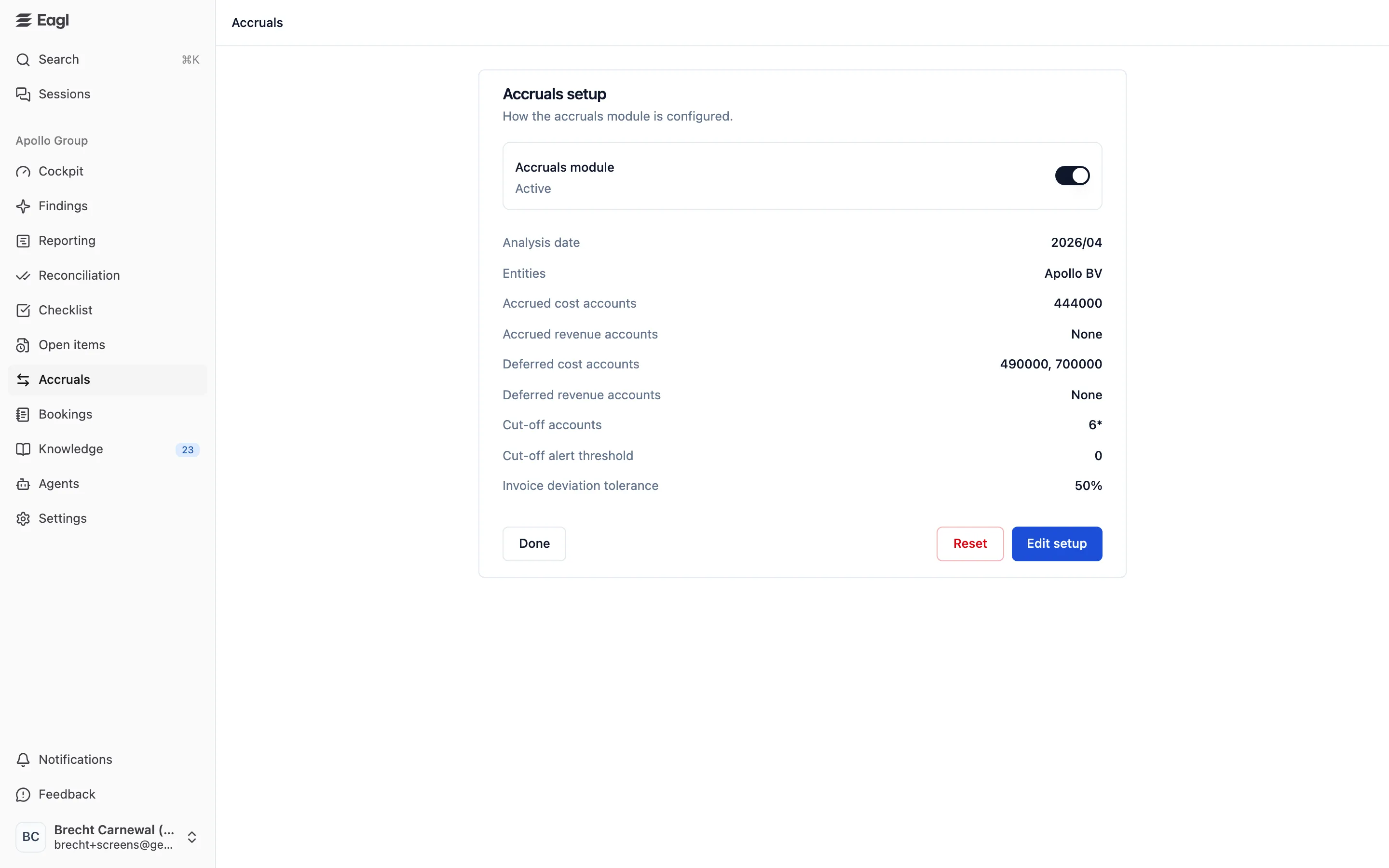
Section titled “Change or pause the setup”Click Accruals setup (top right of the page) to see how the module is set up: the analysis date, entities, accrued and deferred cost and revenue accounts, cut-off accounts, cut-off alert threshold, and invoice deviation tolerance.
- The Accruals module switch pauses all accruals agents (Paused) or turns them back on (Active).
- Edit setup reopens the wizard with your current values filled in.
- Reset permanently deletes all accrual data and processing state for the setup’s entities, then
reprocesses everything from scratch. Your settings and findings are kept. To confirm, you type
RESET.
Edit setup and Reset aren’t available on every organization yet. Only owners and admins can activate, pause, change, or reset the setup.
Where accruals come from
Section titled “Where accruals come from”As your ERP data syncs, the accruals agents work through the accounts in your setup:
- Account matching nets each account’s full history of debits and credits. Every set that balances becomes a completed Historical Match record. Anything left over goes on to investigation.
- Grouping splits journal entries into balanced groups. A closing entry that holds several unrelated accruals becomes one group per booking.
- Investigation takes each group and follows it across periods, reading the documents attached to the entries: where is the accrual, its reversal, the invoice, the recognitions? It builds a record from the bookings it finds and adds expected entries for the parts it predicts are still to come. Each expected entry comes with an explanation.
- Cut-off analysis checks entries on your cut-off accounts for service periods that don’t match the posting month. See Cut-Off tab.
A record counts as an accrual, a deferral, or both, depending on which of your configured accounts it posts to. The type the agent assigns doesn’t decide this. A record that touches both an accrual account and a deferral account appears on both tabs.
Page layout
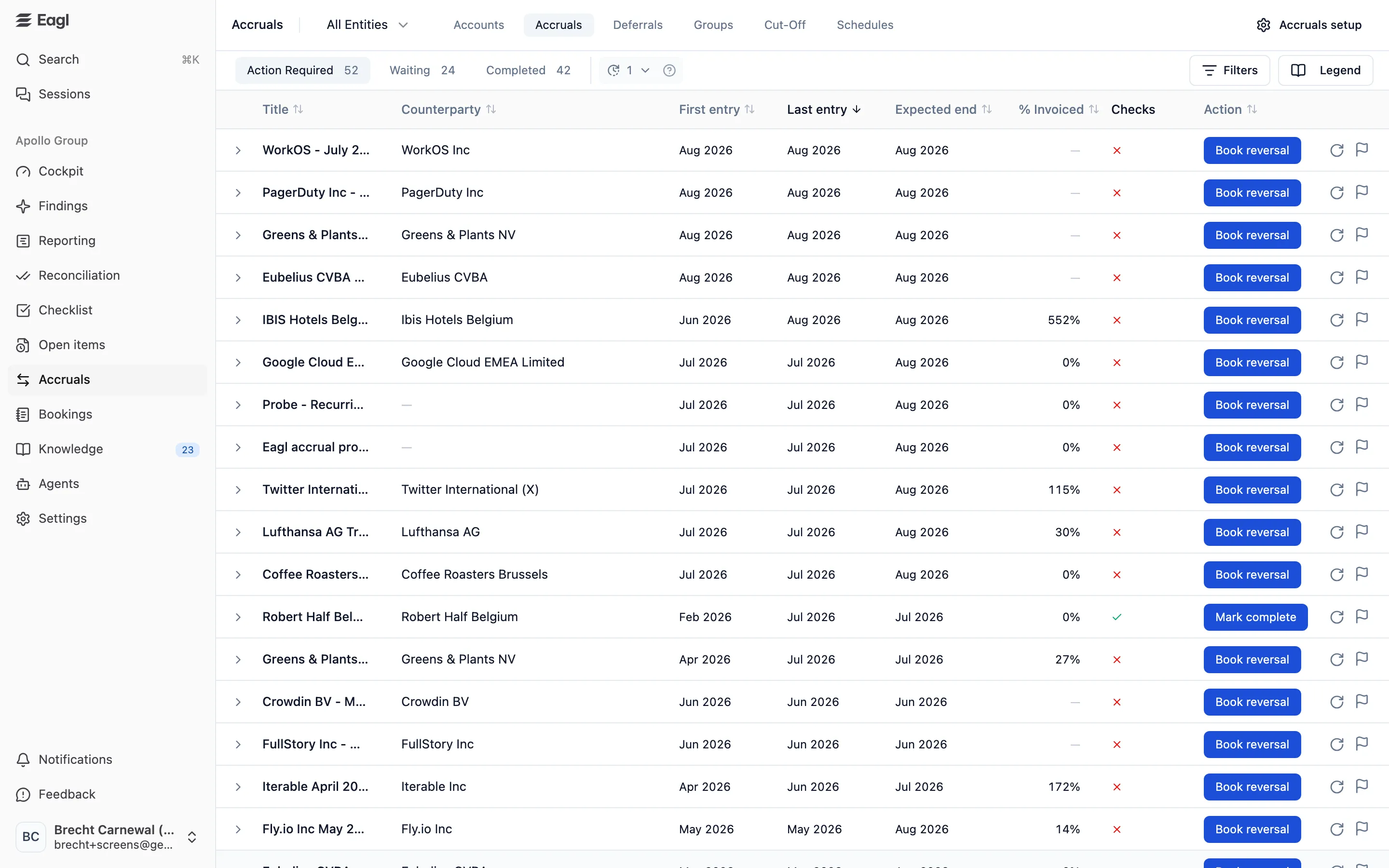
Section titled “Page layout”The header has an entity picker (All Entities, or one entity from your setup), the tabs, and Accruals setup. The page opens on the Accounts tab.
| Tab | What it shows |
|---|---|
| Accounts | A roll-forward of one accrual or deferral account over a month or a range of months. |
| Accruals | Records on your accrued cost and revenue accounts. |
| Deferrals | Records on your deferred cost and revenue accounts. |
| Groups | The journal-entry groups the agent looked at, and what came of each one. |
| Cut-Off | Entries whose service period doesn’t match the month they were posted in. |
| Schedules | Amortization and deferral schedules from your ERP. |
Groups and Schedules aren’t turned on for every organization yet.
Accruals and Deferrals tabs
Section titled “Accruals and Deferrals tabs”Both tabs share the same layout. The only difference is one column: % Invoiced on Accruals, % Recognized on Deferrals.
Status tabs
Section titled “Status tabs”| Tab | What’s in it |
|---|---|
| Action Required | Open records that need you. An expected part is overdue, the amounts look off, or the expected parts wouldn’t settle the accounts. |
| Waiting | Open records that are on track. Everything still missing is expected this month or later. |
| Completed | The accounts settle and nothing more is expected, or someone marked the record complete. |
A counter next to the tabs shows how many records Eagl is working on in the background. Click it to show two more tabs: Investigating, where an agent is analyzing the record, and Failed, where the analysis didn’t finish. Eagl handles both on its own. If a record stays on Failed, you can re-analyze it.
Checks decide the status. The agent doesn’t. A record moves from Waiting to Action Required in the month one of its expected parts becomes overdue.
Columns
Section titled “Columns”| Column | Meaning |
|---|---|
| Title | The agent’s name for the record. |
| Counterparty | The supplier or customer. A +N badge means there are more. Hover to see them. |
| First entry / Last entry | The months of the first and last bookings found in your ledger. |
| Expected end | The month of the last expected entry, or the last booking if that’s later. Shows — when nothing more is expected. |
| % Invoiced | How much of the accrued amount has been invoiced, net of credit notes. Accruals tab only. |
| % Recognized | How much of the deferred amount has been released to the P&L. Deferrals tab only. |
| Checks | One ✓ or ✗ per settlement check. Hover for the full list. |
| Action | What you can do next, or what’s missing. |
Click a column header to sort. The default sort is Last entry, newest first.
Checks
Section titled “Checks”The icons in Checks are the settlement checks. They must all pass before a record can be completed, and they can’t be waived:
- Accrual account … is zeroed out or Deferral account … is zeroed out: one check for each configured account the record posts to. The check passes when this record’s bookings on that account add up to zero.
- Balance-sheet account identified: fails when none of the record’s bookings post to an account in your setup.
Hover the icons to see the other checks, shown dimmed. They explain the status but don’t block completion:
- Invoice within N% of the accrued estimate, where N is your invoice deviation tolerance. It appears once an invoice or credit note is linked. When it fails, the record needs review under Amount Mismatch.
- Invoiced percentage, plus whether an Accrual entry, Reversal entry, and Invoice or credit note are linked. These show on accruals.
- Recognized percentage and whether the Source booking is linked. These show on deferrals.
At the bottom of the tooltip, the agent explains the record’s status in a sentence or two.
Action column
Section titled “Action column”| You see | Meaning |
|---|---|
| Book reversal | The accrual account still holds a balance and a reversal is expected. Eagl can book the reversal in your ERP. |
| Mark complete | The accounts settle, but something else is still open, for example a missing invoice. You can accept the record as done. Hover the button to see what stays open. |
| A blocker label | What’s stopping the record from completing (see the table below). |
| Investigating… | An agent is analyzing the record. |
The blocker labels (also listed in the Legend):
| Blocker | Meaning |
|---|---|
| Missing Reversal | The reversal or balance-sheet hand-off isn’t booked yet. |
| Missing Invoice | The invoice hasn’t arrived yet or is missing. |
| Missing Recognition | The recognition schedule isn’t complete yet. |
| Amount Mismatch | The invoice is in, but it doesn’t reconcile with the accrual. |
| Balance Unsettled | A balance sheet account still holds a balance that should be zero. |
| Missing Source Booking | The booking that created the deferred balance is missing: a bill, an internal reclass, or a balance carried over from another system. |
| Needs Review | The record needs a manual look. |
When several blockers apply, Eagl shows the one you can act on first. A missing reversal outranks a missing invoice, because you can book the reversal now but can only wait for the invoice.
Book a reversal
Section titled “Book a reversal”- Click Book reversal on the row. Hover the button first to see the amount and the month it will post in.
- The Book reversal in NetSuite dialog opens (or Exact Online or Business Central). It shows the Amount, which is always the full accrual, and the Reversal date.
- If no invoice or credit note is linked yet, choose what happens next. Leave An invoice is still expected checked to keep the accrual open until the invoice arrives. Uncheck it to complete the accrual once the reversal is booked. You can add a note on why no invoice will come. The button then reads Book & complete.
- Click Confirm & book. Eagl posts the reversal to your live ERP. The row shows Booked and stays grayed out on its tab until the list refreshes. If the booking fails, the button changes to Retry reversal.
The reversal posts in the month of the latest linked invoice. With no invoice linked, it posts in the month after the accrual. It never posts in or before the accrual month. If that month is already closed, it moves to the first open month, and the dialog says so.
In NetSuite, Eagl reverses the original journal entry natively, and NetSuite links the reversal to the original. In Exact Online and Business Central, Eagl posts a journal entry that mirrors the original with debits and credits swapped. Every booked reversal shows up in Bookings and in the record’s Activity & Comments.
Mark a record complete
Section titled “Mark a record complete”Mark complete shows when the settlement checks pass but the record is still open. For example, the invoice never arrived, or it came in far from the estimate. Click it, add an optional note (for example “supplier cancelled the service”), and confirm. Nothing is posted to your ERP. The record moves to Completed, and anything still expected stays on it for reference.
Re-analyze or report a problem
Section titled “Re-analyze or report a problem”Rows that have a blocker, or whose analysis failed, show a Re-analyze button (circular arrow). Its tooltip hints at why you’d use it, for example Invoice arrived? Re-analyze or Reversal booked? Re-analyze. In the Re-analyze accrual dialog you can give the agent some context, for example “look for the invoice in January 2025”, before you click Start. The record moves to Investigating, and you get a notification when the analysis finishes. Eagl also re-analyzes a record by itself when a journal entry it uses is deleted in your ERP.
The flag icon, Report a problem with this accrual, sends a note to Eagl about what’s wrong so future analysis improves. The record stays in your list.
Record details
Section titled “Record details”Click a row to expand it.
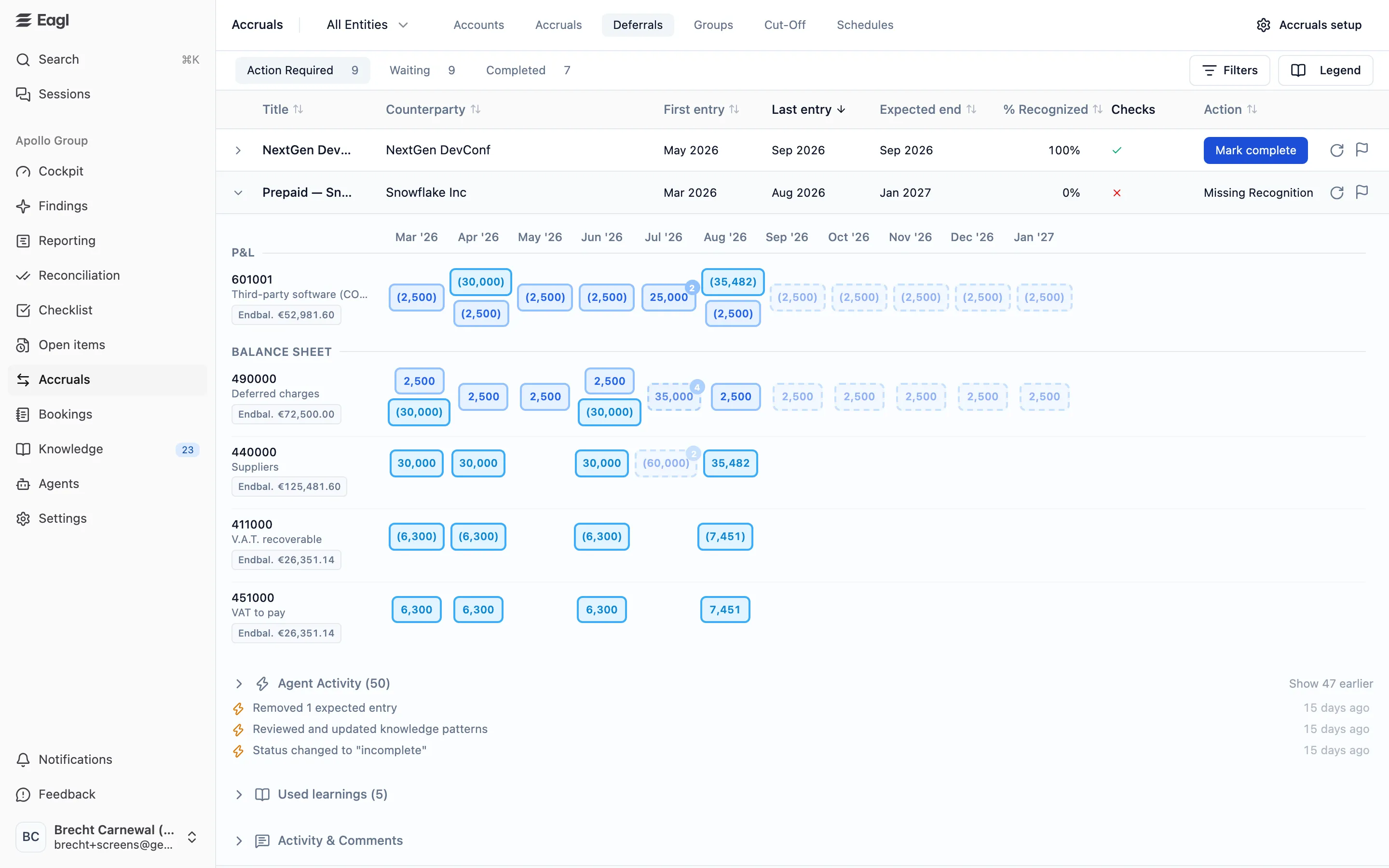
- Timeline. Months run across the top. There’s one row per GL account, split into P&L and Balance Sheet. Each account shows its end balance (Endbal.). Hover it to see the balance by entry type. Each box holds that month’s entries of one type, colored by type. Solid boxes are bookings found in your ledger. Dashed, faded boxes are expected entries, labeled Expected, or Planned when the plan comes from an ERP amortization schedule.
- Click a box to see the journal lines, open the entry in your ERP, view attached documents such as the invoice, or show full JE. For an expected entry you see the Agent’s explanation and any Alternative scenarios.
- View amortization schedule in ERP appears when an ERP schedule drives the record.
- Agent Activity shows what the agent searched and changed.
- Used learnings lists the knowledge the agent applied.
- Activity & Comments records status changes, reversals, and completions, with who did them. You can also comment, reply, and @mention teammates here.
Filters and Legend
Section titled “Filters and Legend”Filters narrows the list by Last Entry Period, Type, Checks (Pass or Fail on the settlement checks), Pending Action, Counterparty, and GL account. Each option shows how many records match. The GL account filter resets when you switch between Accruals and Deferrals, because the two tabs use different accounts.
Legend opens Legend & Concepts. It has the colors for each entry type (Accrual, Reversal, Recognition, Balance-sheet Handoff, Invoice, Deferred expense, Credit Note, Opening Balance), the difference between matched and expected entries, the statuses, the blockers, and a glossary of record types: Delayed Invoice, Spreading, Prepayment, Provision, Depreciation, Amortization, End-of-Year Accrual, Opening Balance, Historical Match, and their variants.
Accounts tab
Section titled “Accounts tab”The Accounts tab is a roll-forward of one account. Use it to explain an account’s balance at month end.
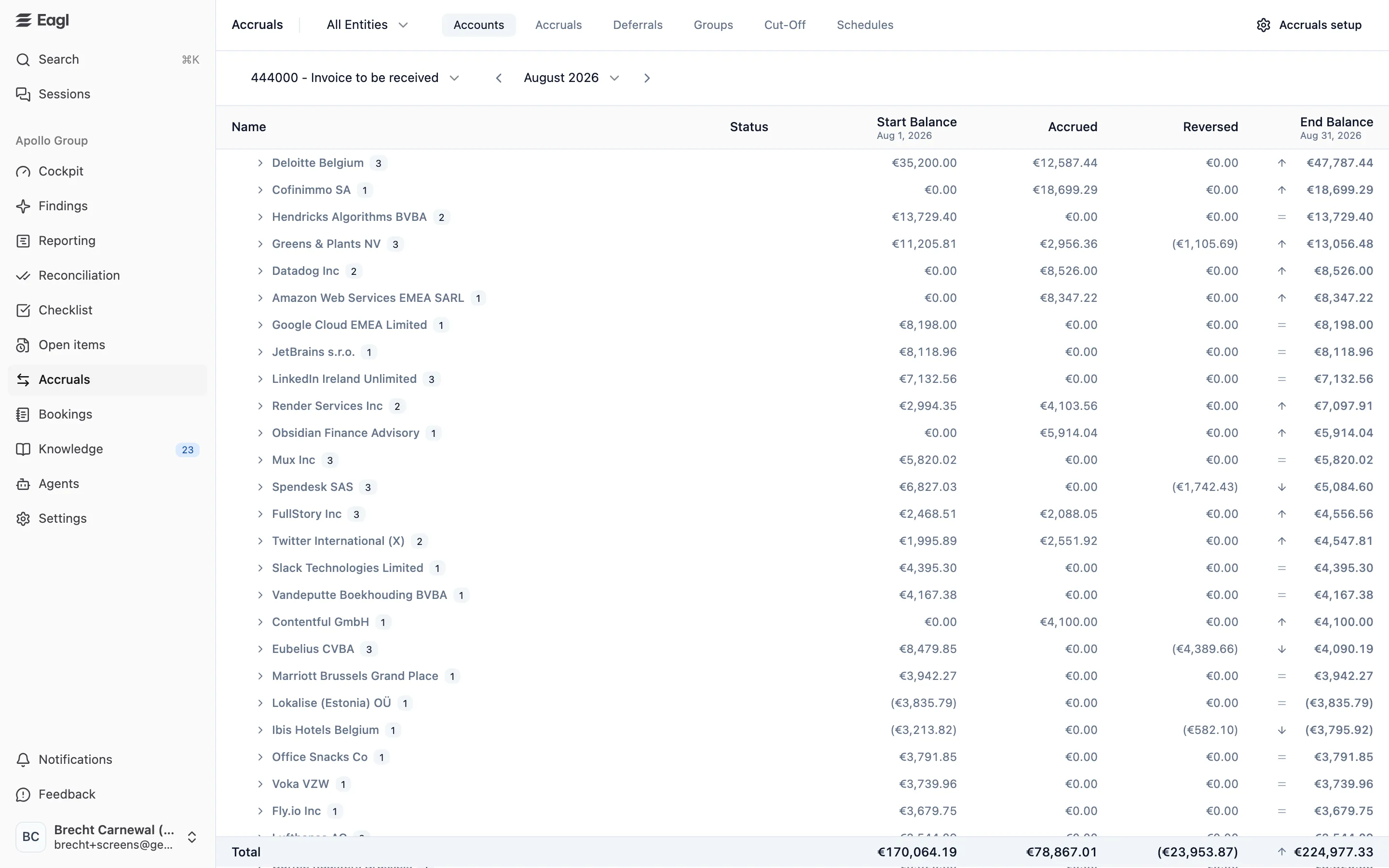
- Pick an account. The list shows the accrual and deferral accounts from your setup, labeled Accrual or Deferral.
- Pick a month or a range: click a start month, then an end month. The arrows move the range by one month.
| Column | Meaning |
|---|---|
| Name | Counterparty groups. Expand one to see its records. |
| Status | The record’s status: Analyzing (the same state as the Investigating tab), Open, Completed, or Failed. |
| Start Balance | The balance on the first day of the period. |
| Accrued / Reversed | Accrual accounts: what built the balance up (accruals, invoices, opening balances) and what released it (reversals, credit notes, hand-offs). |
| Invoiced / Recognized | The same split for deferral accounts. |
| End Balance | The balance on the last day of the period. An arrow shows whether it went up, went down, or stayed the same. |
The Total row shows the account’s opening and closing balance from your ledger. If part of the balance isn’t explained by any record, the table splits into Matched to Accrual and Unmatched sections. Unmatched items are labeled Grouped or Ungrouped. Expand one to see its journal lines.
Expand a record to see its timeline for this account (Show full timeline shows all accounts). The View accrual icon opens the record on the Accruals tab.
Cut-Off tab
Section titled “Cut-Off tab”The cut-off check looks at entries on your cut-off accounts that have a document with a service period, such as an invoice for January–December. It compares that service period with the month the entry was posted in:
| Column | Flagged when |
|---|---|
| Accrue | The service started before the posting month, so the cost belonged in an earlier period. |
| Defer | The service ends after the posting month, so part of the cost belongs to later periods. |
| Amortize | The service spans more than one month. When this applies, Defer isn’t shown. |
Each column shows Done (a linked accrual or deferral covers it), Missed (flagged, but nothing covers it), or — (doesn’t apply). The table also shows Journal entry, Counterparty, Posted, Service from, Service to, Months, and Amount. Use the search box or Filters (Missed or Done per column) to narrow it down.
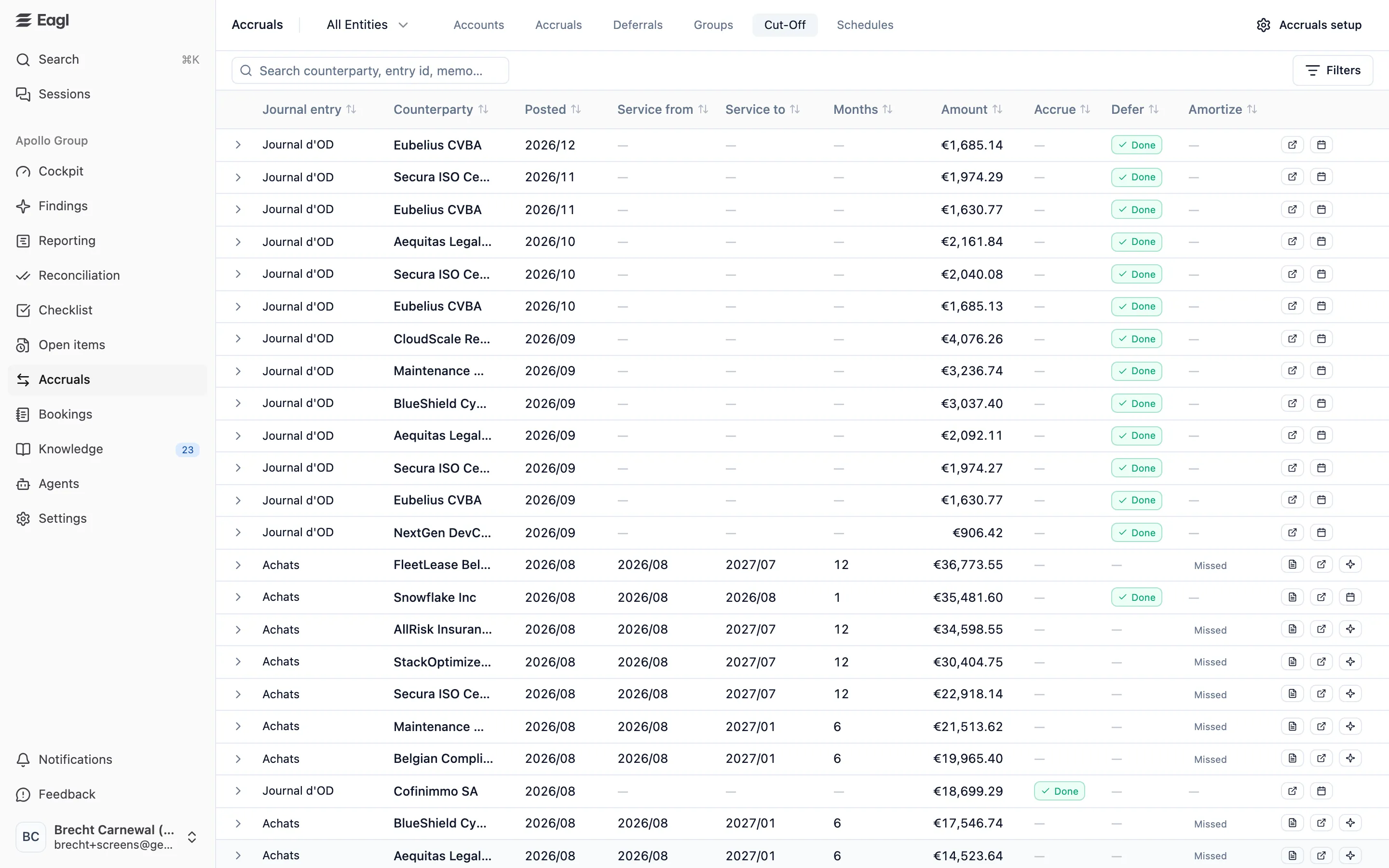
Icons at the end of each row open the documents, the entry in your ERP, the linked accrual or deferral, or the finding. A missed entry at or above your cut-off alert threshold raises a finding with a proposed accrual or deferral. Not every miss becomes a finding. Eagl skips, for example, a one-off charge that wasn’t accrued, or a service period that has already passed. Hover no finding to see why. A rule can also block the finding. The row then shows view rule (click it to open the rule), or rule applied if you can’t open Knowledge. When you dismiss a cut-off finding, Eagl can suggest a rule so similar entries aren’t flagged again.
Schedules tab
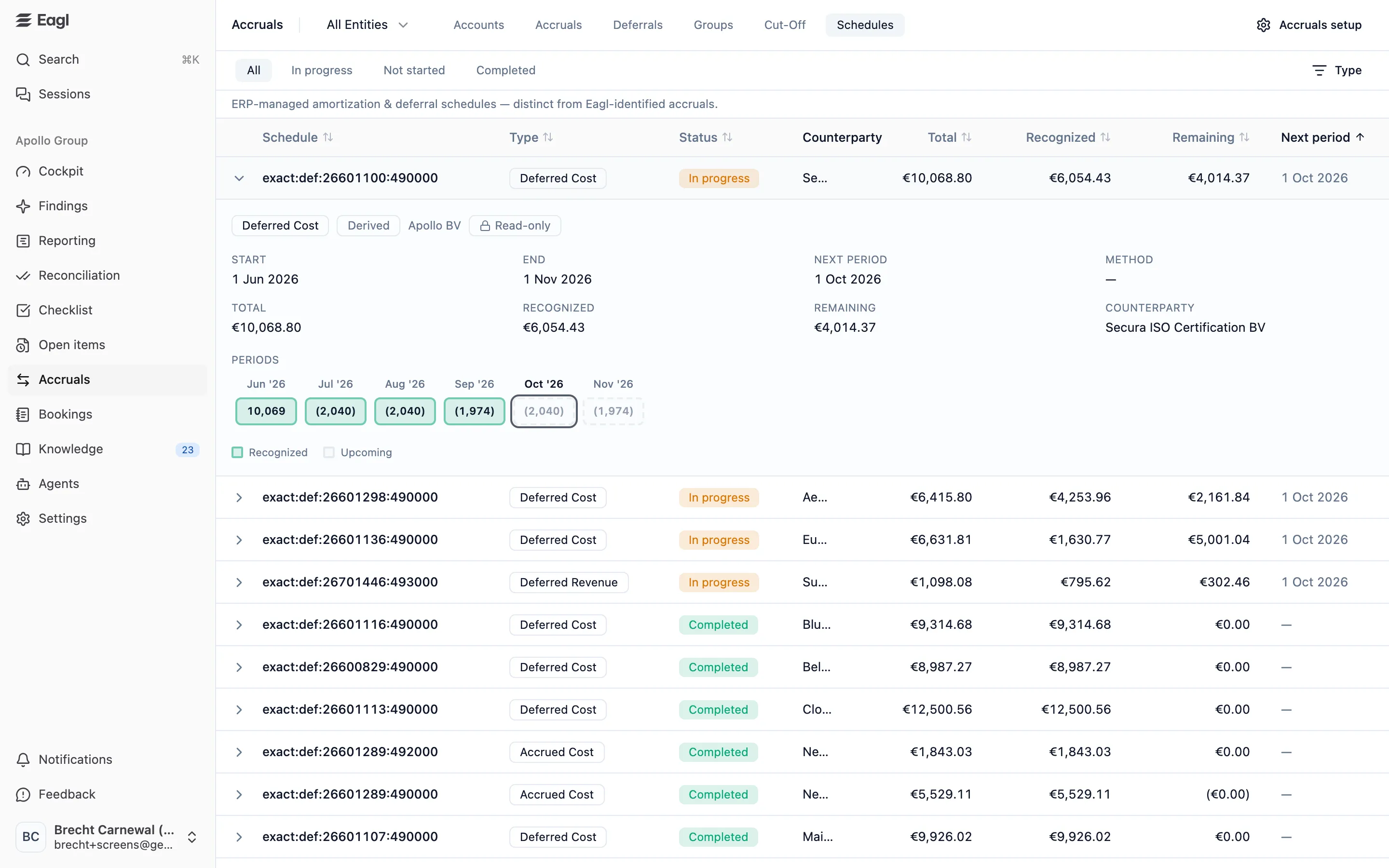
Section titled “Schedules tab”Schedules lists the amortization and deferral schedules from your ERP. They’re separate from the records Eagl builds itself.
- NetSuite: your amortization schedules, synced from NetSuite (ERP-native).
- Exact Online: Eagl builds the schedules from the recognition entries in Exact (Derived).
- Business Central: Eagl builds the schedules from the deferral journals it posted for you (Derived).
Filter by status (All, In progress, Not started, Completed) or by Type: Deferred Revenue, Deferred Cost, Accrued Revenue, Accrued Cost, Amortization, Depreciation, or Accrual Reversal. The table shows Schedule (the ERP reference), Type, Status, Counterparty, Total, Recognized, Remaining, and Next period.
Expand a schedule to see its start, end, method, and template, and a timeline of its periods. Green boxes are Recognized, dashed boxes are Upcoming, and the next period is outlined. Click a box to open the posting in your ERP. A period that was caught up in a later month because its own month was closed reads Rolled forward (period closed). View accrual opens the linked record. Schedules marked Read-only can’t be edited from Eagl. Hover the badge to see why.
Groups tab
Section titled “Groups tab”Groups shows the journal-entry groups the agent looked at. Each card shows the group’s title, entity, journal entry, number of lines and accounts, and net amount. Expand a card to see the lines.
| Tab | What’s in it |
|---|---|
| Pending | Groups waiting for investigation (Queued, or the attempt number). |
| Matched | Groups linked to a record. View accrual opens it. |
| Dismissed | Groups the agent investigated and found no accrual in. |
| Failed | Groups whose investigation failed, with the error. |
Click Re-investigate on a dismissed or failed group to send it back to the agent.
Who can do what
Section titled “Who can do what”| Action | Who |
|---|---|
| View accruals, deferrals, roll-forwards, cut-off, and schedules | Owners, admins, and members |
| Book reversal, mark complete, re-analyze, report a problem, re-investigate groups, comment | Owners, admins, and members |
| Activate, pause, change, or reset the accruals setup | Owners and admins |