

Reconciliation
Reconciliation checks that each balance sheet account in your ledger agrees with an outside source, usually a bank or payment-provider balance. For each account and month, Eagl compares the two balances, matches the transactions behind them, and lists whatever is left over. Once everything ties out, you sign the period off and Eagl locks it.
How it works
Section titled “How it works”Every account has two sides:
- GL balance: the account’s closing balance in your ledger for the month.
- Reconciliation balance: the closing balance from the other side, meaning a bank feed, a payment provider, a statement file, or a balance you enter yourself.
The difference between the two is the variance. To explain it, Eagl matches the account’s bank transactions to its GL entries. Anything it can’t match becomes an open item that you resolve. An account is fully reconciled when the variance is zero and every item is matched or resolved. At that point you can sign it off.
Where the reconciliation balance comes from
Section titled “Where the reconciliation balance comes from”| Source | What it brings in |
|---|---|
| Bank and payment feeds: Plaid, Atlar, Isabel Connect, Mollie | Bank accounts, balances, and transactions |
| Statement files in Google Drive, OneDrive, SharePoint, or the NetSuite File Cabinet | Bank accounts, balances, and transactions extracted from the statements |
| Manage balance on an account | A manual closing balance for any account, with an optional note |
To connect a source without leaving the page, click Add source at the top of Reconciliation. The Sources dialog lists your connected sources and the ones you can still add. Icons next to the button show what’s connected.
A bank account only feeds reconciliation once it’s mapped to a GL account. When Eagl finds a new bank account, it maps it automatically to the GL account whose name contains the same IBAN. To map an account yourself, or change a mapping, use one of these:
- Settings → Integrations → your integration → Bank tab: Map to GL or Remap.
- The banner in the matching workspace: when no bank account is mapped to the GL account, click Map bank account.
For statement files, a Balances enabled switch on each file controls whether its balances are used. Turn it off and those balances are hidden from reconciliation.
The reconciliation list
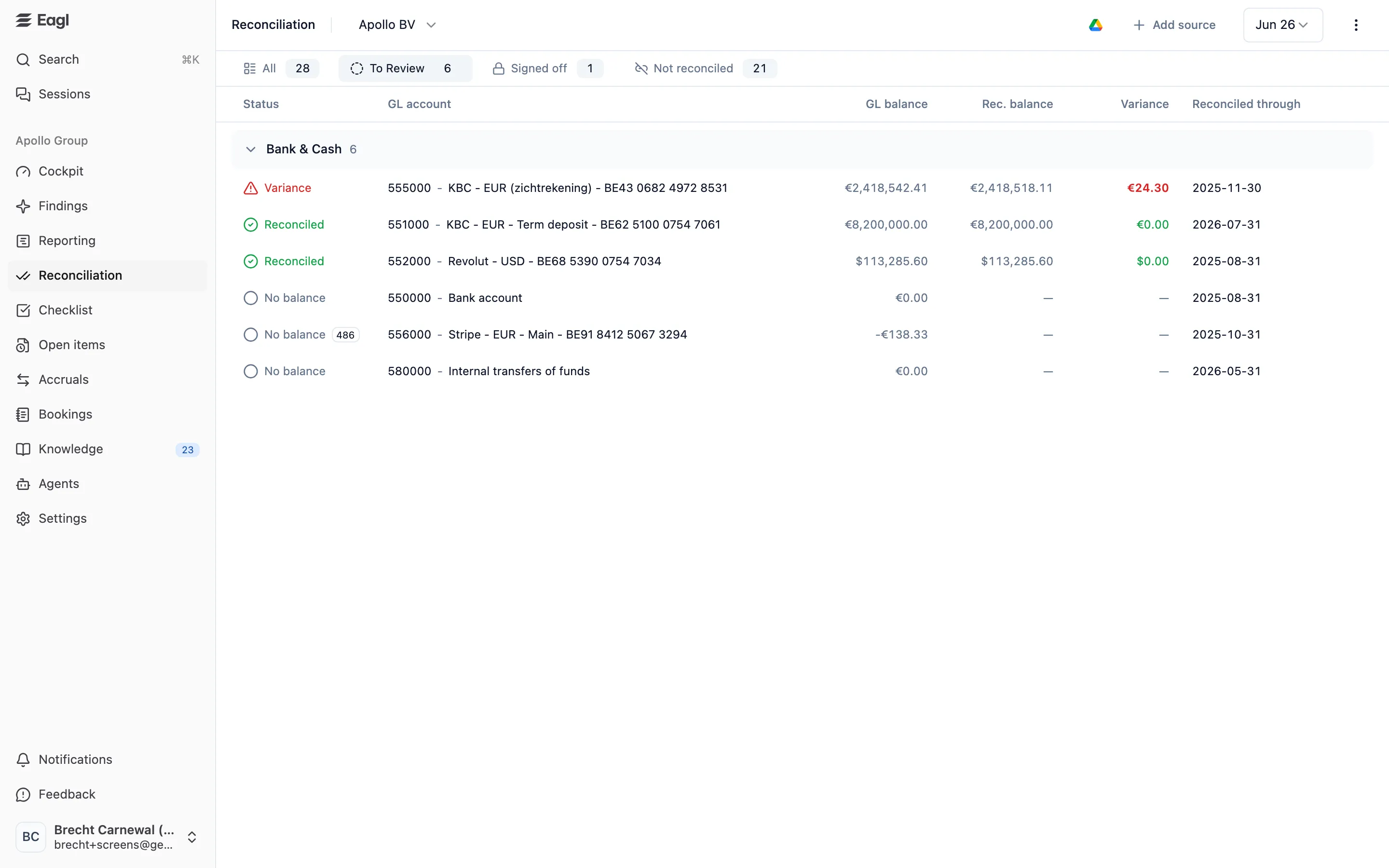
Section titled “The reconciliation list”Open Reconciliation from the sidebar. The list shows your balance sheet accounts, grouped by category (Bank & Cash, Accounts Receivable, Accounts Payable, and so on).
- Entity picker: the sidebar link opens All Entities, where accounts are grouped by category and then by entity. Pick one entity to see only its accounts.
- Period: the month picker at the top right (for example Aug 26).
- ⋮ → Structure Builder: Eagl uses AI to sort your balance sheet accounts into these categories when it sets up your reports. Use the Structure Builder to change which accounts are included and how they’re grouped.
| Tab | What’s in it |
|---|---|
| All | Every account in the structure. |
| To Review | Accounts that still need work: a variance, open items, or a signed-off account that no longer ties out. Also accounts that are reconciled and ready to sign off. |
| Signed off | Accounts that are signed off and still fully reconciled. |
| Not reconciled | Accounts with no reconciliation balance or GL data to compare yet. |
All and Not reconciled only appear when you’ve picked a single entity. The All Entities view opens on To Review.
Columns and statuses
Section titled “Columns and statuses”| Column | Meaning |
|---|---|
| Status | See the statuses below. A number next to the status is the count of open items. |
| GL account | Code and name. A link icon means a checklist task tracks this account. |
| GL balance | Closing balance in your ledger for the month. |
| Rec. balance | The latest reconciliation balance in the month. For a foreign-currency bank account, both balances show in that account’s currency. |
| Variance | GL balance minus Rec. balance. Green when they agree, red when they don’t. |
| Reconciled through | The date the account was last reconciled through (see Sign off). |
| Status | Meaning |
|---|---|
| Reconciled | The balances agree and nothing is left open. |
| Items open | The balances agree, but some items are still unmatched or open. |
| Variance | The balances differ by 0.01 or more. |
| No balance | There’s no reconciliation balance for this month. |
Review an account
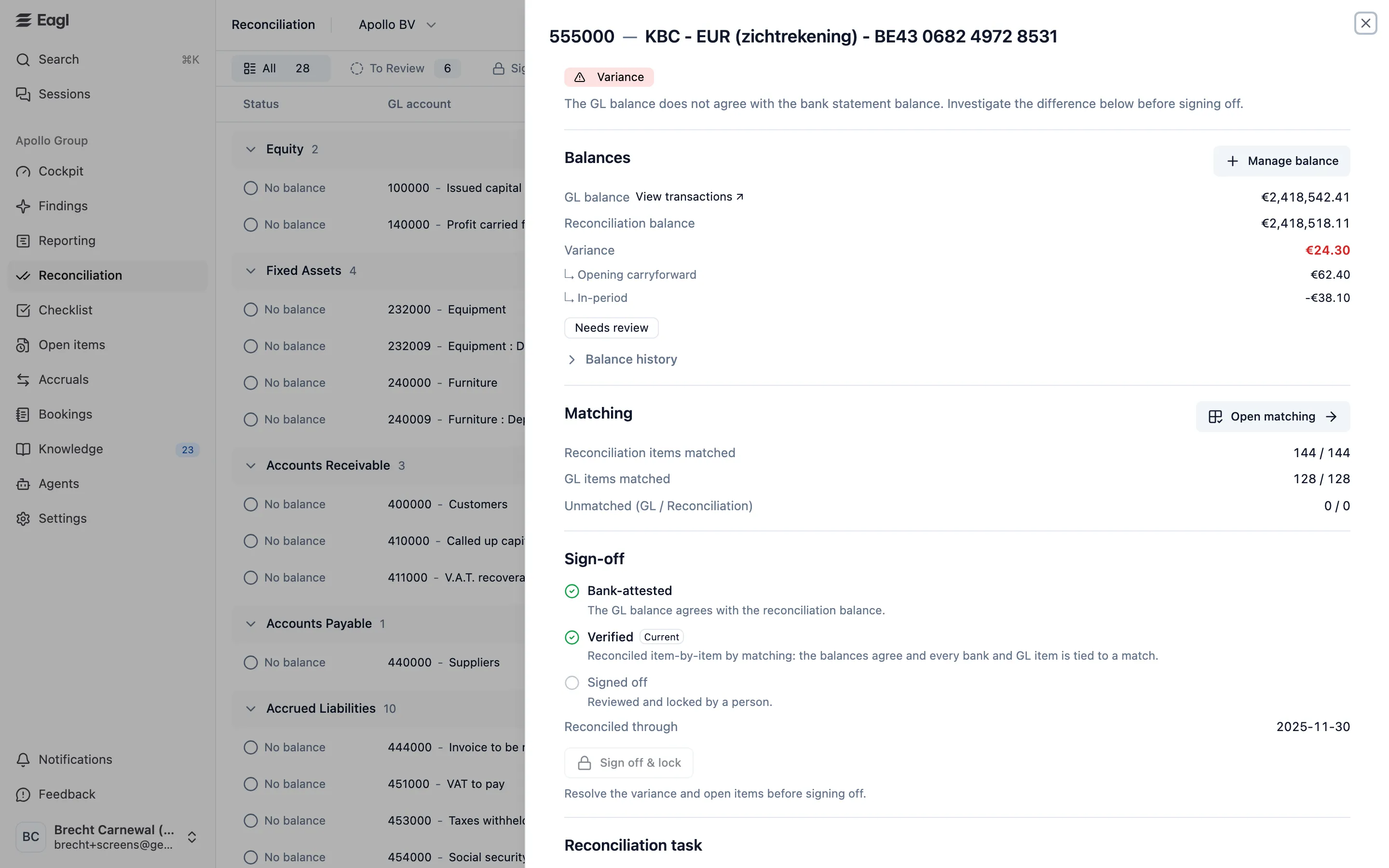
Section titled “Review an account”Click an account to open its panel. It has these sections:
- Status: a badge (Reconciled, Variance, Balanced, items open, No statement, or No bank source) and a sentence explaining what to do next.
- Balances: GL balance (with View transactions, which opens the drill-down), Reconciliation balance, and Variance. The variance is split into Opening carryforward (last month’s variance) and In-period. When the balances differ, a badge suggests a likely cause: Rounding (under 0.10), Pre-feed opening balance (the bank feed is new, so the difference probably dates from before it started), Entity not booked (nothing is posted on the account yet), or Needs review. Expand Balance history for a month-by-month table, and click a month to switch to it.
- Matching: how many reconciliation items and GL items are matched, how many are still unmatched on each side, and Open matching. Until 15 days after month-end you’ll also see Period still settling, because late items may still post.
- Sign-off: see Sign off.
- Reconciliation task: the checklist task that tracks this account, if there is one (see Track reconciliations on the checklist).
- Supporting documents: links and files for this account and month.
Manage balance (in Balances) is where you add a manual closing balance with an optional note. It also lists the balances Eagl has for the month. You can delete manual balances there.
Match transactions
Section titled “Match transactions”Click Open matching to open the matching workspace for one account and month. Along the top are the entity, a GL account picker (showing each account’s number of bank transactions), and a month picker. The reconciliation balance, GL balance, and variance stay visible on the right.
How Eagl matches
Section titled “How Eagl matches”Click Run Matching. This button appears once the month has bank transactions. Matching runs in the background and happens in stages:
- Rules. Eagl pairs bank and GL items that have the same amount and share an identifier, such as the counterparty, a payment or invoice reference, or an IBAN. Most rules also require the dates to be within a few days. Rules also cover a few special cases: foreign-currency payments booked with a separate fee line, several bill payments settled by one bank debit, recurring direct debits, and GL entries that cancel each other out. These matches are labeled Match Analysis.
- AI agent. An agent works through what the rules couldn’t pair, such as one bank line that settles several invoices. These matches are labeled Agent match and come with the agent’s reasoning.
- Leftovers. Items that are still unmatched become open items.
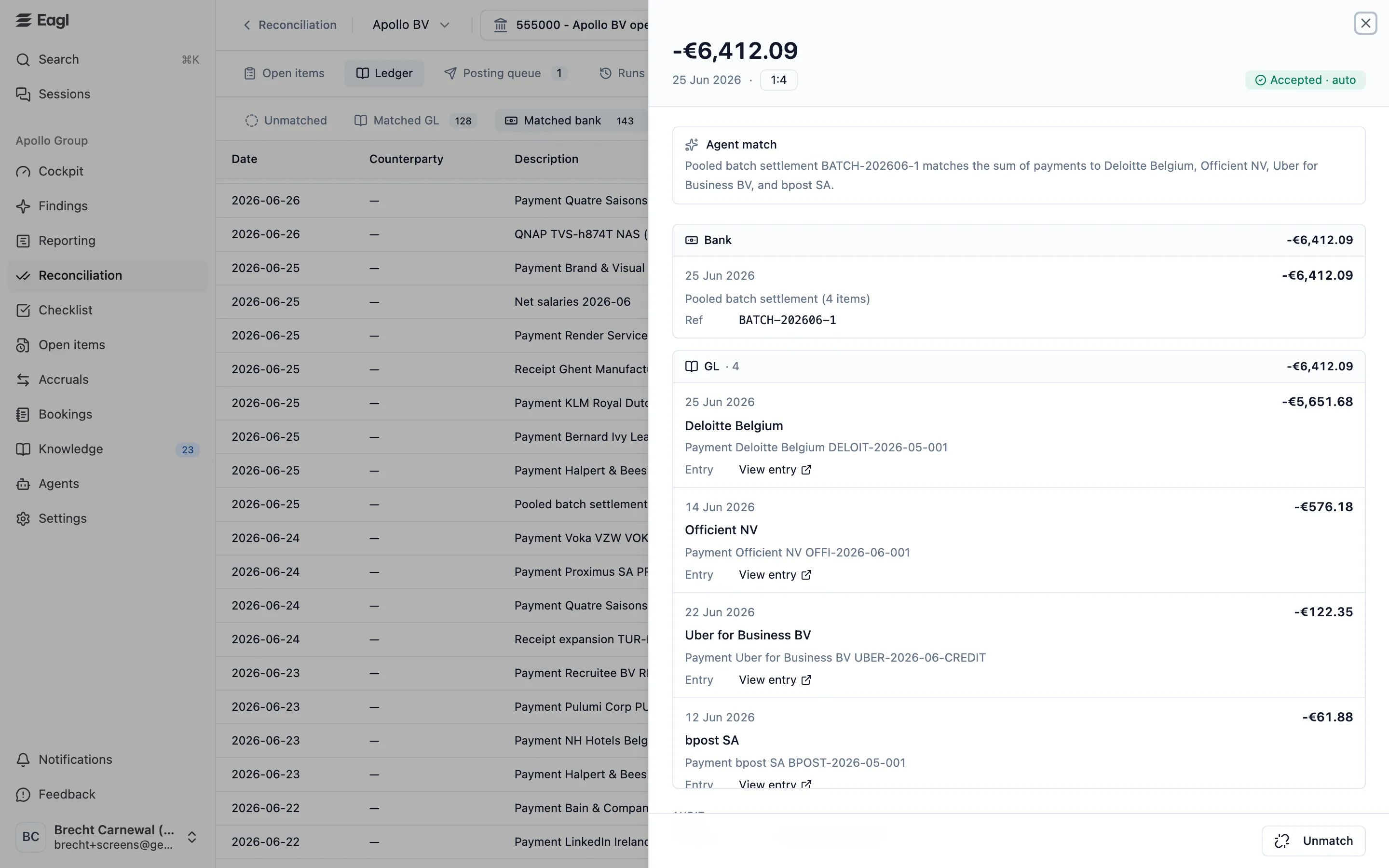
Matches are accepted automatically and show Accepted · auto. Review them in the Ledger tab. If one is wrong, open it and click Unmatch. The items go back to Unmatched.
Once you’ve run matching on an account, Eagl also matches new months of that account in the background. Click Re-run to pick up transactions that arrived after the last run. Existing matches are kept. Reset deletes every match for the account and month so you can start over. Your run history is kept.
Workspace tabs
Section titled “Workspace tabs”The workspace opens on Open items.
| Tab | What’s in it |
|---|---|
| Open items | Leftovers grouped by cause, plus up to 10 unmatched items per side (View all in Ledger shows the rest). |
| Ledger | Three views: Unmatched (GL entries and bank transactions side by side, each with its own search), Matched GL, and Matched bank. The match type shows as bank-to-GL counts, such as 1:1, 7:1, or 1:4. Click a matched row to see both sides, the source and reasoning, and an audit trail. |
| Posting queue | Entries staged from resolved open items (see The posting queue). |
| Runs | Every matching run with its status, match rate, duration, counts, and the agent’s summary. |
Match items yourself
Section titled “Match items yourself”- In Ledger → Unmatched, select one or more GL entries and one or more bank transactions.
- A bar at the bottom shows how many items you’ve selected and the Variance between the two sides.
- Enter a Note (required) and click Confirm match (or press ⌘ Enter).
Manual matches show Accepted · user and your note appears in the match’s audit trail.
Resolve open items
Section titled “Resolve open items”Open items are grouped by cause, with a total for each group:
| Group | Meaning | Actions |
|---|---|---|
| Unbooked bank item | A bank movement with no GL entry. | Book entry, Write off |
| GL entry without bank counterpart | A GL entry with no bank movement. | Write off |
| Rounding | A leftover under 0.10. | Write off |
Book entry and Write off each stage a journal entry in the Posting queue and move the item out of the open list. When nothing is left, the tab reads This account is clear.
The posting queue
Section titled “The posting queue”The Posting queue lists the entries staged from open items. Each row shows its Date, Type (Booked entry or Write-off), Detail, Queued by, Amount, and Status. Expand a row to see the journal lines (account, debit, and credit).
Sign off
Section titled “Sign off”The Sign-off section shows how far the account has been reconciled:
| Level | Meaning |
|---|---|
| Bank-attested | The GL balance agrees with the reconciliation balance. |
| Verified | Reconciled item by item: the balances agree and every bank and GL item is matched. Eagl sets this after a matching run that leaves nothing open. |
| Signed off | Reviewed and locked by a person. |
The current level is marked Current, and Reconciled through shows the date it covers.
- Clear the variance and resolve every open item until the status reads Reconciled.
- In Sign-off, click Sign off & lock. Until the account is fully reconciled, this button is disabled with the hint Resolve the variance and open items before signing off.
- The account moves to the Signed off tab.
Eagl keeps checking an account after you sign it off. Each time your ledger syncs, it looks for GL entries in the locked period that were added or changed in your ERP after sign-off. Each one counts as a change since sign-off, and the Reconciliation card on the Cockpit shows how many there are (for example 51 changes since sign-off). If a signed-off account no longer ties out, it moves back to To Review so you can review it again.
Accounts that aren’t signed off get a different check. If a backdated change moves the GL balance of a period that was already reconciled, the Reconciled through column shows Stale, re-verify until the period is reconciled again.
Track reconciliations on the checklist
Section titled “Track reconciliations on the checklist”You can track any account as a task on your close checklist:
- From the account: under Reconciliation task, click Add reconciliation task. The task form opens prefilled as “Reconcile code - name”, with the entity and GL account locked. The checklist needs an open period for that month.
- From the checklist: when creating a task, open the ⋯ (Task options) menu, choose Make reconciliation, and pick the Tracked entity and GL account.
Reconciliation tasks go in a Reconciliation category. Their preparer is always the Eagl Agent, and you assign a person as reviewer. The task’s Checks section shows the account’s GL balance, reconciliation balance, variance, open items, and last reconciled date, along with Open reconciliation. If the task repeats, it tracks the same account every period. When a reconciliation task is completed, Eagl records the variance at that moment in the task’s activity.
Two settings under Settings → Checklist → your checklist → Reconciliation control these tasks:
- Reconciliation auto-flip decides what happens once the tracked account’s variance is within 0.01: Move to Ready for Review (the default), Auto-complete, or Off (stays manual). Unmatched items don’t hold this back. If the variance opens up again, Eagl moves the task back.
- Reviewer required makes a reviewer mandatory when someone creates a reconciliation task.
Who can do what
Section titled “Who can do what”| Action | Owner, Admin | Member |
|---|---|---|
| View reconciliation, run, re-run, and reset matching, match and unmatch manually | ✓ | ✓ |
| Add and delete manual balances | ✓ | ✓ |
| Map bank accounts to GL accounts | ✓ | |
| Book entry and Write off on open items | ✓ | |
| Sign off & lock | ✓ |
You only see the entities you have access to. The Audit role doesn’t have access to Reconciliation.