

Cockpit
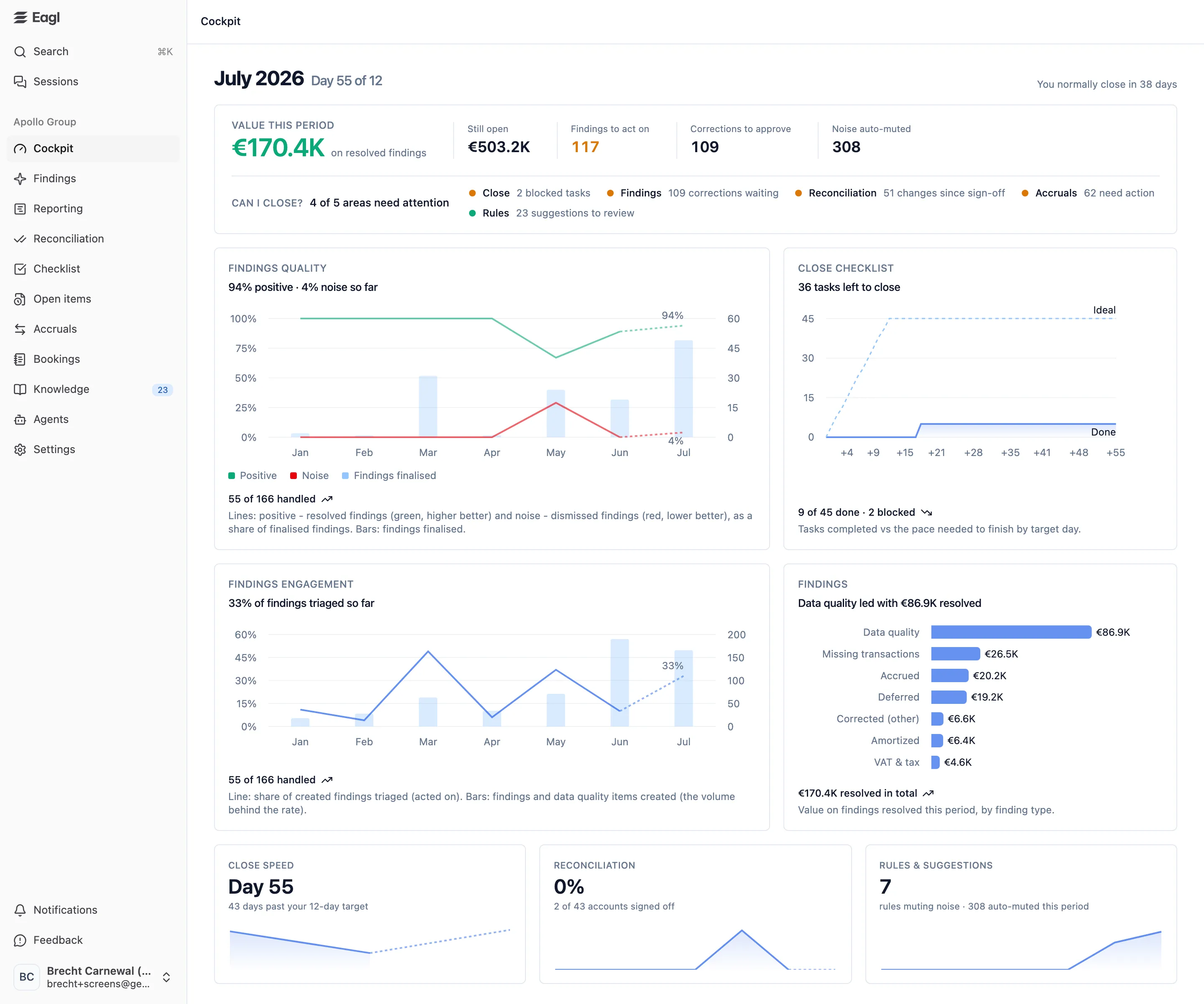
The Cockpit answers two questions on one screen: can we close yet? and what is Eagl finding for us? It pulls together your close checklist, findings, reconciliation, accruals, and Knowledge rules for the period you’re closing, and compares this close with previous months.
Cockpit is the first item in your organization’s section of the sidebar and, once your organization is set up, the page Eagl opens when you sign in. The page is read-only. You act on what it shows in the area each number comes from.
Which close you’re looking at
Section titled “Which close you’re looking at”The cockpit reports on one checklist and one period at a time.
- Checklist. If your organization has more than one checklist, pick one from the selector in the page header. Eagl remembers your choice, so the Checklist page and checklist settings open on the same checklist. The choice is also saved in the page URL, so you can share a link to a specific checklist’s cockpit. With a single checklist there’s no selector.
- Period. The cockpit follows the oldest period on that checklist that hasn’t been closed yet. There’s no period picker. When the period is closed on the checklist, with Close period or by the checklist’s auto-close setting, the cockpit moves on to the next one. If the checklist has no open period, the cockpit shows the current calendar month.
The heading shows the period and where you are in its close:
| Heading | Meaning |
|---|---|
| July 2026 · Ends in 5 days | The period itself is still running, so the close hasn’t started. |
| July 2026 · Day 3 of 12 | It’s 3 days since the last day of the period, and your target is day 12. |
| July 2026 · Day 3 | The same, for a checklist with no close window set. |
On the right, You normally close in N days is your average over every period you’ve closed on this checklist, counted from the last day of the period to the day it was closed. It appears once you’ve closed at least one period.
What the numbers include
Section titled “What the numbers include”- All entities you have access to. The cockpit has no entity picker.
- Accounting findings and data-quality items. Business insights aren’t counted. Neither are findings below the amount threshold of the agent that raised them.
- One month per finding. Each finding counts toward the financial period it relates to, or the month it was raised if it has none. December also includes the year-end adjustments period (Adj). The Findings page’s period filter works differently: it shows every finding that touches the period. So a month’s counts here can differ slightly from the Findings page.
- Absolute amounts. A €5,000 debit and a €5,000 credit both add €5,000.
- Data quality is a reclassification. For data-quality items, the amount is what the correction moves to the right account or code. It isn’t a profit-and-loss gain.
Headline numbers
Section titled “Headline numbers”The top card starts with the value Eagl has delivered this period and the work that’s left.
| Number | What it counts |
|---|---|
| Value this period (on resolved findings) | The total amount on this period’s findings that have been resolved. For data-quality items, it’s the amount on corrections that were booked or whose item was resolved. |
| Still open | The amount on this period’s findings that are still Open or Progressing, plus data-quality amounts not corrected yet. |
| Findings to act on | How many of this period’s findings, data-quality items included, are still Open or Progressing. Shown in orange while it’s above zero. |
| Corrections to approve | Proposed corrections on this period’s open or progressing findings that nobody has booked yet. A correction drops out of this count once it’s booked or its finding is resolved or dismissed. |
| Noise auto-muted | How many times an Eagl agent didn’t raise a finding because one of your Knowledge rules said it wasn’t an issue. Counted from when the current period was opened on the checklist. |
Dismissed findings count toward neither amount. Value this period plus Still open is everything Eagl flagged for the period that you haven’t dismissed.
Can I close?
Section titled “Can I close?”Below the headline numbers, Can I close? sums up your readiness, for example 2 of 5 areas need attention. Each area gets a green dot (on track) or an orange dot (needs attention), plus a short reason. The areas aren’t links: open the matching page from the sidebar to act on them.
| Area | Turns orange when | Reason shown |
|---|---|---|
| Close | You’re past the target day, or a checklist task is Blocked. | 2 blocked tasks, Period ends in 5 days, or Day 3 of 12 |
| Findings | Your team is handling findings more slowly than the close is moving: the share of this period’s findings moved off Open is below the share of the close window that has passed. On day 6 of a 12-day close, that means fewer than half. | 4 corrections waiting if there are corrections to approve, otherwise 12 to correct |
| Reconciliation | An account has a variance, or an account has changed since it was signed off. | 3 changes since sign-off, otherwise 8 accounts to review (accounts with open items or a variance) |
| Accruals | Any accrual is on the Action Required tab. | 5 need action, otherwise 7 waiting |
| Rules | Never. This area is for information only. | 23 suggestions to review |
Reconciliation is hidden until there’s reconciliation activity to report: reconciled or signed-off accounts, open items, variances, or changes since sign-off. Accruals appears only when accruals are set up. A change since sign-off is an Edited after reconciled item: a booking in a period you’d already signed off has changed, so the account needs another review and sign-off.
If an area can’t be loaded, the band says so (for example, Accruals could not be loaded, so it is not counted here) rather than quietly counting fewer areas.
Charts and trends
Section titled “Charts and trends”The trend charts cover the last six months plus the period you’re closing. That period is drawn as a dashed “to date” line because its numbers are still changing. Hover over any point to see its exact value. The Findings quality, Findings engagement, and Reconciliation trends appear once there are at least two earlier months with data.
Findings quality
Section titled “Findings quality”This chart shows whether Eagl’s findings are worth your time. It covers every finding that reached a final state (resolved or dismissed):
- Positive (green, higher is better): the share that was resolved.
- Noise (red, lower is better): the share dismissed as a Bad finding.
- Findings dismissed with No action (correct, but not worth acting on) are the rest, so the two lines don’t need to add up to 100%.
- Findings finalised (bars, right-hand axis): how many findings reached a final state that month. A rate based on a small bar doesn’t tell you much.
The title gives the current period’s rates, such as 94% positive · 4% noise so far. The footer shows how many of the period’s findings have been handled, such as 55 of 166 handled.
Close checklist
Section titled “Close checklist”A burn-up of the tasks in the checklist’s open period. Done is the running total of completed tasks. Ideal is a straight line from zero at the end of the period to every task done on your target day. If Done runs below Ideal, you’re behind the pace you need.
- Day 0 is the last day of the period, and +1, +2, and so on are the days after it. Tasks completed before the period ended count on day 0. Hover over a day to see its date.
- The title reads N tasks left to close, or Checklist complete.
- The footer shows X of Y done · Z blocked. Done counts tasks that are Completed or Ready for Review. This is broader than the checklist’s Progress percentage, which only counts Completed tasks.
- Without a close window there’s no Ideal line, just the tasks completed so far.
This chart only appears while the checklist has an open period.
Findings engagement
Section titled “Findings engagement”The share of each month’s findings your team has triaged: moved off Open to Progressing, Resolved, or dismissed. Findings that Eagl closed on its own count as triaged too. The bars show how many findings and data-quality items were created that month. A rising line means less of Eagl’s output goes unread.
Findings
Section titled “Findings”Value this period, broken down by the kind of correction: VAT & tax, Capitalized, Accrued, Deferred, Amortized, Missing transactions, Data quality, and Corrected (other). Only types with resolved value appear, largest first. The title names the biggest, for example Data quality led with €86.9K resolved. The footer total matches Value this period.
Close speed
Section titled “Close speed”This tile shows how fast you’re closing:
| Situation | Headline | Line underneath |
|---|---|---|
| The period hasn’t ended yet | Not started | ”July 2026 ends in 5 days, then a 12-day close” |
| A close is running | Day N | ”3 days left to your 12-day target”, “on your 12-day target”, or “2 days past your 12-day target”. With no target set, how long the previous close took. |
| No period is open | How long the last close took, such as 9 days | The change from the month before, such as “2 days faster than May” |
The sparkline plots how many days each earlier month’s close took on this checklist, counted from the end of the period to the day it was closed.
Reconciliation
Section titled “Reconciliation”The headline is the percentage of your reconciled accounts that were signed off for the period. The line underneath gives today’s count, such as 2 of 43 accounts signed off, and the sparkline shows the signed-off share month by month.
Rules & suggestions
Section titled “Rules & suggestions”The headline is the number of active rules on the Knowledge Rules tab. The line underneath shows how many findings they muted this period (the same number as Noise auto-muted). The sparkline shows how many rules were active at the end of each month.
Using the cockpit during the close
Section titled “Using the cockpit during the close”-
Before the period ends. The heading reads Ends in N days. Use that time to bring Findings to act on and Corrections to approve down, and to review rule suggestions in Knowledge. Rules you accept help Eagl’s agents skip issues you’ve already told them aren’t a problem.
-
Each morning of the close. Start with Can I close? and work through each orange area on its own page:
- Close: unblock Blocked tasks on the Checklist.
- Findings: on Findings, book the waiting corrections (or dismiss the findings you disagree with) and triage what’s still Open. Check the Data quality tab too.
- Reconciliation: clear variances and sign off accounts with changes since sign-off in Reconciliation.
- Accruals: work the Action Required tab in Accruals.
- Rules: review pending suggestions under Knowledge → Suggestions.
-
Check your pace. On Close checklist, compare Done with Ideal. The Close speed tile tells you how many days you have left to your target.
-
Close the period. When the checklist is done, close the period on the Checklist page. The cockpit moves on to the next period, and Close speed and You normally close in now include the close you just finished.
-
Review the month. Use Findings quality, Findings engagement, and the Findings breakdown to see what Eagl caught and how your team handled it. Use Rules & suggestions to see how much noise your rules are muting.
If something is missing
Section titled “If something is missing”| What you see | Why |
|---|---|
| The cockpit reports on a checklist’s close. Create one under Settings to get started. | Your organization has no checklist yet. See Close Checklist. |
| No Close checklist chart | The checklist has no open period. |
| No Reconciliation or Accruals in Can I close? | There’s no reconciliation activity yet, or accruals aren’t set up. |
| A trend chart or tile is missing | There aren’t yet two earlier months of data to compare. |
| Close speed says No closed period yet to compare against. | You haven’t closed a period on this checklist yet. |
| A card says Could not be loaded, or a number shows as — | That part of the page failed to load. Refresh the page to try again. |
Owners, Admins, and Members can open the cockpit. The Audit role can’t. If Cockpit isn’t in your sidebar, it hasn’t been enabled for your organization.