

AI Agents
Eagl’s agents do the analysis work behind your findings, data-quality issues, accruals, and bank matches. Each agent handles one kind of check. It works through your synced ledger data and documents, and puts its results on the page where you act on them.
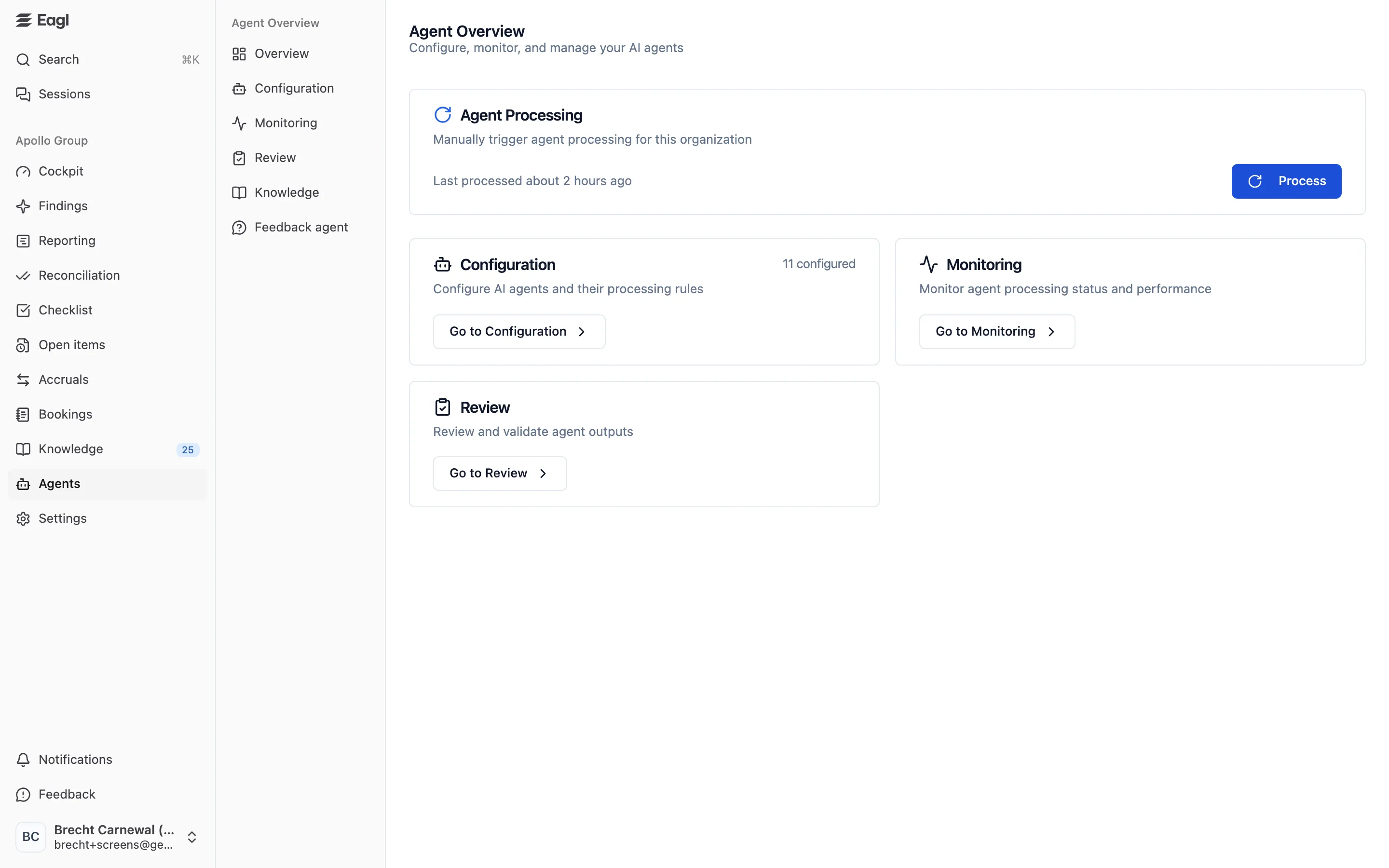
The Agents page in the sidebar shows when the agents last ran and lets you start a run yourself.
The agents
Section titled “The agents”Agents that raise findings
Section titled “Agents that raise findings”These agents do the checks behind your findings and bank matches.
| Agent | What it does | Where you see the results |
|---|---|---|
| Account Controller | Looks at each GL account month by month and explains unusual movements against the previous month: a new account, a one-off cost, a spending increase or decrease, or recurring transactions that are missing. | Missing transactions: Findings → Accounting. The other movements appear as insights next to the numbers in Reporting. |
| CAPEX Classifier | Reads expense bookings and their invoices, and flags purchases that should have been capitalized instead of expensed. | Findings → Accounting, often with a proposed correction. |
| Data Quality | Checks each journal entry’s coding against the counterparty’s earlier bookings: a wrong GL account, or a missing or wrong cost center, cost unit, or project. | Findings → Data quality, with a proposed fix. |
| Invoice Scanner | Reads each document and looks for lines that match a search set up for your organization, such as invoice lines for IT equipment. | Findings → Accounting, topic Keyword Detection. |
| Transaction Matching | Matches bank transactions to GL entries. It starts on an account when you click Run Matching in Reconciliation. | Reconciliation |
| VAT Detection | Checks each document and its booking for VAT problems: errors on the supplier’s invoice, the wrong VAT treatment or tax code in the booking, and intercompany VAT. | Findings → Accounting, often with a proposed correction. |
Accruals agents
Section titled “Accruals agents”Five agents power the Accruals module. You manage them from Accruals setup on the Accruals page.
| Agent | What it does |
|---|---|
| Accruals Grouping | Splits journal entries into balanced groups, the starting point for the other accruals agents. |
| Accruals Account Matching | Nets the full history of each accrual and deferral account in your setup. Every set of debits and credits that balances becomes a completed Historical Match record. The rest goes on to investigation. |
| Accruals Group Investigation | Investigates each group across periods to find the accrual or deferral behind it. |
| Transaction Timing Analysis | Checks entries for service periods that don’t match the posting month, and raises cut-off findings such as Missed Deferral or Unaccrued Recurring Cost. |
| Accruals Investigation | Analyzes a single accrual again when you click Re-analyze on a record in Accruals. |
Agents that work in the background
Section titled “Agents that work in the background”These agents run as part of other features.
| Agent | What it does |
|---|---|
| Feedback agent | Learns from how your team triages findings and from your policies, and proposes rules under Knowledge → Suggestions. Settings are under Agents → Feedback agent. |
| GL account mapping | Places your GL accounts into the P&L, balance sheet, and GL structure after each ERP sync, and runs when you use Auto-map accounts in the Reporting Builder. |
| P&L notes | Writes the explanation of a line’s movement when you click Generate AI note in Reporting. |
| Bank statement reading | Reads bank statement files from a connected Google Drive, SharePoint, OneDrive, or the NetSuite File Cabinet, for Reconciliation. |
| Keeping findings current | When your ERP data changes, re-checks findings from Account Controller, CAPEX Classifier, Data Quality, Invoice Scanner, and VAT Detection. It can update an amount, resolve a finding, or add a new one. It never reopens a finding someone dismissed. |
How and when agents run
Section titled “How and when agents run”Agents work through small units of work: one document for VAT Detection, CAPEX Classifier, and Invoice Scanner, one journal entry for Data Quality, or one GL account in one month for Account Controller.
- New work is queued automatically. When your ERP syncs, Eagl queues each new item the agents should look at.
- Eagl runs your agents every four hours. Each run goes through every enabled agent and processes its queued work. The accruals agents run last, in a fixed order, because each one builds on the previous one.
- Some work waits on purpose. Account Controller waits until a few days into the next month before it analyzes a month, and Data Quality holds entries dated in a future month until that month starts. Agents that read documents wait until the document has been read.
- Failed work is retried. If an item fails, a later run tries it again, up to three attempts.
Start a run yourself
Section titled “Start a run yourself”Use Process when you don’t want to wait for the next scheduled run.
- Open Agents → Overview.
- In the Agent Processing card, click Process.
- The button changes to Processing and the card shows Running. The card checks for progress every 20 seconds. When the run finishes, it shows Last processed and how long ago.
A manual run does the same work as a scheduled one, for all enabled agents and all entities. It doesn’t fetch new data from your ERP. It works on what has already synced. Only one run can be in progress at a time. While a scheduled or manual run is going, Process is unavailable. Only owners and admins can start a run.
Agent knowledge
Section titled “Agent knowledge”Agents → Knowledge (Agent Knowledge) lets you browse everything the agents have stored while working on your data. It’s a technical view. To manage your rules, policies, and suggestions, use Knowledge in the sidebar.
- The cards at the top count Total Entries, Active, Knowledge, Query Patterns,
and Rules. Use the tabs with the same names to show one type.
- Knowledge: facts an agent learned about your business, such as how a supplier’s bills are usually booked.
- Query Patterns: search approaches an agent found useful for a task.
- Rules: the rules your team approved in Knowledge.
- Filter by Entity, Agent, Tool, and Status (Active or Inactive). Sort by Created At, Upvotes, Downvotes, or Impressions. The search box finds entries by keyword or meaning.
- Agents vote on the entries they use, and they save improved versions as a Branch of the original entry.
- Click an entry to see its content, the GL accounts and counterparties it’s about, its votes and branches, and, for a rule, the suggestion it came from. Click Deactivate to stop agents from using it, or Reactivate to bring it back.
- Run feedback agent starts a feedback agent run right away instead of waiting for the next scheduled one. The button shows Running while it’s busy.
Only owners and admins can open this page.
Feedback agent settings
Section titled “Feedback agent settings”The feedback agent reads how your team handles findings from Account Controller, CAPEX Classifier, Data Quality, Invoice Scanner, Transaction Timing Analysis, and VAT Detection. It also reads your policies. From those, it proposes rules in Knowledge. It checks for new activity every 30 minutes, and right away when you turn it on or change a policy.
Agents → Feedback agent has two settings:
- Enabled: when it’s off, the feedback agent doesn’t run and makes no suggestions. The Knowledge item disappears from the sidebar, and Run feedback agent is hidden.
- Lookback window: how many days back the agent looks for activity it hasn’t processed yet. Enter 1 to 365. The default is 90.
Only owners and admins can see and change these settings.
Who can do what
Section titled “Who can do what”| Action | Owner | Admin | Member |
|---|---|---|---|
| Open the Agents overview | ✓ | ✓ | ✓ |
| Start a run with Process | ✓ | ✓ | |
| Open Agents → Knowledge and Agents → Feedback agent | ✓ | ✓ |
Users with the Audit role don’t have access to agent data.