

Bookings
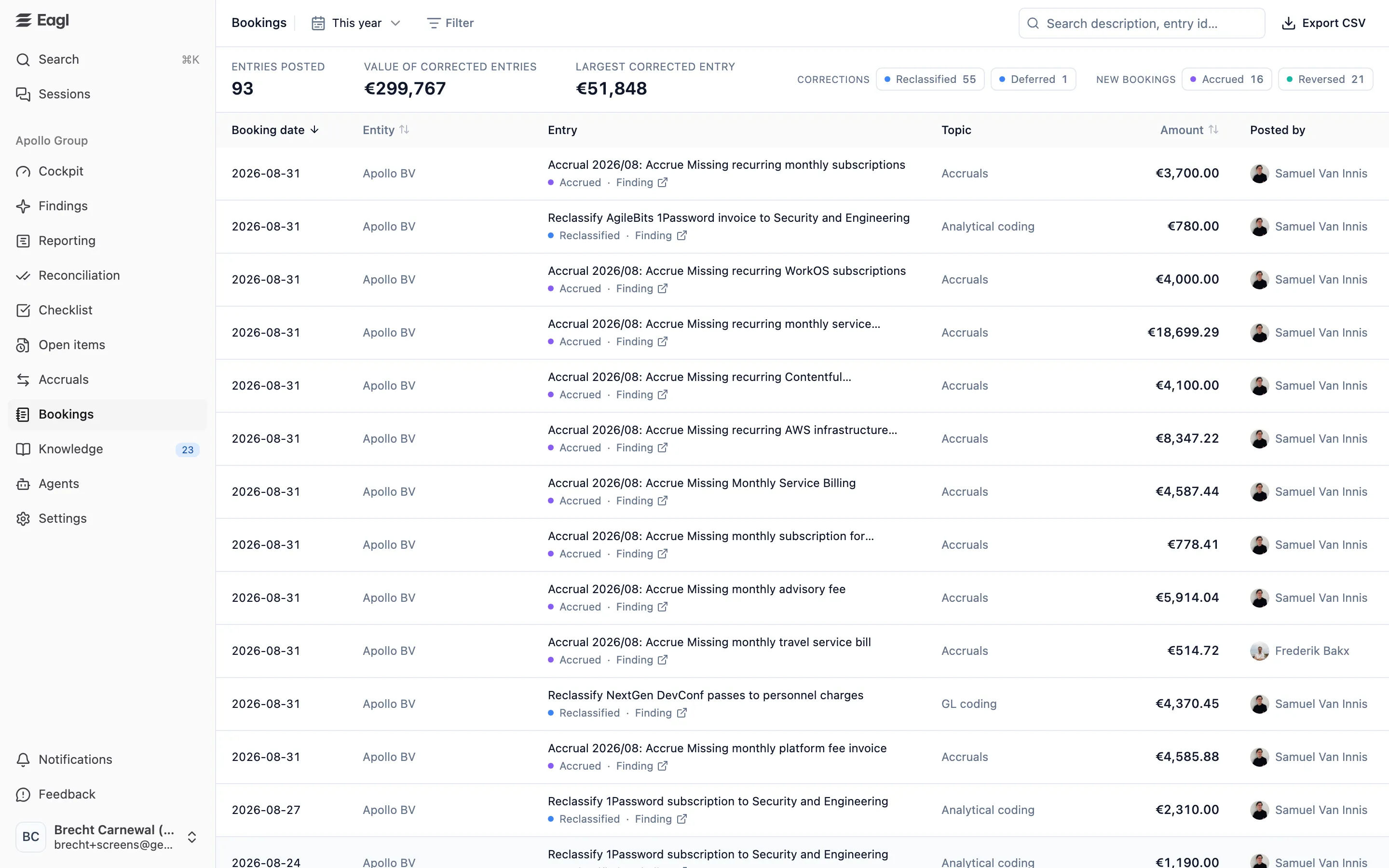
Bookings is the record of everything Eagl has written to your ERP: corrections to existing entries, deferral schedules, accruals, and accrual reversals. Each row is one posted entry, with its booking date, entity, amount, the person who posted it, and a link back to the finding or accrual behind it. Use it to review what changed in your books during the close, or to give auditors a complete, exportable trail.
The page covers all your entities at once, and you only see the entities you have access to.
Where bookings come from
Section titled “Where bookings come from”Eagl never posts on its own. Every booking starts as a proposal that Eagl prepares, and it’s only posted when someone on your team reviews it and books it. Bookings itself is read-only: you book entries from Findings and Accruals, and they appear here once they’re posted.
| Action | What Eagl posted | Where you book it |
|---|---|---|
| Reclassified | A correction to an existing entry, such as a different GL account, cost center, or VAT code. | A finding on the Accounting or Data quality tab of Findings. |
| Deferred | A deferral or amortization of an existing booking. | A missed deferral or missed amortization finding. |
| Accrued | A new accrual entry. | A finding that proposes an accrual, such as an unaccrued recurring cost. |
| Reversed | The reversal of an accrual. | Book reversal on an open accrual in Accruals. |
On the page, Reclassified and Deferred are grouped as Corrections, since they change entries that already existed. Accrued and Reversed are grouped as New bookings, since they add new entries.
Choose a period
Section titled “Choose a period”The date range next to the page title sets which bookings you see. It defaults to This year. Click it to pick This week, This month, Last month, Last 3 months, This year, or Last year, or choose your own start and end dates on the calendar and click Apply.
The range applies to the booking date: the date the entry carries in your general ledger, not the day someone clicked the button.
- For a correction, that’s the date of the original entry. A correction posted today to a January invoice is listed under January.
- For an accrual or reversal, it’s the posting date of the new entry. If the intended month was already closed in your ERP, that date falls in the first open month.
A date shown with a ~ in front is approximate: Eagl doesn’t have the original entry’s date, so it shows the date the booking was posted instead.
The summary band
Section titled “The summary band”The band above the table describes the bookings that match your current filters.
| Figure | What it shows |
|---|---|
| Entries posted | How many entries match. |
| Value of corrected entries | The total value of the entries Eagl reclassified, per currency. This is the value of the corrected entries, not the size of the change. Currencies are never added together. |
| Largest corrected entry | The biggest reclassified entry in the main currency. Hover over it to see which entry it is, and click it to open its details. |
To the right, the Corrections and New bookings chips show how many entries of each action match. Click a chip to show only that action, and click it again to clear it. You can select more than one.
The ledger
Section titled “The ledger”| Column | What it shows |
|---|---|
| Booking date | The entry’s date in your general ledger (see Choose a period). |
| Entity | The entity the entry was posted in. |
| Entry | The entry’s description. Below it: the action, and a Finding or Accrual link that opens the source in a new tab. |
| Topic | The kind of issue behind the booking: GL coding, Analytical coding, VAT, CAPEX, Cut-off & timing, Account trends, or Accruals. Shows — when the source finding has no topic. |
| Amount | The entry’s value in the entity’s currency, as recorded when it was posted. Reversals show —. |
| Posted by | The person who booked the entry. |
The newest bookings come first. Click Booking date, Entity, or Amount (or Status, when it’s shown) to sort by that column, and click again to flip the order. More rows load as you scroll.
Filter and search
Section titled “Filter and search”Click Filter to narrow the ledger by:
- Entity
- Action: Reclassified, Deferred, Accrued, or Reversed
- Topic: each topic shows how many bookings it has under your other filters
- Approved or posted by: a person on your team
- Status: Posted or Failed
Each filter can be set to is or is not, so you can also exclude, for example, one entity. Use the search box to find bookings by description or by ERP entry ID.
Your filters, search, and date range are kept in the page URL. Share the link and the other person sees exactly the same set of bookings.
Failed bookings
Section titled “Failed bookings”By default the ledger only shows entries that your ERP accepted. To see attempts your ERP rejected, set the Status filter to include Failed. A Status column then appears in the table, and the detail panel shows the error your ERP returned.
To try again, open the source finding or accrual from the row and retry the booking there.
Booking details
Section titled “Booking details”Click any row to open its details in a side panel. The panel shows what Eagl sent to your ERP, recorded at the moment it was posted, so later edits to the proposal can’t change it.
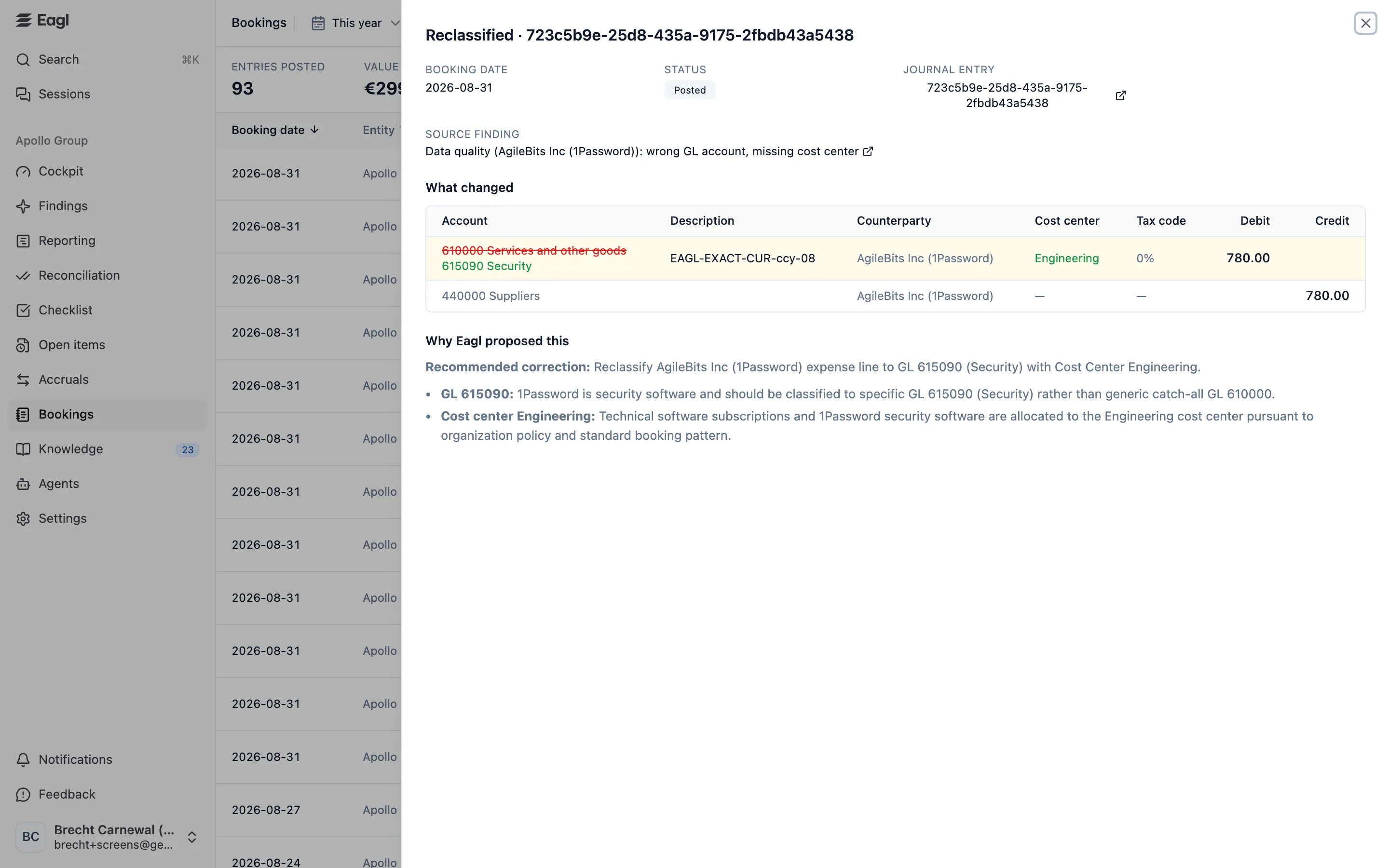
- Booking date and Status.
- ERP entry IDs. If the correction was made to the existing entry itself, you see one Journal entry. If Eagl posted a new entry, you see it as New entry (or Reversal entry for an accrual reversal), along with the Original entry it relates to, if there is one. In Business Central, Eagl corrects an entry by posting a credit memo that reverses the changed lines and a new corrected document; the credit memo appears as the Reversal entry. Click an ID to open it in your ERP when Eagl can link to it.
- Source finding or Source accrual, linked, so you can see the full context.
- What changed (for corrections) or Posted lines (for new entries): the lines with Account, Description, Counterparty, Debit, and Credit, plus Cost center, Cost unit, Project, or Tax code when any line uses them. For a correction, the old value is struck through above the new one, changed and added lines are highlighted, and removed lines are struck through.
- Why Eagl proposed this: the reasoning behind the booking.
- Other entries in this proposal: when one proposal led to several entries, the others are listed here with their ERP entry ID, or not posted. An entry marked Superseded was replaced by a newer proposal and is not a live booking.
If Eagl has no line-level copy of a posted entry, the panel says No line detail to show. The entry was still posted successfully, and you can open it in your ERP to see the lines.
Export for audit
Section titled “Export for audit”Click Export CSV to download every booking that matches your filters and date range, not just
the rows loaded on screen, in the same order as the table. The file is named after the date range,
for example bookings-2026-01-01-to-2026-12-31.csv, and opens directly in Excel.
It has these columns: Booking date, Entity, Action, Description, Topic, Amount, Currency, Source, Approved by, Posted by, and ERP entry, plus Status when failed bookings are included. Bookings are posted directly by the person who books them, without a separate approval step, so Approved by is normally empty.
One export holds up to 10,000 entries. If your selection is bigger, Eagl warns you and tells you how many of the total it exported. Filter by entity or pick a shorter date range to export the rest.
Who can see bookings
Section titled “Who can see bookings”Owners, admins, and members can open Bookings, and can book corrections, accruals, and reversals from Findings and Accruals. Users with the Audit role don’t have access.