

Managing integrations
Once an integration is connected, Settings → Integrations is where you keep it running: see when it last synced, sync on demand, pause its schedule, reconnect it when access expires, and open its own settings page to check its health or choose what it brings in.
This page covers managing integrations you’ve already connected. For what each integration syncs and how to connect it, see Integrations and the page for your provider.
Only Owners and Admins can open Settings → Integrations. See Roles.
The Integrations page
Section titled “The Integrations page”The page has two parts: your connected integrations at the top, and Available integrations below, with a Connect button on each card.
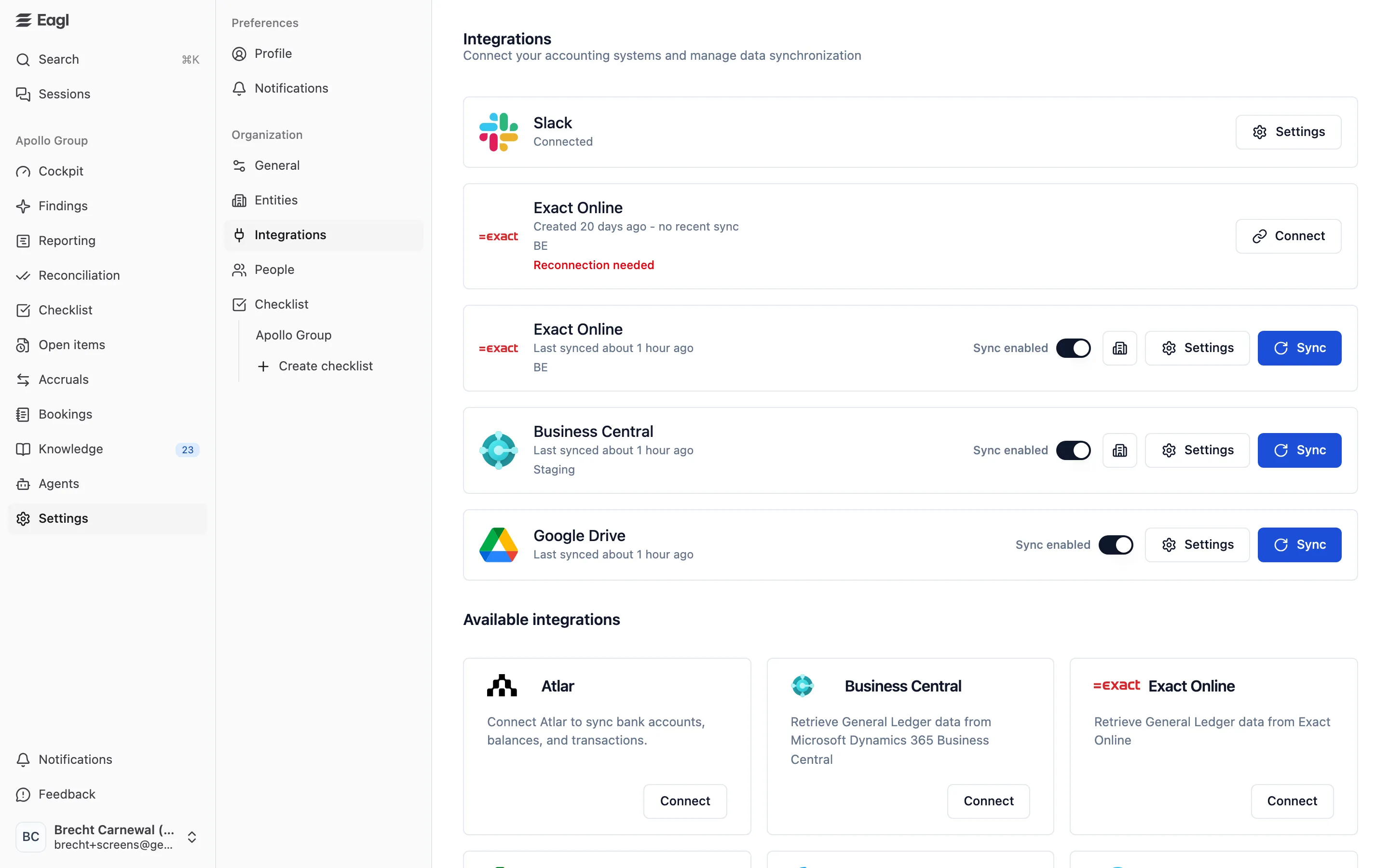
Each connected integration shows its logo and name, and under the name:
| Line | Meaning |
|---|---|
| Last synced 5 minutes ago | The last sync finished at that time. |
| Sync started 2 minutes ago | A sync is running now. |
| Created 3 days ago - no recent sync | Eagl has no recent sync on record for this integration. |
| Connected / Not connected | Shown for Slack and Microsoft Teams instead of sync times. |
| A short label, such as BE or Production | Which Exact Online country or Business Central environment the connection points to. |
| Reconnection needed | Eagl lost access. See Reconnect an integration. A Reason: line may explain why. |
| Environment selection needed | The connection is authorized, but you still need to pick which environment to sync. |
On the right of each row:
- Sync enabled: whether Eagl syncs this integration on its schedule. See Syncing.
- Building icon: opens Entities synced by this integration, the list of entities this connection brings in. It only appears for ERPs, once they’ve synced entities.
- Settings: opens the integration’s settings page.
- Sync, Connect, or Select environment, depending on the integration’s state.
You can connect more than one integration of the same type, for example two Exact Online connections for different countries. Slack and Microsoft Teams allow one connection per organization, so their cards show Already connected once you have one.
Syncing
Section titled “Syncing”Eagl syncs each connected integration automatically about once an hour, as long as Sync enabled is on and the integration doesn’t need reconnecting. Each sync starts by re-running the integration’s health checks.
- Sync now: click Sync on the integration’s row. Eagl shows Sync started, or Sync already in progress if one is running. The button works even when Sync enabled is off.
- Stop a running sync: while a sync runs, the button reads Syncing. Hover over it and it turns into Stop; click to cancel the sync.
- Pause scheduled syncs: turn off Sync enabled. Eagl stops syncing the integration on its schedule, but keeps everything it already synced. Turn it back on to resume.
To stop syncing just one entity from an ERP rather than the whole integration, turn off its Sync switch under Settings → Entities.
Reconnect an integration
Section titled “Reconnect an integration”Integrations lose access now and then, for example when an authorization expires, a password or token changes, or someone revokes Eagl’s access in the other system. Eagl then marks the integration Reconnection needed, pauses its scheduled syncs, and notifies your organization’s owners in Eagl, by email, and on Slack or Microsoft Teams if connected.
- Go to Settings → Integrations and find the row marked Reconnection needed.
- Click Connect on that row.
- Sign in to the other system and approve access again. For integrations that connect with credentials instead, such as NetSuite, a Reconnect integration dialog asks for new credentials. Leave a field blank to keep its current value, then click Reconnect.
Reconnecting keeps the integration’s settings and history. Scheduled syncs resume once it’s connected again.
Select an environment
Section titled “Select an environment”Some providers, such as Business Central, can give access to several environments. If Eagl can’t tell which one to sync, the row shows Environment selection needed and a Select environment button. Click it, pick an environment from the Available list, and click Connect environment. Environments the account can’t access are listed under No access and can’t be picked.
Integration settings page
Section titled “Integration settings page”Click Settings on a connected integration to open its settings page. The tabs depend on what the integration does:
| Tab | Shown for |
|---|---|
| Drives and Files | Google Drive, OneDrive, SharePoint, and NetSuite (its File Cabinet) |
| Bank | Plaid, Atlar, Isabel Connect, and Mollie; document stores and NetSuite once they hold bank statements |
| Health | NetSuite, Exact Online, Business Central, Atlar, and Mollie |
| GL Balances | NetSuite, Exact Online, and Business Central |
| Configuration | Integrations with adjustable options, such as NetSuite and Business Central |
| Members | Slack and Microsoft Teams |
Use the back arrow next to the title to return to the integrations list.
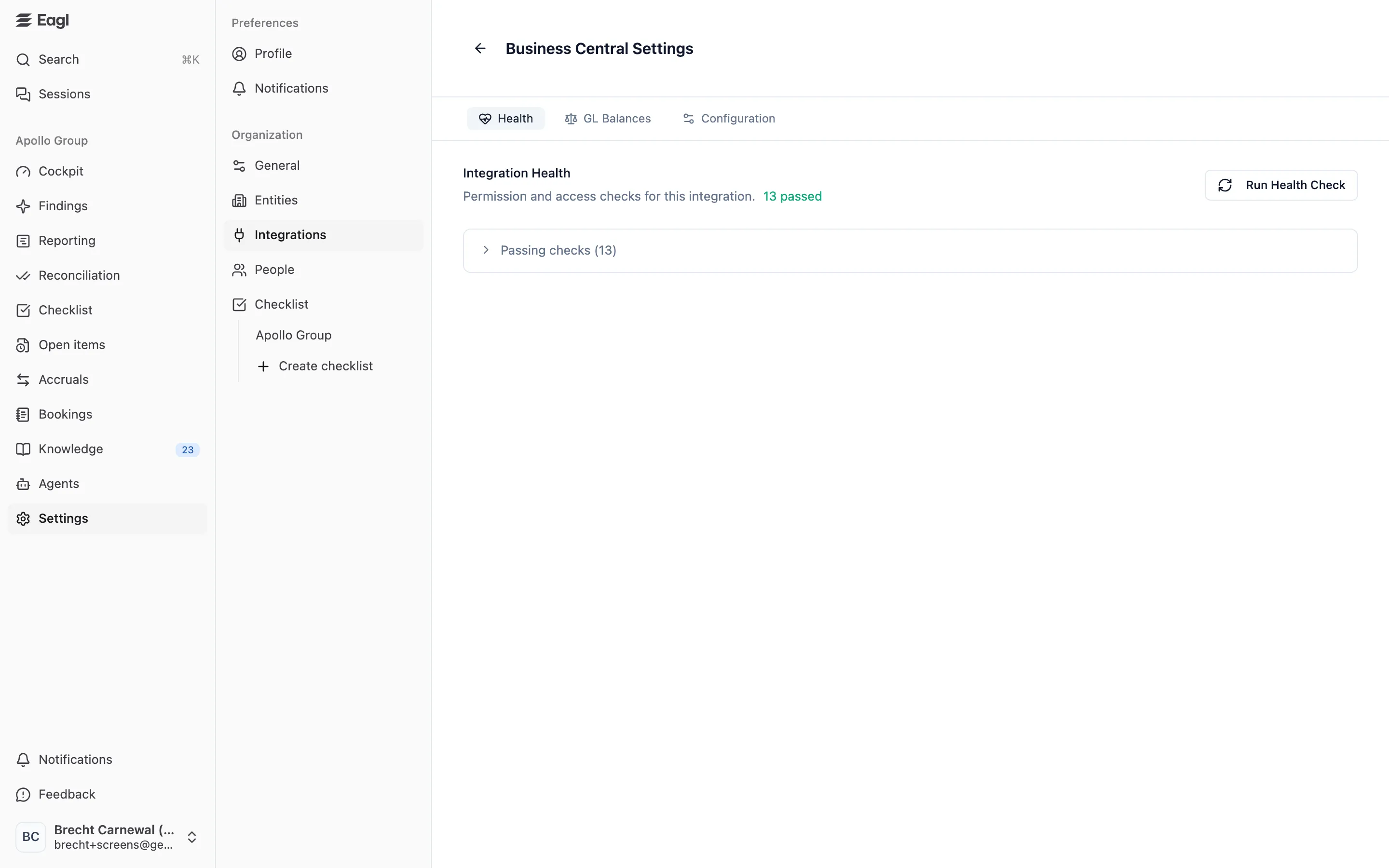
Health
Section titled “Health”The Health tab lists permission and access checks for the integration, for example whether Eagl can read each table or endpoint it needs. The header shows how many checks passed, failed, or are awaiting a result.
- Checks are grouped into Failed checks, Awaiting checks, Passing checks, and Hidden checks. Click a group to expand it.
- Click Run Health Check to run the checks now. Eagl also runs them at the start of every sync.
- A failed check means Eagl couldn’t access something it needs in the other system, usually because of a missing permission. Fix it there, then run the checks again. For NetSuite, the NetSuite page lists every permission Eagl needs.
- If a check doesn’t apply to you, hover over it and click the eye icon to hide it. Hidden checks move to Hidden checks, where you can show them again. For NetSuite, not every account uses every transaction type, so hiding checks for types you don’t use keeps the list clean.
GL Balances
Section titled “GL Balances”The GL Balances tab compares the balance of every GL account in Eagl with the balance in your ERP, so you can confirm the sync is complete.
- Pick an Entity. If Eagl has already checked it automatically after a sync, you see that result, with the time under Last auto-check after sync.
- Click Re-check against ERP now to compare against the ERP live.
The result shows:
- Net result (P&L): the net result in Eagl and in the ERP, and the difference.
- N of M accounts have a discrepancy, and a table with each account’s Code, Description, Type (P&L or BS), Eagl balance, ERP balance, and Delta (ERP − Eagl). A check mark means the balances match. ≠ class flags an account that Eagl and the ERP classify differently (P&L versus balance sheet).
- By default only accounts with a discrepancy are listed. Click Show all accounts to see every account.
If balances differ, run a sync and check again. Contact Eagl support if the difference remains.
Configuration
Section titled “Configuration”The Configuration tab holds options that tune how Eagl reads from this integration, such as which Business Central dimensions hold your cost centers, or how NetSuite documents are synced. Each option explains what it does. Change it, then click Save changes, or Discard to undo.
For integrations that connect with credentials, such as NetSuite, the tab starts with Connection credentials. Enter only the values you want to replace; blank fields keep their current value. Eagl tests the new credentials against the other system before saving, so a wrong value can’t break a working connection.
Drives
Section titled “Drives”For document stores, the Drives tab lists the drives Eagl syncs files from.
- Select drives: opens Select drives to sync. Switch on the drives to import files from. Click Refresh if a drive is missing from the list. After changing the selection, click Sync now to apply it right away.
- Watched folders: click Add folder (or N folders) on a drive’s row. Files added to a watched folder are automatically extracted into bank transactions and balances for reconciliation. Click Add next to a folder to watch it, switch on Subfolders to include its subfolders, or click Remove to stop watching it.
The Files tab lists every file Eagl has synced from the integration’s drives. Search by file name or path. For each file you see the File name and its location, how many Transactions and Balances were extracted from it, and its Extraction status:
| Status | Meaning |
|---|---|
| Not extracted | Eagl hasn’t extracted data from this file. |
| pending / processing | Extraction is queued or running. |
| completed | Extraction finished. |
| failed | Extraction didn’t succeed. |
| skipped | Eagl can’t extract data from this type of file. |
| Changed | The file changed in the drive since it was last extracted. Re-extract it to pick up the new version. |
| Removed from source | The file was deleted from the drive. Its balances are turned off and its transactions no longer take part in reconciliation matching, but Eagl keeps the records for audit purposes. |
On each row you can open the file in its source, start an extraction (play icon), or re-extract a file that was already processed (refresh icon).
Click a file to open its details. The page shows the Extracted bank accounts found in the file, with the GL account each one is mapped to and how many balances and transactions it holds. Click an account to see its balances and transactions.
- Balances enabled: turn this off to hide the file’s balances from reconciliation.
- Map a GL account: click the swap icon next to the GL account, search for the account, and click Save. For a bank account Eagl already knows, the mapping applies to every future import of that account. For other extracted accounts, it applies to this file only.
- Use the icons next to the file name to open it in its source or download it, and Re-extract to process it again.
The Bank tab lists the bank accounts the integration brings in and the GL account each one is reconciled against. A bank account only feeds reconciliation once it’s mapped to a GL account.
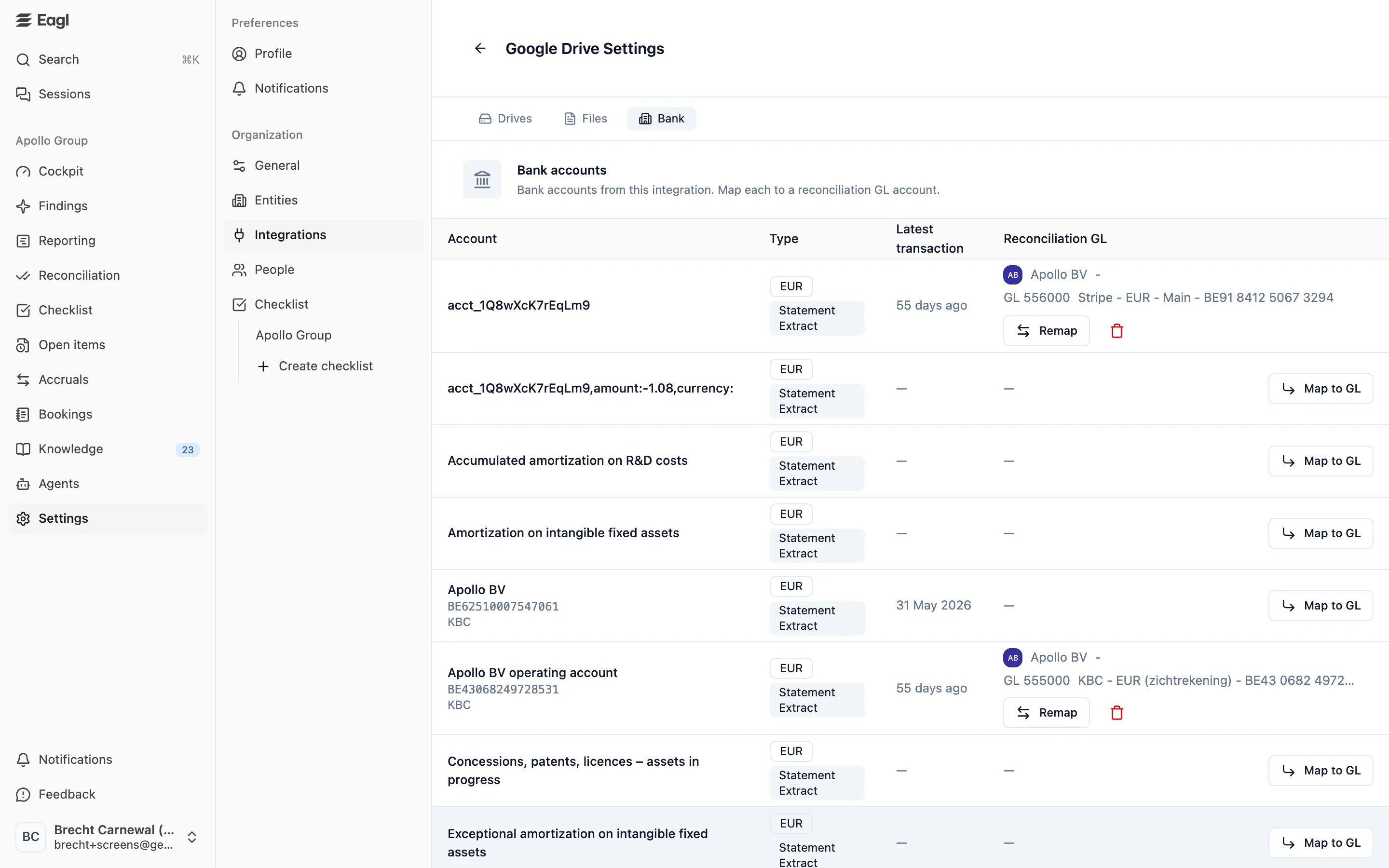
| Column | What it shows |
|---|---|
| Account | Account name, IBAN or last digits, and bank. |
| Type | Currency and account type. |
| Latest transaction | Date of the most recent transaction. |
| Reconciliation GL | The entity and GL account the bank account is reconciled against, or —. |
- Map to GL (or Remap): choose the GL account used to reconcile this bank account’s balances and transactions, then click Save.
- The trash icon next to a mapping removes it. This also clears that GL account from the bank account’s synced transactions and balances.
For bank and payment integrations, the header also has:
- Sync now, to sync this bank connection right away (Syncing… while it runs; click to stop).
- Manage accounts, to change which accounts you share with Eagl (Plaid).
- Remove, to disconnect from the bank. Eagl stops syncing new transactions, but keeps the bank accounts, transactions, and reconciliation data it already has. They just stop updating.
If no bank is connected yet, the tab shows No bank connected with a Connect bank button.
Members
Section titled “Members”For Slack and Microsoft Teams, the Members tab links each Eagl member to their chat account, so Eagl can send them notifications as direct messages.
- Eagl links people automatically when their email address in Eagl matches their chat account, for example when they accept an invitation.
- The All and Not connected tabs show everyone, or only people who aren’t linked yet. Search by name or email.
- To link someone by hand, click ⋯ on their row, choose Connect, and pick their chat account. Edit changes an existing link.
- Disconnect removes the link. That person stops receiving direct messages for notifications until you connect them again.
Remove an integration
Section titled “Remove an integration”There’s no button to delete a connected integration yourself. Depending on what you want:
- Stop syncing it: turn off Sync enabled. Nothing is deleted.
- Stop syncing one entity: turn off its Sync switch under Settings → Entities.
- Disconnect a bank: use Remove on the integration’s Bank tab.
- Stop syncing a drive: switch it off under Select drives on the Drives tab.
To remove an integration completely, contact Eagl support at support@geteagl.com.