

Settings
Settings is where you set up and run your Eagl organization: who has access and to what, which entities Eagl syncs, which systems are connected, and how Eagl reaches your team. It also holds your personal preferences.
Open it from Settings, the last item in your organization’s section of the sidebar. The Preferences item in your user menu (click your name in the bottom-left corner) opens your Profile directly.
What’s in Settings
Section titled “What’s in Settings”The Settings sidebar has two groups. What you see depends on your role.
| Section | Group | What it’s for | Who sees it |
|---|---|---|---|
| Profile | Preferences | Your avatar. See Profile. | Owners, Admins, and Members |
| Notifications | Preferences | Your personal notification preferences. See Notifications. | Owners, Admins, and Members |
| Getting started | Organization | The three setup steps for a new organization. See Getting started. | Owners and Admins, until setup is complete |
| General | Organization | The daily digest and the channels Eagl uses for notifications. See General. | Owners and Admins |
| Entities | Organization | Company info, sync, and visibility for each entity. | Owners and Admins |
| Integrations | Organization | Connected systems, syncing, and per-integration settings. | Owners and Admins |
| People | Organization | Members, invitations, roles, entity access, and teams. | Owners and Admins |
| Checklist | Organization | Checklist setup, one entry per checklist plus Create checklist. See Close Checklist. | Owners and Admins |
When you click Settings in the sidebar, Eagl opens Getting started if you’re an owner or admin and setup isn’t finished yet, General if it is, and Profile for everyone else.
Getting started
Section titled “Getting started”Getting started is a short checklist that walks owners and admins through setting up a new organization. Until it’s complete, owners and admins land here when they open the organization. A Setup Progress bar at the top counts completed steps, and each step links to the place where you do it.
| Step | Links to | Complete when |
|---|---|---|
| Integrate your accounting system | Settings → Integrations | At least one integration is connected. |
| Invite your colleagues | Settings → People | The organization has at least two members. |
| Apply our starter checklist or Set up your checklist | The starter template, or Settings → Checklist | A checklist has at least one task. |
Steps tick off on their own as you complete them. While setup is in progress, a Setup Progress indicator in the main sidebar links back here. Once all three steps are done, Getting started disappears from the Settings sidebar.
General
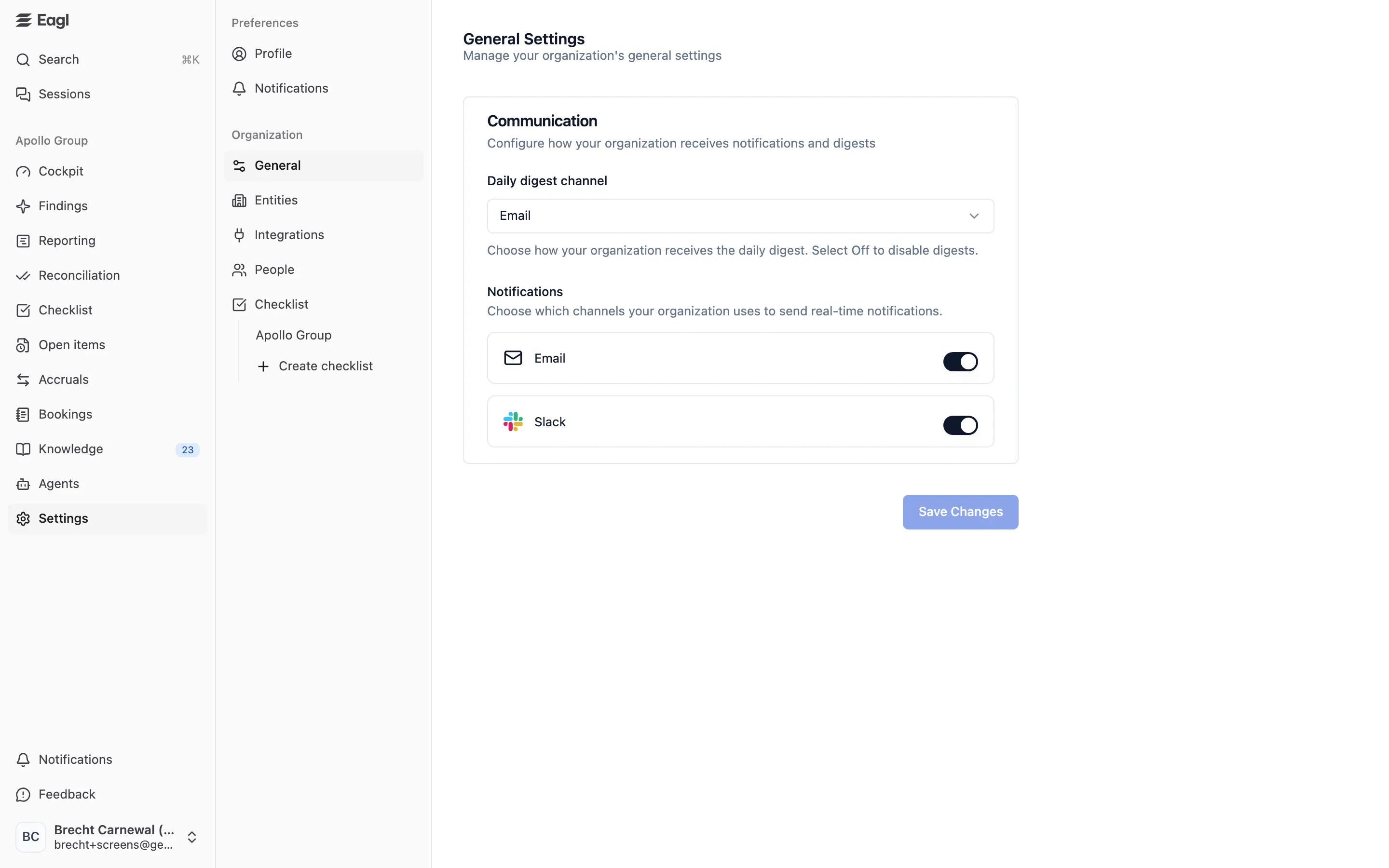
Section titled “General”Settings → General holds your organization’s communication defaults, in one Communication card:
- Daily digest channel: Email (the default) sends each member a digest email every weekday with an overview of their checklist tasks. Off stops the digest for everyone.
- Notifications: switches for the channels Eagl may use to send real-time notifications. Email is always listed. Slack and Microsoft Teams appear once you’ve connected that integration under Settings → Integrations. Turning a channel off here stops it for the whole organization, whatever individual members have chosen.
Click Save Changes to apply. The button stays disabled until you change something.
Each member fine-tunes what they receive under Settings → Notifications. See Notifications.
Profile
Section titled “Profile”Settings → Profile controls how you appear across Eagl, for example on tasks, comments, and the People list.
- If your account has a profile photo, choose Photo or Color from the menu next to your avatar.
- With Color, or if you have no photo, your avatar shows your initials. Click it (the pencil badge) to pick a color.
Your avatar is set per organization. Owners and admins can also change the color of a member’s initials avatar from Settings → People.