

Knowledge
Knowledge is where you teach Eagl how your team does accounting. Eagl learns from how you handle findings and corrections, and from the policies you add. It then proposes rules, like “Rent invoices from Acme always post to 6100”. Nothing changes until you approve a rule. After that, Eagl’s agents follow it every time they review your ledger or draft a correction.
How it works
Section titled “How it works”- You work as usual. You resolve or dismiss findings, book or edit proposed corrections, and add your accounting policies.
- Eagl proposes rules. About every 30 minutes, Eagl looks at that new activity and proposes rule changes as suggestions. Each suggestion shows the evidence behind it.
- You decide. You approve a suggestion, edit it first, or dismiss it.
- Agents follow the rule. An approved rule becomes active, and the agents apply it from their next run.
Who can use Knowledge
Section titled “Who can use Knowledge”Knowledge shows in the sidebar for Owners and Admins. Members and Audit users don’t see it. You set roles under Settings → People. The number next to Knowledge in the sidebar is how many suggestions are waiting for review.
Knowledge only appears while the feedback agent is switched on. You’ll find that switch under Agents → Feedback agent (see Feedback agent settings). If you don’t see Agents in the sidebar, ask your Eagl contact.
Page layout
Section titled “Page layout”Knowledge has three tabs: Suggestions, Rules, and Policies. If you open the page without picking a tab, it opens on Suggestions when some are waiting. Otherwise it opens on Rules.
The header has two controls that work on every tab:
- Search knowledge… filters the current tab by text. On the Rules tab, a search looks through every domain.
- The entity picker (All Entities by default) narrows the page to one entity. You then see items for that entity plus everything that applies org-wide.
When a suggestion, rule, or policy is open, its link is in your browser’s address bar. Copy that link to send a colleague straight to it.
Suggestions
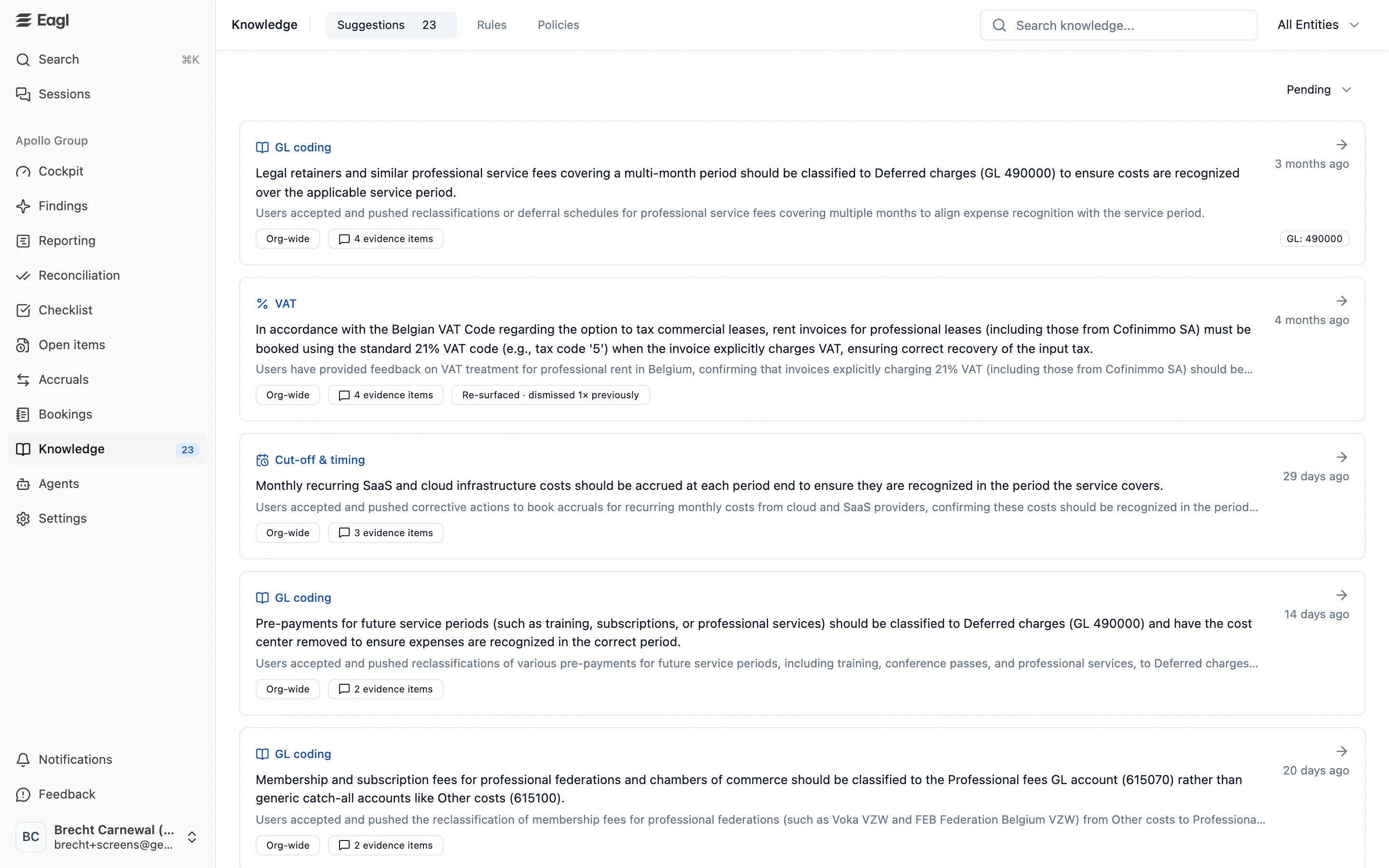
Section titled “Suggestions”The Suggestions tab is your review queue. Each card shows:
- the rule domain, such as GL coding or VAT (see Rule domains)
- the proposed rule, with a one-line summary of why Eagl suggests it
- the scope: Org-wide, one entity’s name, or N entities
- N evidence items: how many actions or documents back it up
- chips for anything the rule targets, like GL: 490000 or Counterparty: Ethias SA/NV
- N options if Eagl found conflicting approaches and wants you to pick one
- Re-surfaced · dismissed N× previously if you dismissed it before and new evidence brought it back
Use the filter at the top right to switch between Pending, Approved, Dismissed, and All. Pending suggestions with the most evidence come first. The Approved and Dismissed views put the most recent decisions first.
What Eagl learns from
Section titled “What Eagl learns from”A suggestion comes from things people on your team do in Eagl:
| Where | Actions Eagl learns from |
|---|---|
| Findings | Resolving, dismissing (as No action or Bad finding), or reopening a finding. Changing the reason on a finding you dismissed. Commenting on a finding. |
| Corrections on findings | Booking a proposed correction, editing it before you book it, or reporting a problem with it. |
| Policies | Adding a policy, and deactivating or reactivating one. |
A few details:
- Eagl learns from findings raised by the agents that use rules: Account Controller, Data Quality, VAT Detection, CAPEX Classifier, Invoice Scanner, and Transaction Timing Analysis.
- Moving a finding to in progress doesn’t count, because it isn’t a final decision. If you undo a decision before Eagl processes it, for example by reopening a finding you dismissed, Eagl doesn’t learn from it.
- By default, Eagl looks back 90 days for activity it hasn’t processed yet. You can change this under Agents → Feedback agent.
- If feedback shows that an existing rule already covers a case, Eagl doesn’t create a new suggestion. It adds the feedback to that rule as supporting evidence.
Review a suggestion
Section titled “Review a suggestion”Click a card to open Review suggestion. It shows the proposed rule and what it Applies to: its entities, counterparties, GL accounts, cost centers, and transaction types. Below that:
- Evidence (N) lists each supporting action: who did it, what they did (for example “pushed correction for” or “dismissed”), any note they left, and a link to the finding or policy it came from. Evidence taken from a policy is shown as Policy.
- Learnings to deactivate (N) lists the agents’ learnings this rule would replace (see Rules and agent learnings).
- History shows when Eagl suggested it and any earlier dismissals or re-openings.
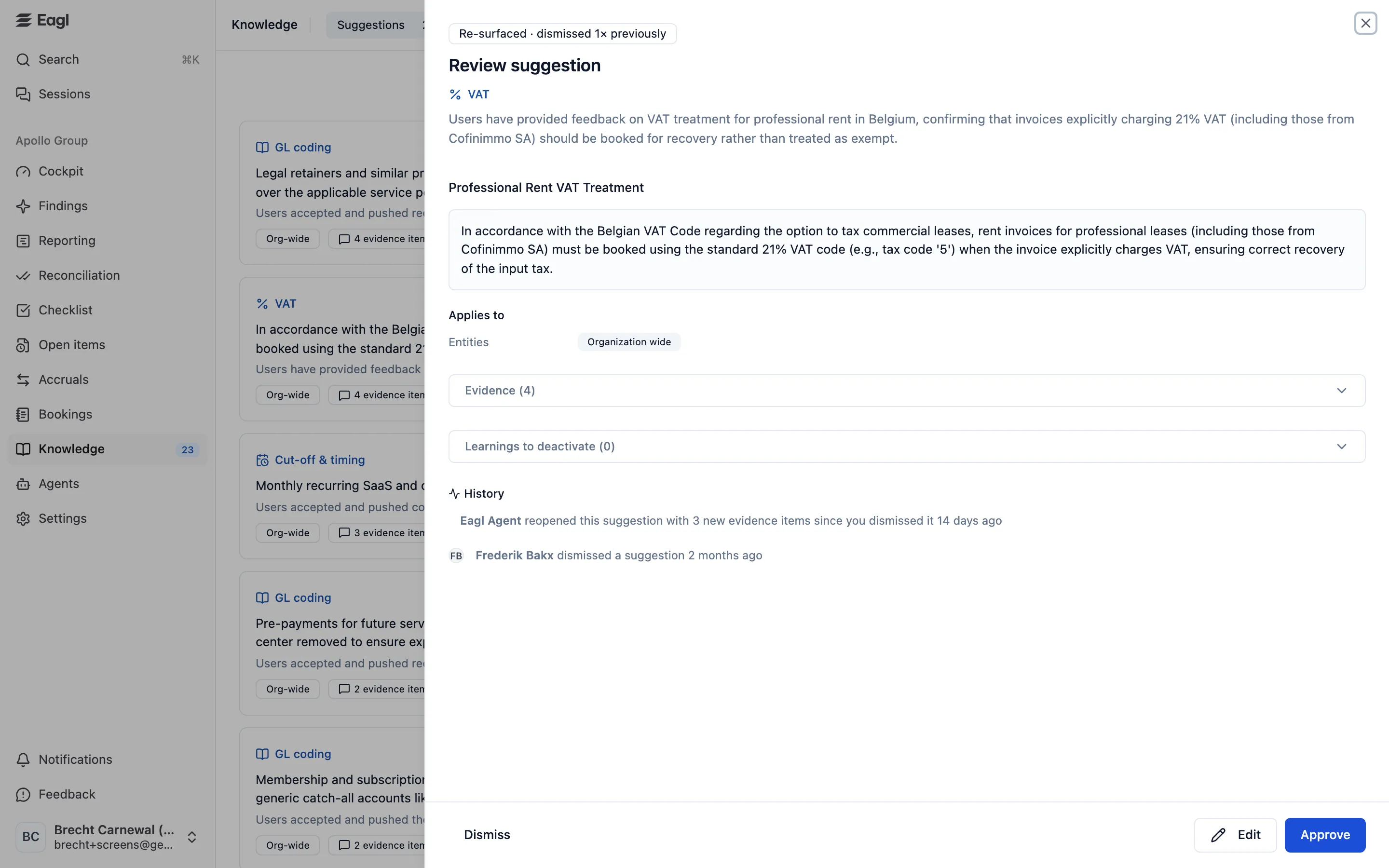
The suggestion can take one of these forms:
| Form | What you see | What approving does |
|---|---|---|
| New rule | The proposed rule and its scope. | Creates an active rule. |
| Change to an existing rule | Current rule, then the Proposed rule below it. If Eagl wants to retire the rule, it says This rule will be deactivated. | Deactivates the current rule and, for a replacement, creates the new one. Dismissing keeps the current rule as it is. |
| Several options | Options to choose from, plus Other — write my own rule. | Creates the rule for the option you pick. |
| Agent configuration | An Agent configuration badge, with Today and Change to values. | Changes the agent’s settings. No rule is created (see below). |
To act on a suggestion:
- Open the suggestion and read the rule and its evidence.
- Choose what to do:
- Approve creates the rule as proposed.
- Edit lets you change the title, rule text, entities, counterparties, GL accounts, cost centers, or transaction types first. Then click Save & approve.
- For a suggestion with several options, pick one, or pick Other — write my own rule and click Create & approve.
- Dismiss rejects it. You can leave a short note, such as “this was a one-off, not a policy”. The note helps Eagl learn from the decision.
- Approved suggestions move to Approved and show Approved by with a name and time. They get an Edited badge if you changed them first. Dismissed ones show who dismissed them and any note.
Agent configuration suggestions
Section titled “Agent configuration suggestions”Some feedback doesn’t need a rule. It’s about what an agent looks at in the first place. For these, Eagl proposes a change to the agent’s settings instead:
- Minimum amount: the agent stops surfacing findings below this amount.
- Entities in scope: the entities the agent analyzes.
The sheet shows Today next to Change to. You can adjust the value before you click Apply to configuration. The change applies to everything that agent checks from then on, not only to the finding that led to the suggestion. You need access to every entity to apply it. If the agent’s settings changed after Eagl made the suggestion, Eagl updates the comparison and asks you to review it and apply again.
When a dismissed suggestion comes back
Section titled “When a dismissed suggestion comes back”When you dismiss a suggestion, Eagl keeps collecting evidence for it quietly. If three new pieces of evidence arrive after the dismissal, the suggestion goes back to Pending with the Re-surfaced · dismissed N× previously badge. Each time you dismiss the same suggestion, the amount of new evidence needed to bring it back doubles: six after the second dismissal, twelve after the third, and so on.
On a re-surfaced suggestion, the evidence is split into New since dismissed and From before, so you can see what changed.
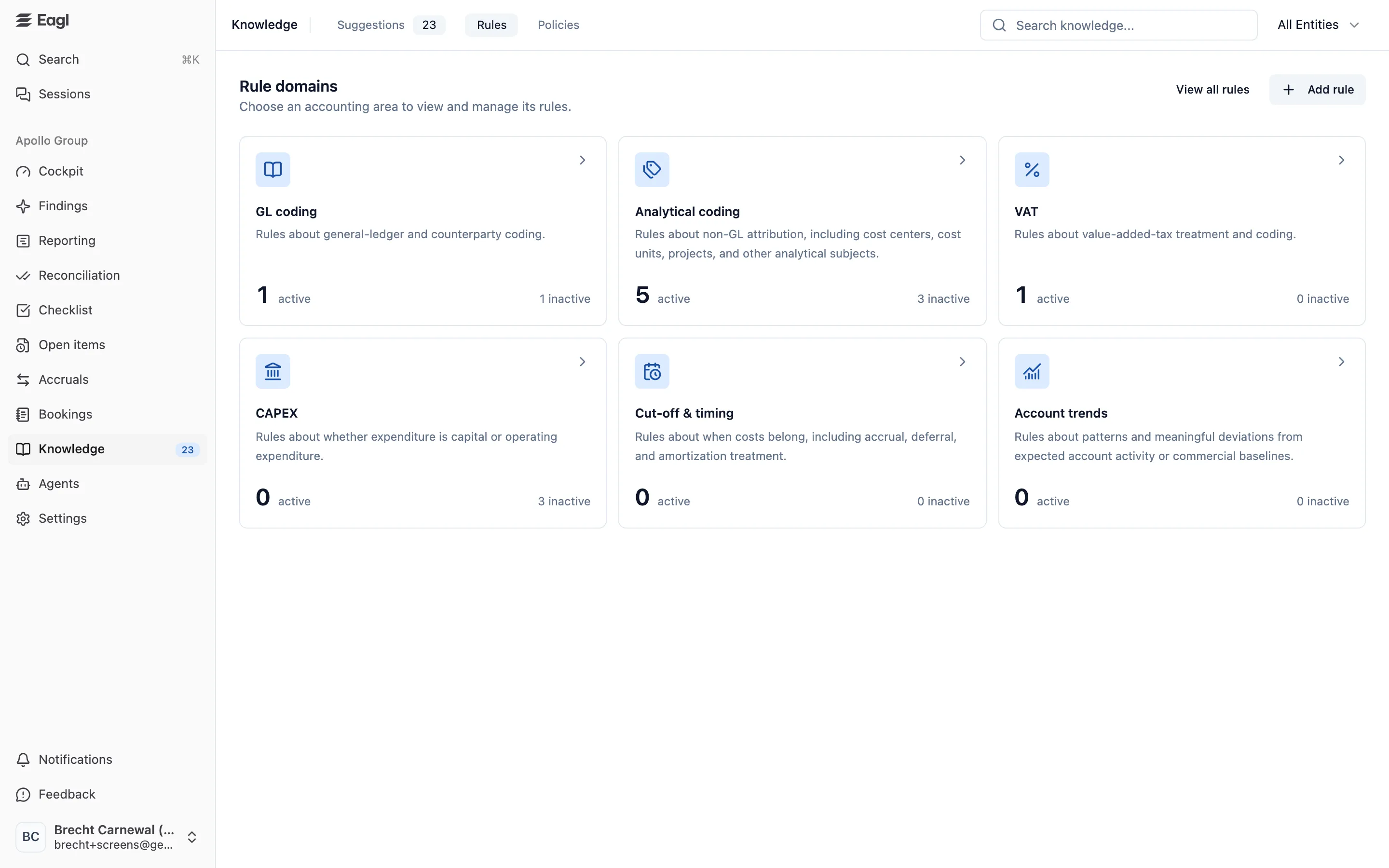
Rules are your firm’s accounting conventions, written so Eagl’s agents can apply them. The Rules tab opens on Rule domains, with one card per accounting area. Each card shows how many of its rules are active and how many are inactive. Click a card to see that domain’s rules, or click View all rules to see every rule.
Rule domains
Section titled “Rule domains”| Domain | Covers |
|---|---|
| GL coding | General-ledger and counterparty coding. |
| Analytical coding | Coding outside the GL, such as cost centers, cost units, projects, and other analytical subjects. |
| VAT | Value-added-tax treatment and coding. |
| CAPEX | Whether spending is capital or operating expenditure. |
| Cut-off & timing | Which period costs belong in, including accrual, deferral, and amortization treatment. |
| Account trends | Patterns and meaningful changes from expected account activity or commercial baselines. |
A suggested rule gets its domain from the kind of finding it came from. When you add a rule yourself, you pick the domain.
Browse rules
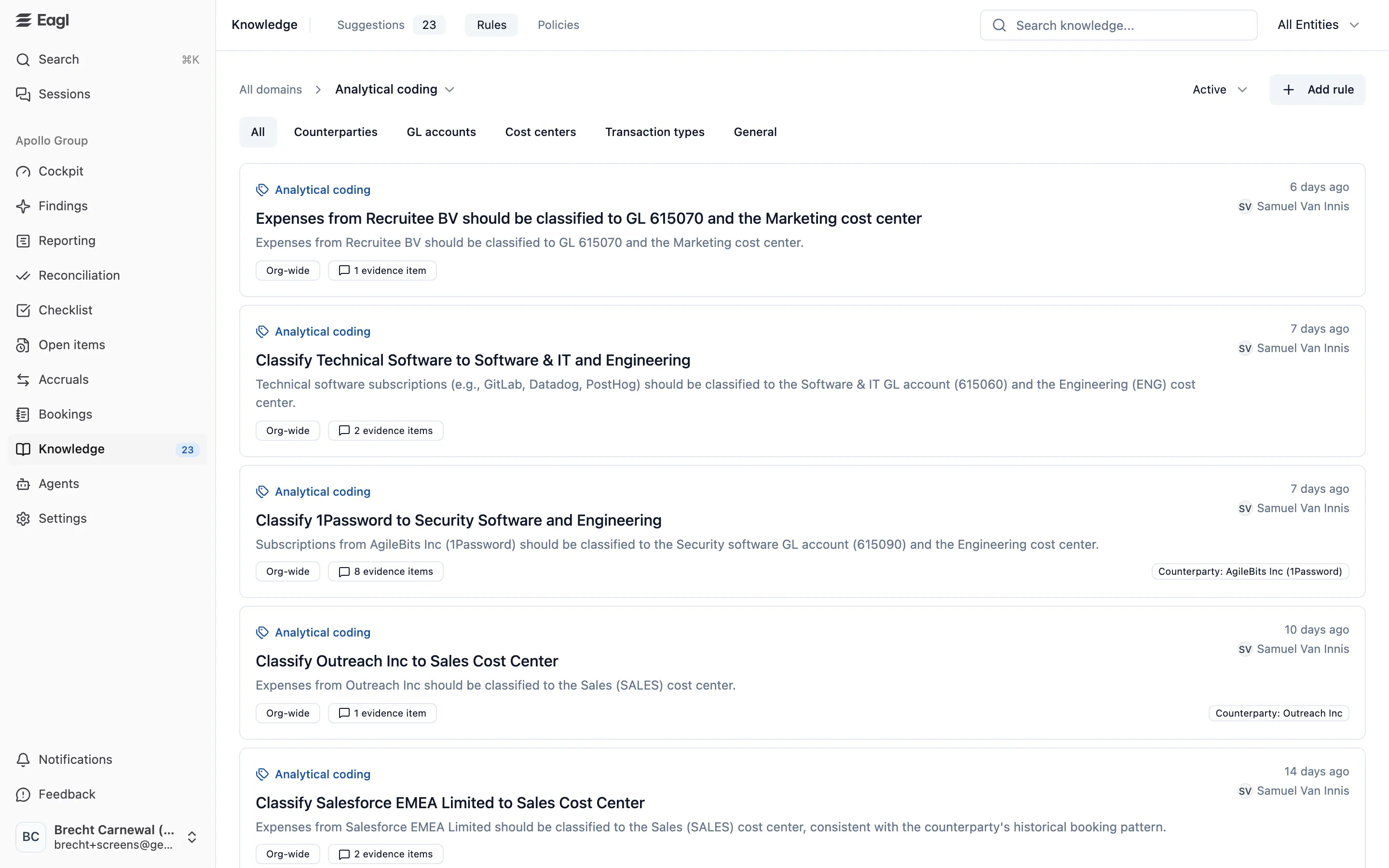
Section titled “Browse rules”In a domain’s list, the breadcrumb (All domains › domain name) doubles as a domain switcher. You can narrow the list in two ways:
- Status: Active (the default), Inactive, or All.
- Target: All, Counterparties, GL accounts, Cost centers, Transaction types, or General. General shows rules that aren’t tied to any specific counterparty, account, cost center, or transaction type.
Each rule card shows its domain, title, and text. It also shows when the rule was added and who approved or created it, its scope (Org-wide, one entity’s name, or N entities), and its evidence count. Inactive rules have an Inactive badge.
What makes up a rule
Section titled “What makes up a rule”| Part | What it’s for |
|---|---|
| Title | A short name. If you leave it blank, the first 80 characters of the rule text are used. |
| Rule | The rule itself, in plain language. This is what the agents read. |
| Domain | The accounting area the rule belongs to. |
| Entities | Org-wide (all entities), or one or more specific entities. |
| Counterparties, GL accounts, Cost centers, Transaction types | Optional. They tie the rule to specific values from your data, so agents apply it to the right transactions. |
Click a rule to open it. The sheet shows the rule’s Active or Inactive status and scope, the rule text, and what it Applies to. It also shows Supporting evidence (N) and an Activity log of who created, approved, edited, deactivated, or reactivated it.
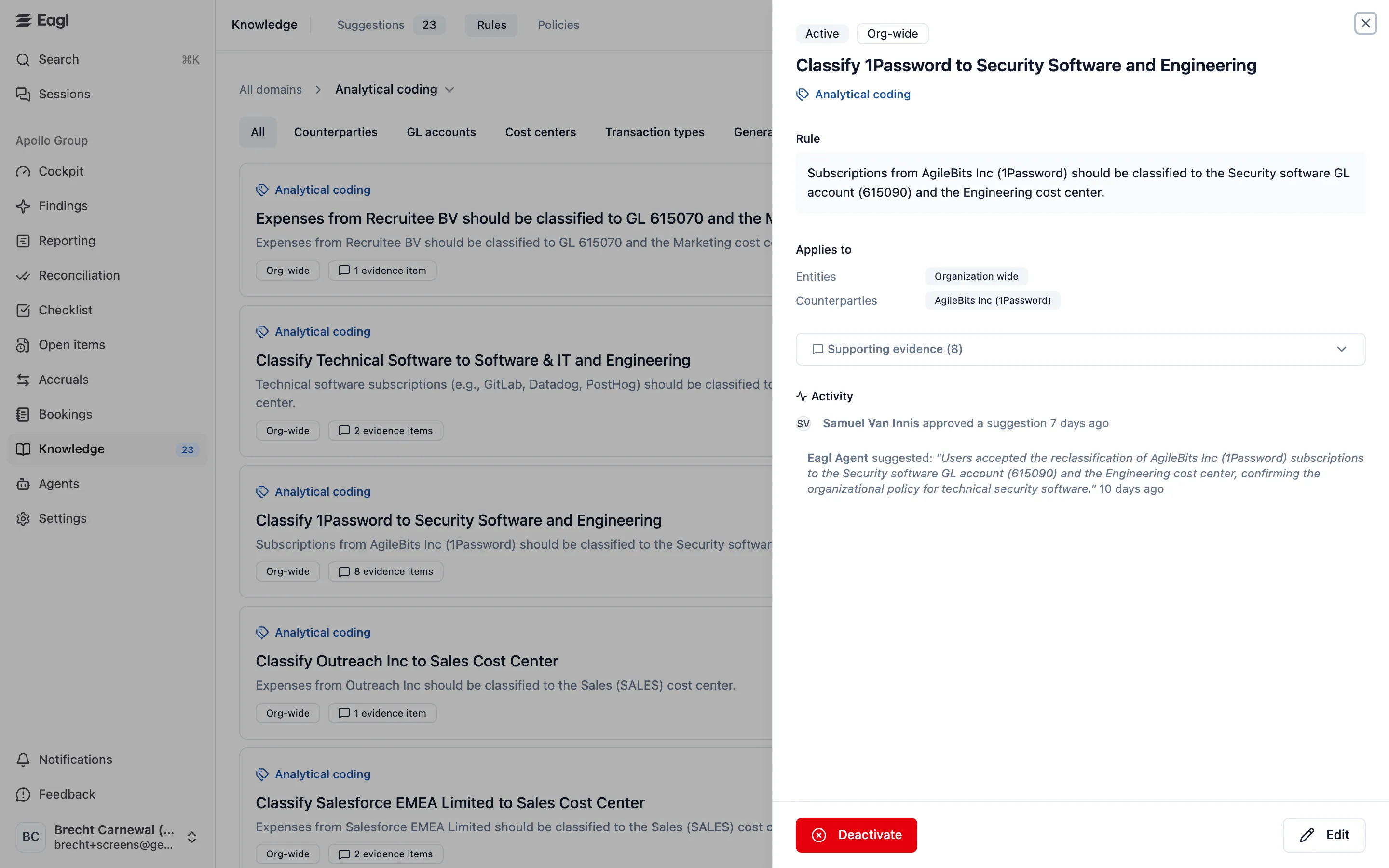
Add a rule
Section titled “Add a rule”You don’t have to wait for a suggestion. If you already know the rule, add it yourself:
- On the Rules tab, click Add rule. If you’re inside a domain, that domain is preselected.
- Write the Rule in plain language. Add a Title if you like.
- Pick the Domain.
- Under Entities, keep Org-wide (all entities) or pick one or more entities. If you picked an entity in the page header, it’s filled in for you.
- Optionally, narrow the rule to specific Counterparties, GL accounts, Cost centers, or Transaction types. The choices come from your data for the entities you picked.
- Click Create rule. The agents start applying it on their next run.
Edit, deactivate, or reactivate a rule
Section titled “Edit, deactivate, or reactivate a rule”Open the rule and click Edit to change its title, text, domain, entities, or targets, then click Save. To stop the agents from applying a rule, click Deactivate and confirm. The rule moves to Inactive, and you can open it and click Reactivate at any time.
How agents use rules
Section titled “How agents use rules”The agents that use rules are Account Controller, Data Quality, VAT Detection, CAPEX Classifier, Invoice Scanner, and Transaction Timing Analysis. They check your rules when they review transactions and when they draft corrections:
- An applicable rule is binding. It overrides what the agent has picked up from past activity.
- If two rules conflict, agents favor the more specific one. A rule for fewer entities wins over a broader or org-wide rule.
- A rule that came from feedback on one agent’s findings is applied by that agent. Rules you add yourself, and rules that come from policies, apply to every agent that uses rules.
Because rules are binding, a rule that says how something should be treated stops agents from flagging it as a problem again. You can see this in a few places:
- A finding’s Used learnings section lists the rules and learnings the agent relied on.
- On the Cut-Off tab in Accruals, an entry where a rule prevented a finding shows a view rule badge (rule applied for people who can’t open Knowledge), with the note “No finding raised. A rule prevents it”. Hover it to see which rule.
- The Cockpit counts these as Noise auto-muted.
Rules and agent learnings
Section titled “Rules and agent learnings”Besides your rules, the agents keep their own learnings. These are patterns they notice while they work, such as how a supplier’s invoices are usually booked. Learnings are advisory. Rules always outrank them.
When you approve a rule, or add or edit one yourself, Eagl checks the agents’ learnings and deactivates any that directly contradict the rule. Before you approve a suggestion, Learnings to deactivate (N) shows a preview of which learnings would go, and why each one conflicts. The preview has a date and time because Eagl works out the real list again when you approve. After approval, the section is called Learnings deactivated (N). This clean-up runs just after approval and can take a minute.
Policies
Section titled “Policies”Policies are your written accounting guidance, such as an accounting manual, an SOP, or a memo. Eagl reads each policy and proposes rules from it as suggestions for you to review. A policy doesn’t steer the agents directly. Its rules do, once you approve them.
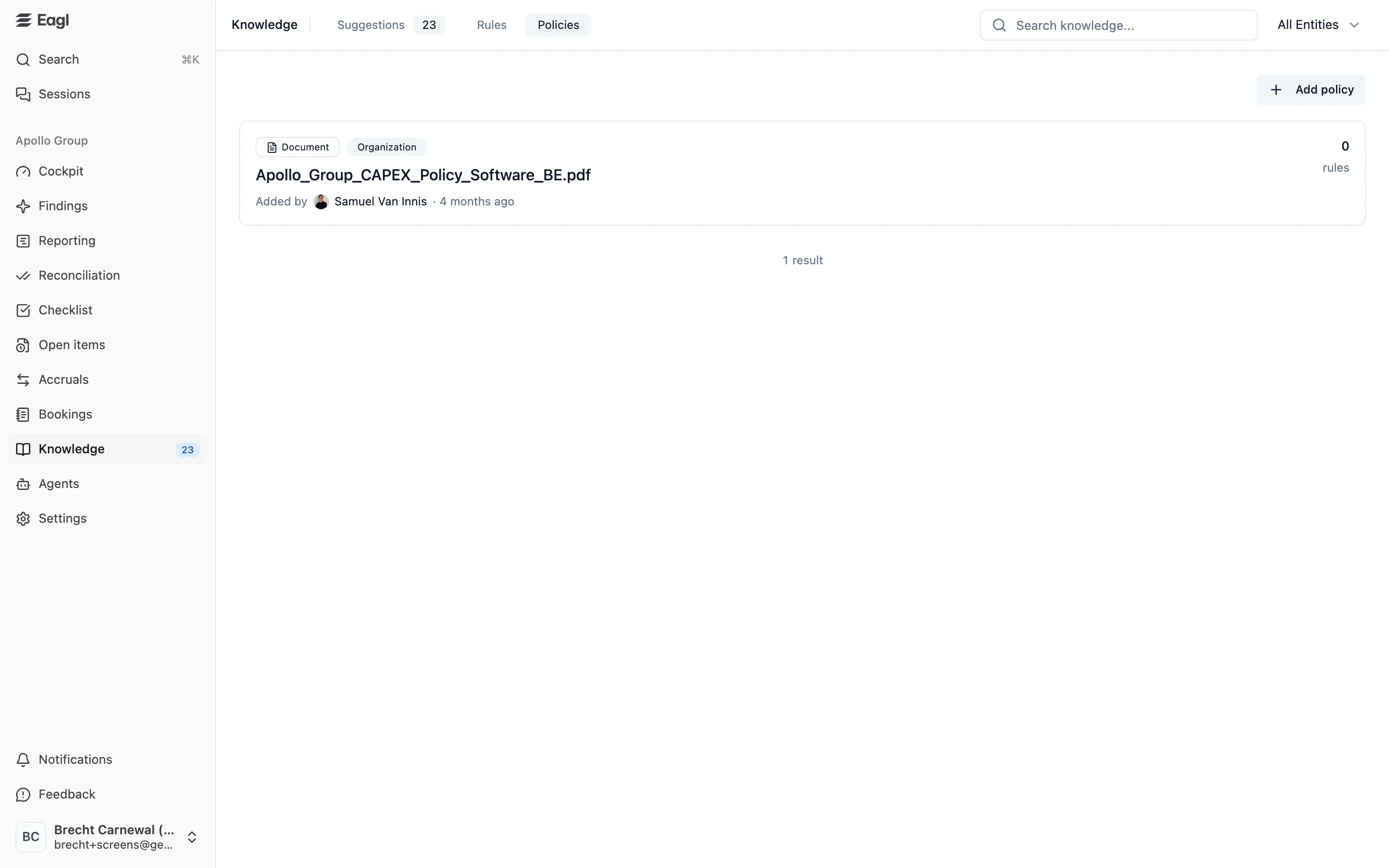
Each policy card shows:
- Text or Document
- its scope: Organization, or Entity followed by the entity’s name
- Pending until Eagl has processed it, and Deactivated if it’s switched off
- who added it and when
- how many rules it has produced, plus N pending if some of its suggestions are waiting for review
Add a policy
Section titled “Add a policy”- On the Policies tab, click Add policy.
- Choose a tab:
- Text: pick a Scope (Organization or one entity), type the Policy text, and click Save policy.
- Document: pick a Scope, then drag a file onto the upload area or click it to choose one. You can upload a PDF or an image (JPG, PNG, or WebP) of up to 25 MB. The upload starts as soon as you drop the file.
- Eagl reads the policy shortly after you add it. Suggestions based on it appear on the Suggestions tab, where the evidence shows the policy as the source.
Open a policy
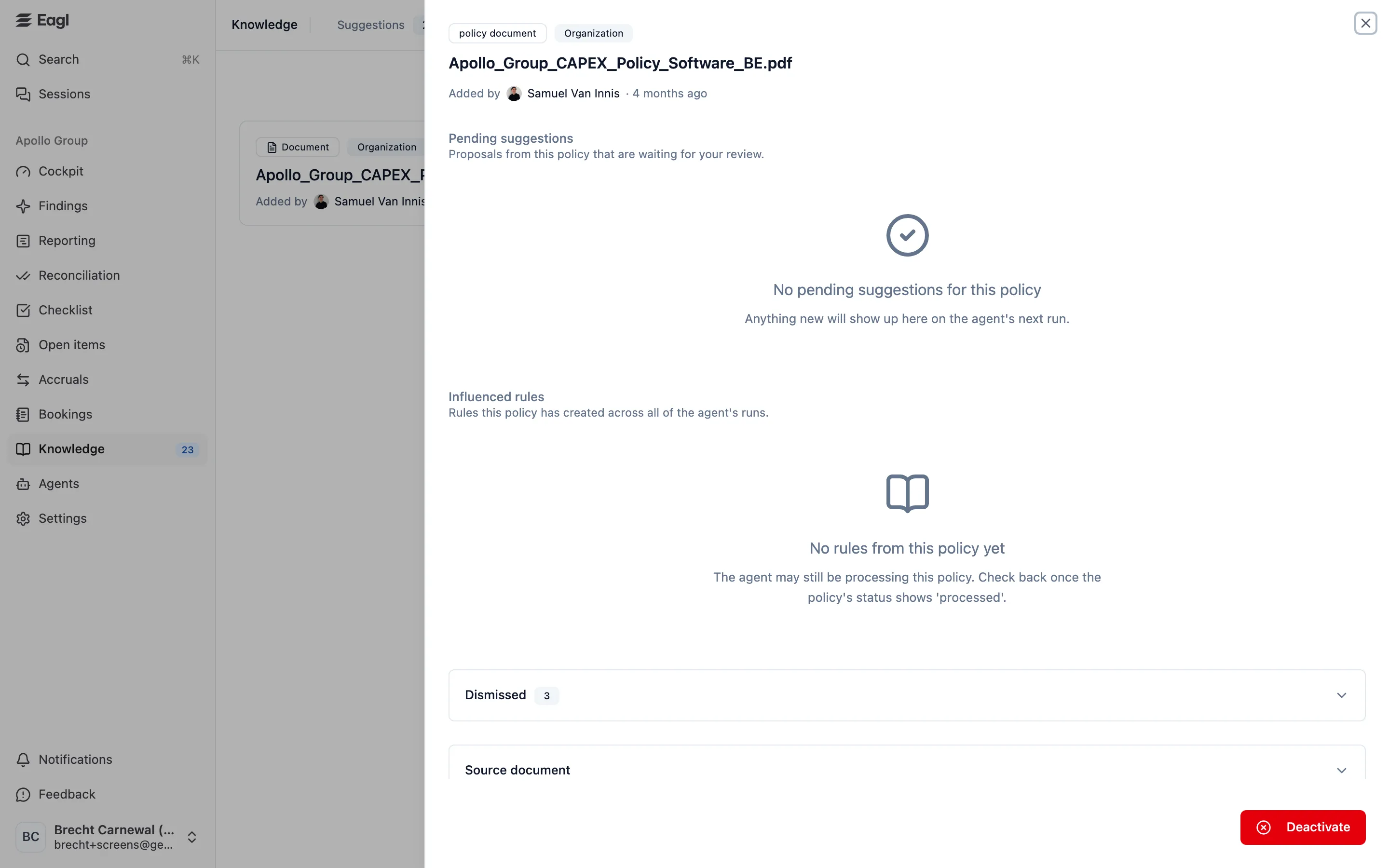
Section titled “Open a policy”Click a policy to see:
- Pending suggestions: proposals from this policy that are waiting for review. Click one to review it.
- Influenced rules: the rules this policy has produced. Click one to open it on the Rules tab.
- Dismissed and Approved: earlier suggestions from this policy.
- Source document: a preview of the uploaded file (document policies only).
Deactivate a policy
Section titled “Deactivate a policy”If a policy no longer applies, open it and click Deactivate. You must give a reason. Then:
- Pending suggestions that are backed only by this policy are dismissed automatically.
- On its next run, the feedback agent revisits the rules and learnings that came from the policy, taking your reason into account. Any changes to approved rules come back as suggestions for you to review.
You can open a deactivated policy and click Reactivate at any time.
Feedback agent settings
Section titled “Feedback agent settings”The feedback agent is the part of Eagl that turns your team’s activity and policies into suggestions. Owners and Admins can manage it under Agents → Feedback agent:
- Enabled switches it on or off. When it’s off, Eagl makes no new suggestions and the Knowledge page is hidden.
- Lookback window sets how many days back Eagl looks for activity it hasn’t processed yet. You can choose from 1 to 365 days. The default is 90.