


Business Central
Microsoft Dynamics 365 Business Central is Microsoft’s ERP for small and mid-sized businesses. Connecting it brings your general ledger into Eagl.
What syncs in
Section titled “What syncs in”- General ledger accounts and transactions, which feed reporting and drill-down.
Connecting uses OAuth through Microsoft, so you authorize Eagl with your Microsoft account — there are no API keys to copy.
-
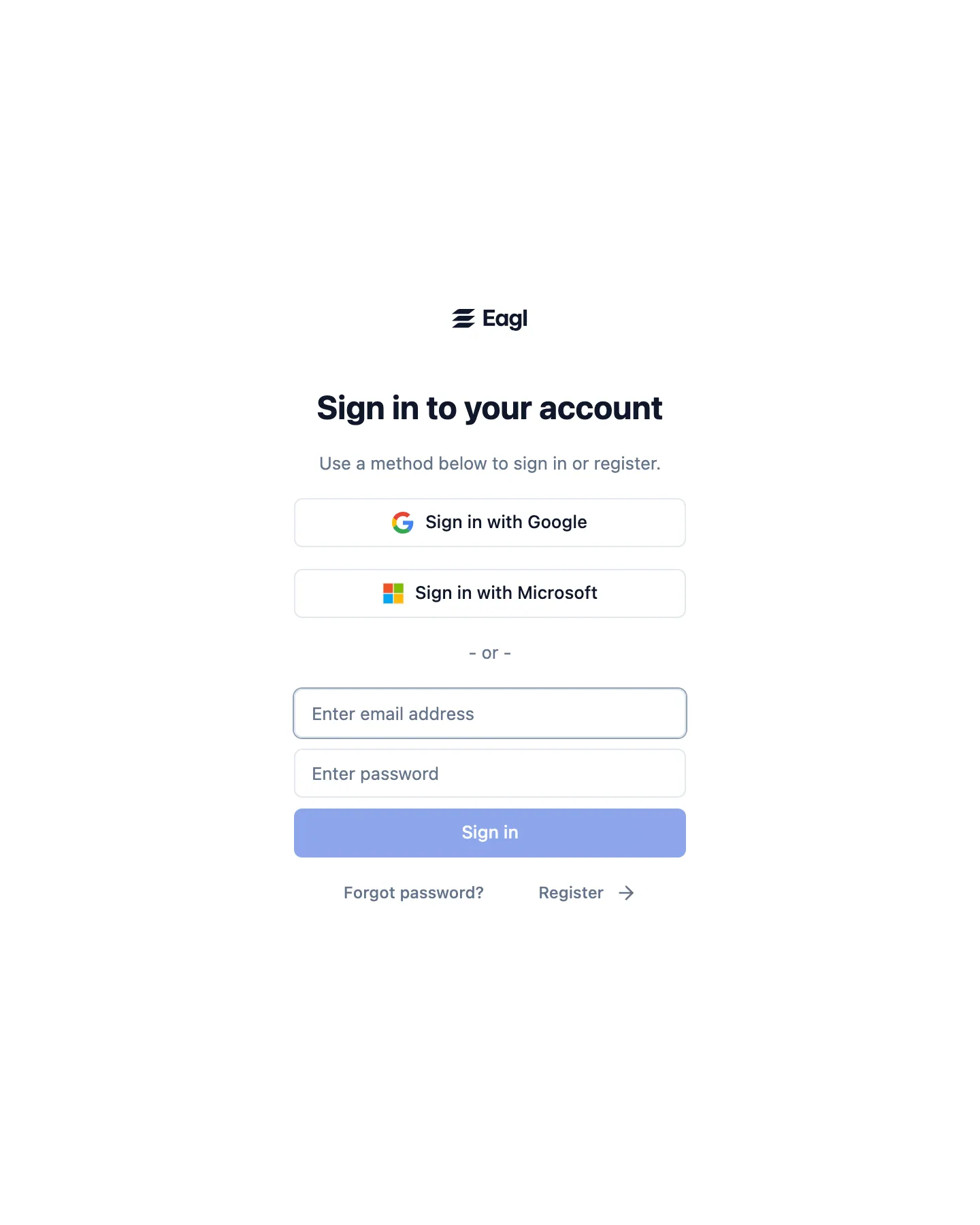
Sign in to Eagl.
Go to app.eagl.finance and sign in with Google, Microsoft, or an email and password. If you don’t have an account yet, one is created the first time you sign in. For help reaching an existing organization, contact your administrator or support@geteagl.com.
-
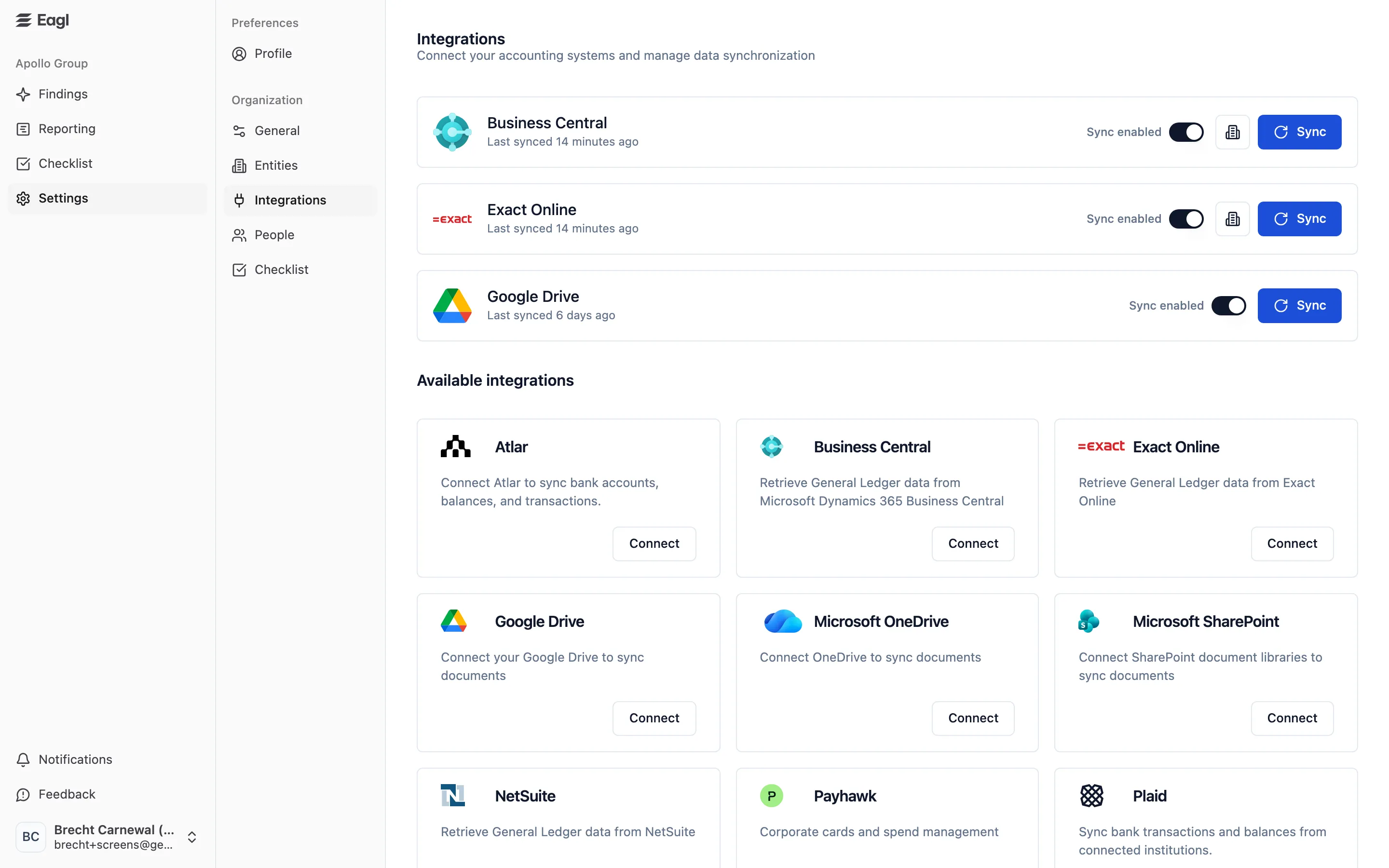
Connect Business Central.
Go to Settings → Integrations, find Business Central under Available integrations, and press Connect. Eagl sends you to Microsoft to authorize.
-
Sign in with Microsoft and grant access.
Sign in with the Microsoft account that has access to your Business Central environment, then review and accept the permissions Eagl requests. Some organizations require an administrator to approve the access the first time.
-
You’re connected.
Eagl starts syncing your general ledger. Once the first sync completes, your accounts and transactions show up in reporting and drill-down.