

Open Items
Open items lists everything still outstanding on your receivables and payables ledgers: customer invoices that haven’t been paid in full, and supplier bills you haven’t paid yet. Use it to see what’s overdue and by how much, who owes you or whom you owe, and to look up a single document without logging in to your ERP.
Eagl syncs open items from NetSuite, Exact Online, and Business Central, so the list reflects your ERP as of the last sync. The page is read-only. To settle or change an item, do it in your ERP, and the change shows up in Eagl after the next sync.
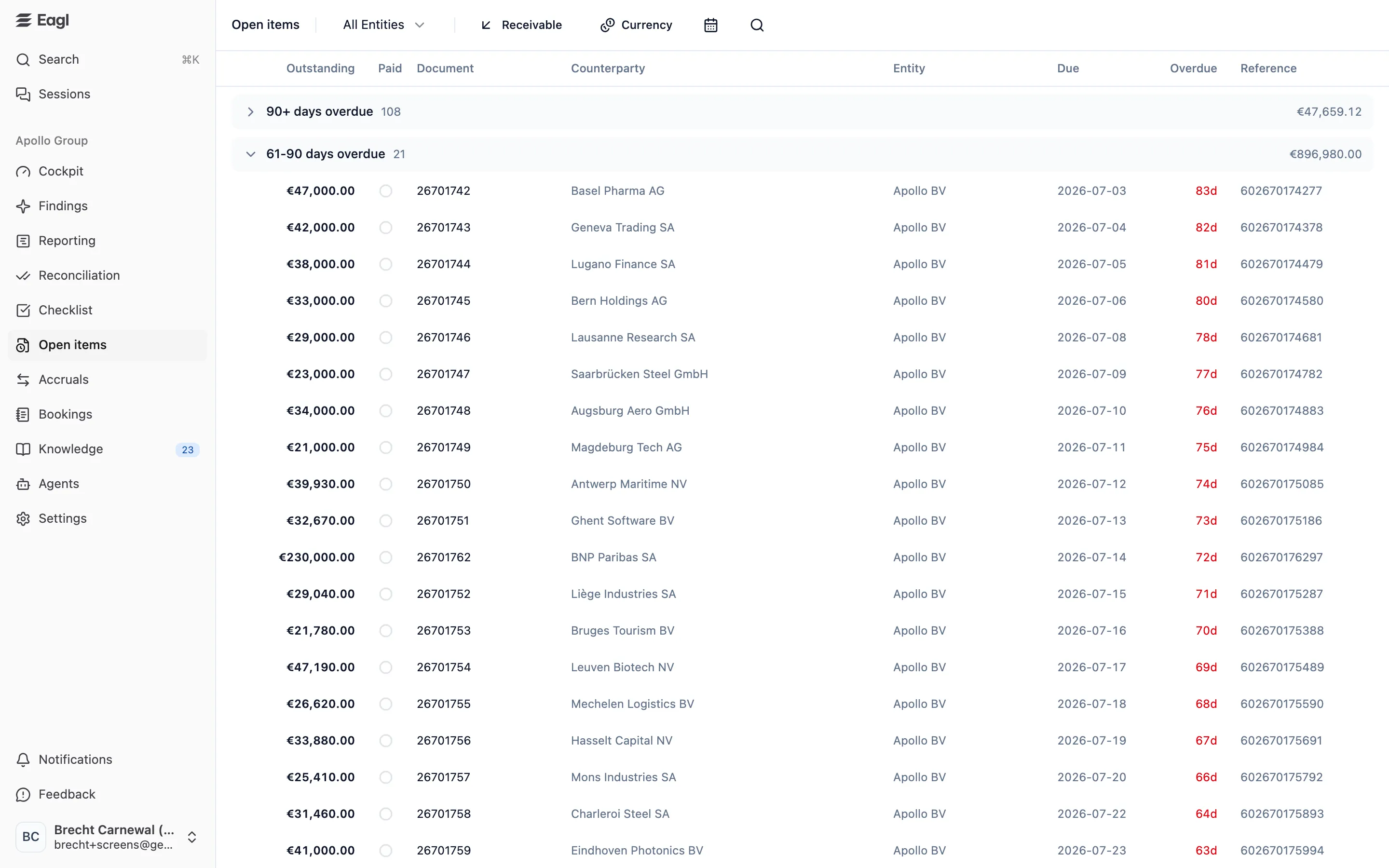
Choose what to look at
Section titled “Choose what to look at”The bar at the top of the page sets what the list shows. Your choices are kept in the page URL, so you can bookmark a view or share it with a colleague.
| Control | What it does |
|---|---|
| Entity picker | Show all entities (All Entities) or only the ones you pick. |
| Receivable / Payable | Switch between money owed to you (customer invoices) and money you owe (supplier bills). Click it to flip to the other side. |
| Currency | Show a single currency. Each currency in the list shows its total open amount. Pick All currencies to see everything again. |
| Grouping (calendar or person icon) | Group the list by due date (the default) or by customer or vendor. Hover over the icon to see which grouping is active. |
| Search (magnifying glass) | Find items by document number, customer or vendor name, payment reference, or memo. |
Aging groups
Section titled “Aging groups”By default, items are grouped by how far past their due date they are, with the oldest group first:
| Group | Meaning |
|---|---|
| 90+ days overdue | Due date was more than 90 days ago. This group starts collapsed so the groups you’re more likely to act on come first. Click its header to expand it. |
| 61-90 days overdue | 61 to 90 days past due. |
| 31-60 days overdue | 31 to 60 days past due. |
| 1-30 days overdue | 1 to 30 days past due. |
| Not due | Due today or later. |
| No due date | The ERP has no due date for the item. |
Each group header shows how many items it contains and their total. Within a group, the items due longest ago come first. A long group shows its first 20 items. Click the Load … more button below the group to show the next batch; it also says how many items are still hidden.
Group by customer or vendor
Section titled “Group by customer or vendor”Switch the grouping to see one group per customer (on Receivable) or per vendor (on Payable). The party with the oldest due date comes first. If a party trades with several of your entities, each entity gets its own group, since each entity’s balance with that party is its own position.
Columns
Section titled “Columns”| Column | What it shows |
|---|---|
| Outstanding | The amount still open, in the document’s own currency. Negative amounts, such as credit notes, show in red. |
| Paid | A ring showing how much of the original amount has already been received or paid. Hover over it for the percentage and amounts. It’s empty when the ERP doesn’t provide the original amount. |
| Document | The invoice or bill number. Credit notes carry a Credit badge. |
| Counterparty | The customer or vendor. |
| Entity | The entity the item belongs to. |
| Due | The due date. |
| Overdue | Days past the due date, in red. Items that aren’t overdue show —. |
| Reference | The payment reference on the document. |
Besides invoices and bills, the list includes anything else your ERP keeps open on these ledgers, such as credit notes and payments that haven’t been applied to an invoice yet. If your ERP splits an invoice into installments, each installment is its own row with its own due date.
Item details
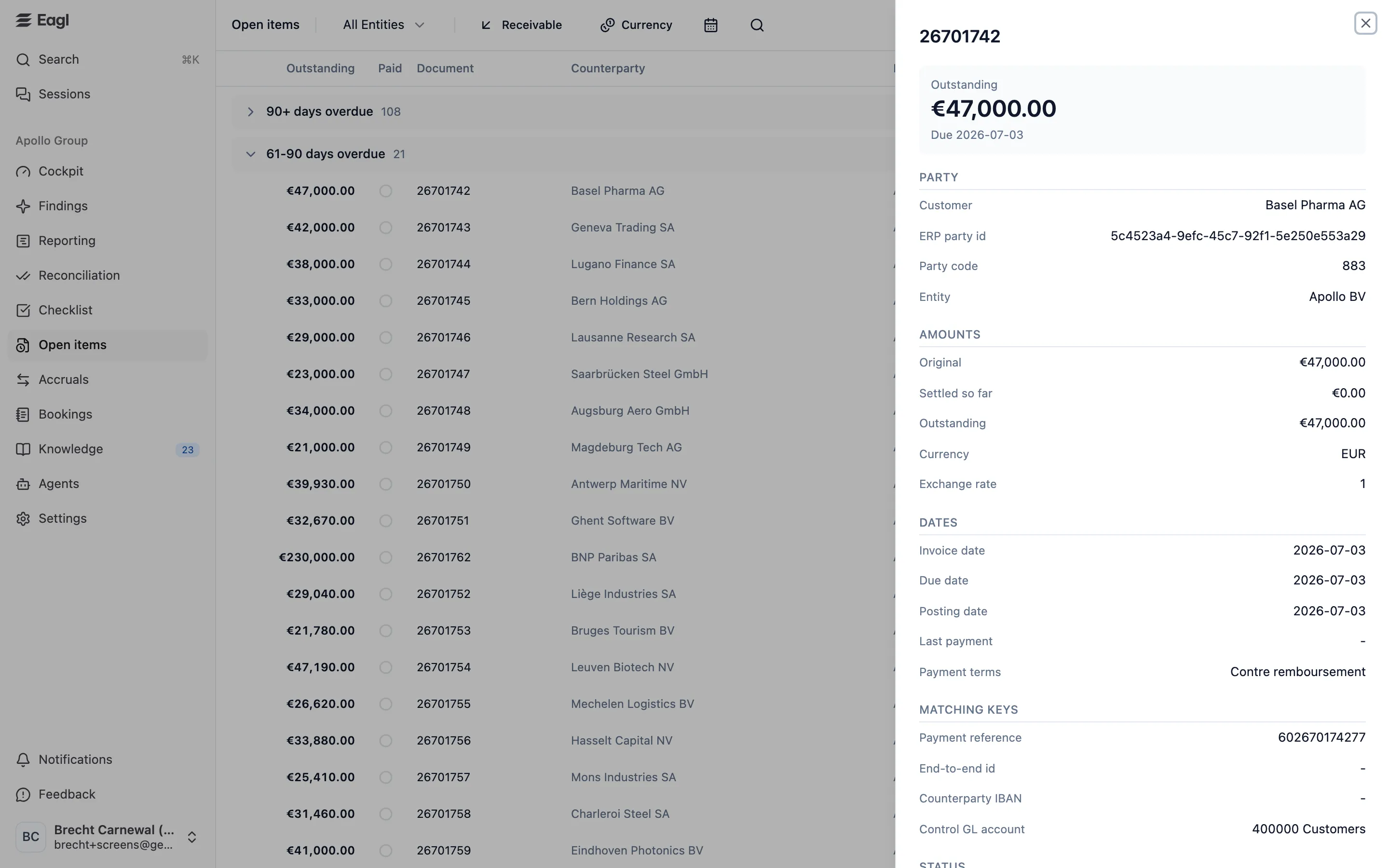
Section titled “Item details”Click any row to open its details in a side panel.
| Section | What’s in it |
|---|---|
| Outstanding | The open amount and due date at the top. |
| Party | The customer or vendor, its ID and code in your ERP, and the entity. |
| Amounts | Original, Settled so far, and Outstanding, plus the currency and exchange rate. |
| Dates | Invoice date, Due date, Posting date, Last payment, and Payment terms. |
| Matching keys | Payment reference, End-to-end id, and Counterparty IBAN: the identifiers a payment can carry to point to this item. Plus the Control GL account, the receivables or payables account the item sits on. |
| Status | Whether the item is still open, its status (as Eagl reads it, and as your ERP reports it), the document type, and the document’s ID in your ERP. |
| GL composition | The accounts the document was booked to, totaled per account in the entity’s currency. The receivables or payables line is marked Control and tax lines are marked Tax. Cost centers and projects are listed where they’re used. |
| Memo | The document’s description from your ERP. |
When Eagl can link to the document in your ERP, an Open in ERP button takes you straight to it. Raw ERP fields at the bottom is a technical view of the record; Eagl support may ask you for it if a value looks different from what you see in the ERP.
Good to know
Section titled “Good to know”- Currencies are never added together. When a group contains more than one currency, its header shows mixed currencies instead of a total. Pick a currency to see a total.
- Very large ledgers. The page loads up to 2,000 open items at a time. If there are more, a note at the top says so, and group counts and totals cover only the loaded items. Narrow the list by entity, currency, or search to see the rest.
- Overdue days are counted from today, while the items themselves are as of the last sync.
Who can see open items
Section titled “Who can see open items”Owners, admins, and members can open this page, and everyone sees only the entities they have access to. Users with the Audit role don’t have access.