

Findings
Findings is your review queue for everything Eagl’s agents flag in your ledger: VAT errors, costs that should have been accrued, deferred or capitalized, missing recurring bills, and entries coded to the wrong account or cost center. Each finding explains what’s wrong, shows the journal entries involved, and often includes a ready-made correction you can book straight to your ERP.
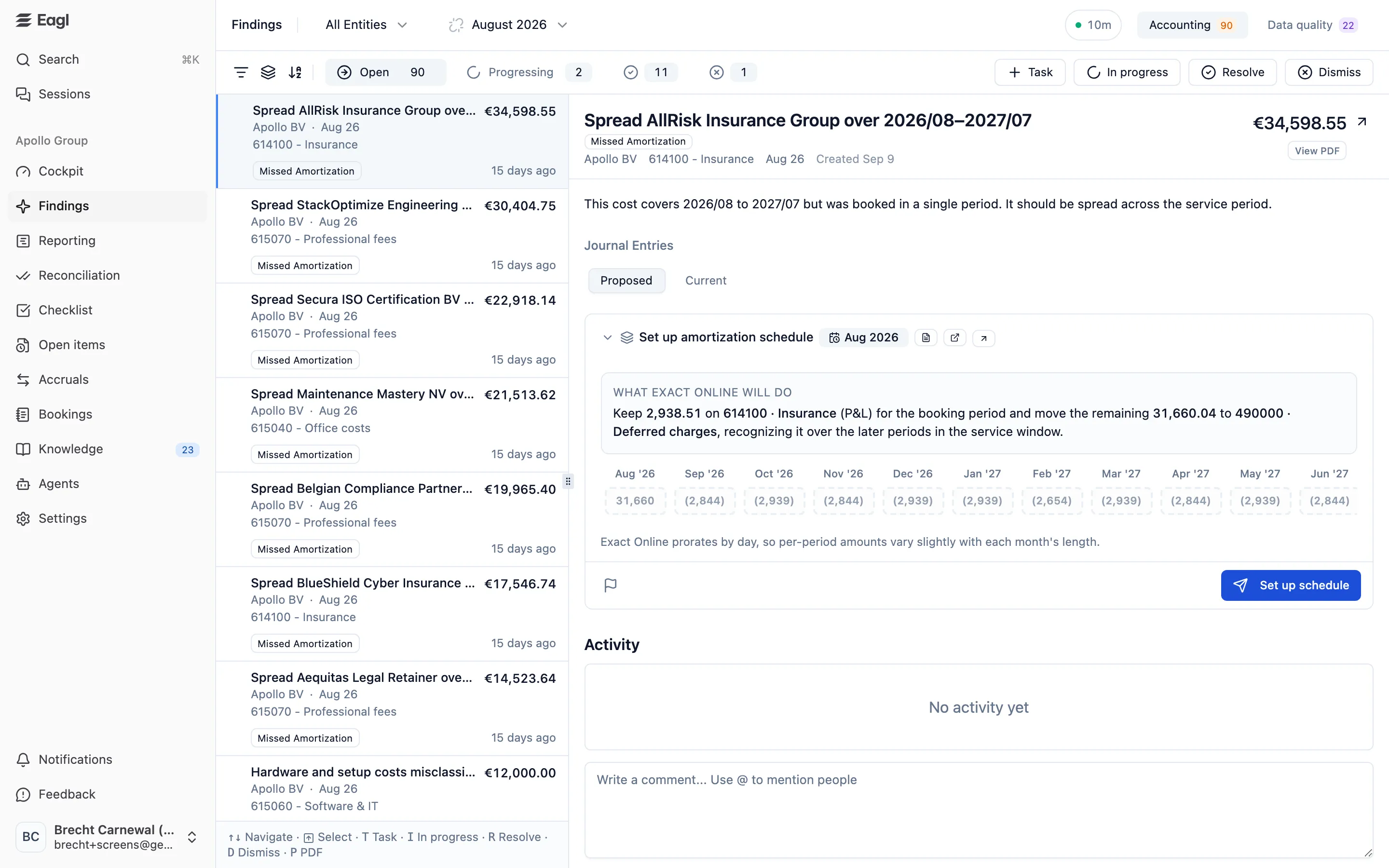
Page layout
Section titled “Page layout”Open Findings from the sidebar. The header holds everything that scopes the page:
- Entity picker: All Entities, or any combination of entities. You only see findings for entities you have access to.
- Period picker: findings belong to a financial month. Each month in the list shows its open accounting count (orange) and open data-quality count (purple), plus an icon for its close status in your checklist. By default the page opens on the last month you picked, or else the current open close period.
- Agent status: shows Syncing while agents are processing new data. Otherwise it shows how long ago they last ran. Hover it for the exact time.
- Accounting and Data quality tabs, each with its open count for the selected period. The Data quality tab appears when the Data Quality agent is turned on for your organization, or when it has issues to show.
The URL keeps your entity, period, filters, and selected finding, so you can share a link to exactly what you’re looking at.
Accounting findings
Section titled “Accounting findings”The Accounting tab is a split view: the finding list on the left and the selected finding’s details on the right. Drag the divider to resize them.
What gets flagged
Section titled “What gets flagged”Every finding has a topic that says what kind of issue it is:
| Topic | Raised by | What it means |
|---|---|---|
| Missed Amortization | Transaction Timing Analysis | A cost that covers several future periods was booked in a single period. |
| Missed Deferral | Transaction Timing Analysis | A cost that belongs to a later period was booked now. |
| Unaccrued Recurring Cost | Transaction Timing Analysis | A recurring cost lands in the period its invoice arrives instead of the period it covers. |
| Missing Transactions | Account Controller | Recurring transactions you’d expect in this period haven’t been booked. |
| Capex Detection | CAPEX Classifier | Costs that should be capitalized were booked as expenses. |
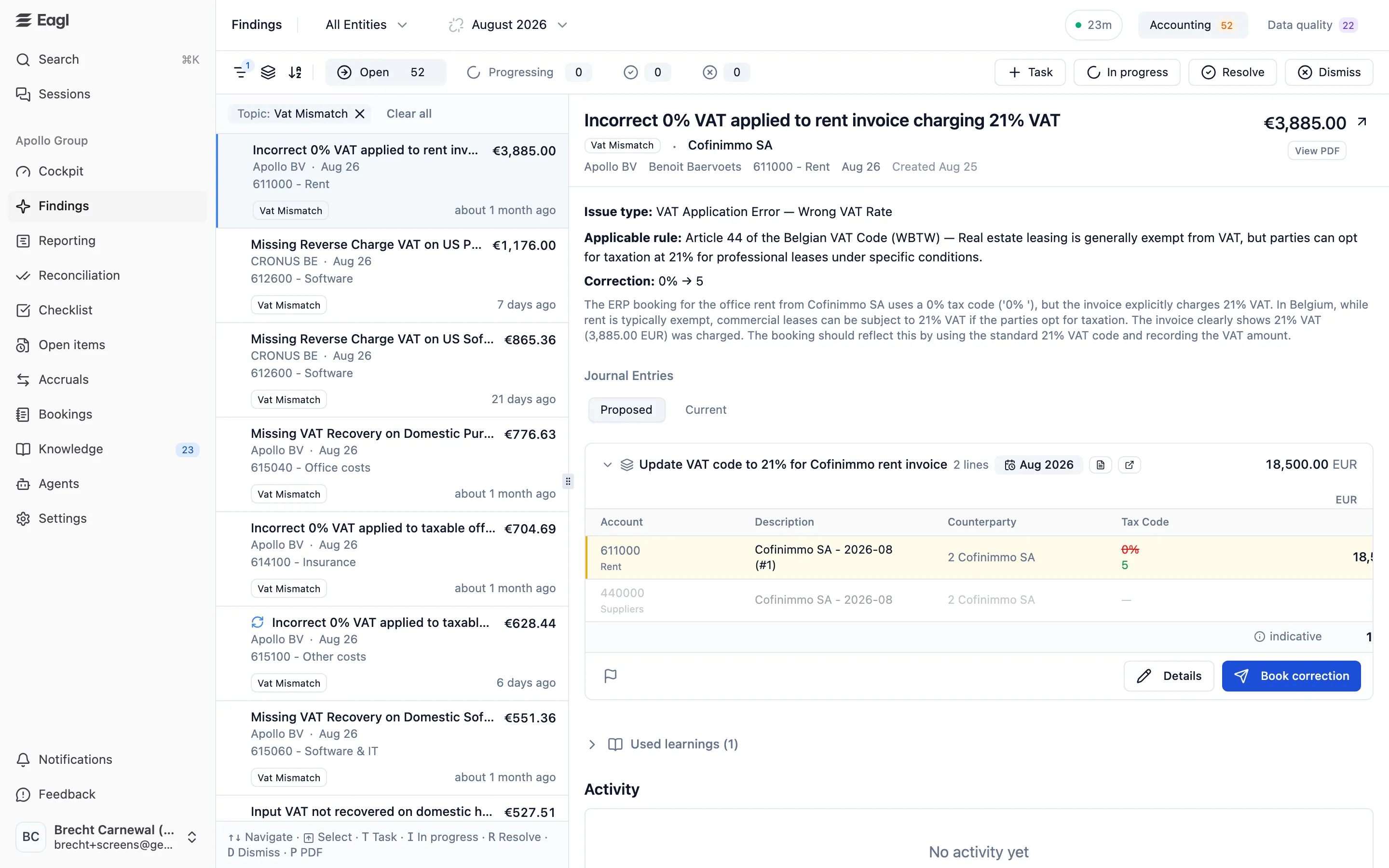
| Vat Mismatch | VAT Detection | The ERP booking has the wrong VAT treatment, such as a wrong rate, missing VAT, or a reverse-charge error. |
| Tax Code Cleanup | VAT Detection | The booking uses the wrong tax code for non-deductible VAT. |
| Invoice Vat Issue | VAT Detection | The supplier’s invoice itself contains a VAT error. |
| Vat Intercompany | VAT Detection | A transaction with a related or group company has VAT implications. |
| Keyword Detection | Invoice Scanner | Invoice lines that match the search criteria you set for the Invoice Scanner agent. |
Some findings also carry labels: extra tags from the agent, shown next to the topic.
Business insights, like spending increases or new accounts, aren’t listed here. They show up next to the numbers in Reporting.
Status tabs
Section titled “Status tabs”Status tabs sit in the toolbar above the list. Resolved and Dismissed show only an icon and a count. Hover them to see the name.
| Tab | Meaning | How a finding gets there |
|---|---|---|
| Open | New and not yet triaged. | An agent raised it, or someone reopened it. |
| Progressing | Someone is working on it. | You marked it In progress or created a task from it. |
| Resolved (check icon) | Handled. | You resolved it, booked its correction, or completed its linked task. Eagl also resolves findings when new data shows the issue is fixed. |
| Dismissed (cross icon) | Closed without action. | You dismissed it as No action or Bad finding. Eagl can also close a finding as no action when it re-reviews the finding against new data. |
When everything in the Open tab for a period is handled, the page tells you that all accounting findings for the period have been triaged.
Filter, group, and sort
Section titled “Filter, group, and sort”Use the three icons at the left of the toolbar:
- Filters: narrow the list by Topic, Labels, GL Account, and Amount (min–max). Active filters show as chips above the list. Use Clear all to remove them.
- Group by: Topic (the default), Entity, or None. Each group shows its count and total amount. Eagl remembers your choice.
- Sort by: Amount (the default, largest first), Created date, Period, or Last activity. Click the active option again to reverse the order.
Each row in the list shows the finding’s title, entity, period, GL account, amount, topic, and how long ago it last changed. A refresh icon marks a finding that Eagl reprocessed after new data came in, which may have changed its status or details.
The detail panel
Section titled “The detail panel”Select a finding to open it on the right. From top to bottom:
- Header: the title, topic and label badges, counterparty, entity, who booked the entry, GL account, period, and creation date. Next to the amount, the arrow icon opens the GL account in transaction drill-down in a new tab. View PDF opens the source document.
- Analysis: the agent’s explanation of what’s wrong and why. VAT findings name the applicable rule and the correction, for example.
- Flagged lines and Search criteria (Invoice Scanner findings): the document lines that matched, and the criteria they were checked against.
- Cut-off timeline (timing findings): when the cost was booked, where Eagl proposes to put it, and evidence such as prior bills. View cut-off analysis opens the underlying timing analysis in Accruals.
- Journal Entries: when Eagl has a correction, the Proposed tab shows it and the Current tab shows the entry as it’s booked today. Without a correction, you see the current entry only.
- Used learnings: the rules and knowledge from Knowledge that the agent applied.
- Reprocessing History: what changed when Eagl re-reviewed the finding against new data, and why.
- Activity: the finding’s status history and comments. Type @ to mention a teammate, who is then notified.
Book a proposed correction
Section titled “Book a proposed correction”Many findings come with a correction on the Proposed tab. Changed values are highlighted against the original. What booking does depends on the kind of correction:
| Correction | Button | What it writes to your ERP |
|---|---|---|
| Edit of an existing entry | Book correction | Updates the existing journal entry, such as its account, tax code, or dimensions. |
| Proposed accrual | Book accrual | Posts a new accrual journal entry. A badge shows the month it posts in. |
| Set up amortization schedule / Set up deferral schedule (NetSuite, Exact Online) | Set up schedule | Sets up the ERP’s own deferral schedule on the source entry. The card spells out what the ERP will do and previews the per-period amounts. |
| Book amortization entries / Book deferral entries (Business Central) | Book amortization / Book deferral | Posts a reclass journal plus one recognition journal per future period. |
- Open the finding and review the Proposed tab. Compare it with Current if you want to see the entry as it’s booked today.
- To adjust the proposal, click Details. In Edit Proposed Correction you can change each line’s GL account, amount and side, memo, tax code, counterparty, cost center, cost unit, and project. You can also add or remove lines. Click Save Changes when you’re done. For a deferral schedule, pick the Template or Deferral account on the card if your ERP asks for one.
- Click the book button and confirm. The dialog tells you what will be written, and that the action cannot be undone from Eagl.
- When the booking succeeds, the card shows Posted, with links to open the entry in your ERP. The finding moves to Resolved.
Every correction Eagl books, or fails to book, is also listed in Bookings.
When booking isn’t available
Section titled “When booking isn’t available”Sometimes the book button is hidden and a warning on the card explains why. Common reasons:
- the entry’s period, or its accounts payable or receivable, is locked in your ERP,
- the ERP entry changed since the proposal was made. Review the Current ERP state shown on the card,
- another correction was already posted to the same entry. A link takes you to that finding,
- the finding is already resolved or dismissed, or
- a deferral still needs a template or deferral account.
If your ERP rejects a booking, the card shows Failed with the ERP’s error message. Use Edit to fix the proposal, then Retry. When Eagl re-proposes a correction after new data comes in, the old one is marked Replaced and kept under earlier proposals for reference.
Use the flag icon on a card to report a problem with this proposal. Your report helps improve future suggestions and doesn’t stop you from booking.
Triage findings
Section titled “Triage findings”Select a finding and use the buttons at the top right, or the keyboard.
| Action | Available on | What it does |
|---|---|---|
| Task | Open, Progressing | Creates a checklist task and moves the finding to Progressing. Changes to View Task once a task exists. |
| In progress | Open | Moves the finding to Progressing without creating a task. |
| Resolve | Open, Progressing | Marks it handled, with an optional comment. |
| Dismiss | Open, Progressing | Closes it with a required reason. |
| Reopen | Resolved, Dismissed | Sends it back to Open, after you confirm. |
When you dismiss a finding, choose a reason and optionally explain it:
- No action: the finding is correct, but no follow-up is needed.
- Bad finding: the finding is incorrect or based on wrong assumptions.
To change a reason later, open the dismissed finding and click Edit on its banner.
A finding you just triaged stays in the list, grayed out, until you switch tabs. Press Undo (or U) to reverse the action. Undoing a task creation also deletes the task.
Convert a finding into a task
Section titled “Convert a finding into a task”Task opens Create Task from Finding. Set the Task name (it defaults to the finding’s title), the Period (an open close period), and optionally a comment with @ mentions, up to two Preparers, and a Reviewer. The finding and task then stay in sync:
- Completing the task resolves the finding.
- Resolving or dismissing the finding moves the task to Ready for Review, or to Completed if it has no reviewer.
- Reopening the finding sets the task back to Not Started.
Bulk triage
Section titled “Bulk triage”To select several findings, hover a row and tick its checkbox, ⌘/Ctrl-click rows, Shift-click a range, or press Shift + ↑/↓. You can select up to 100 at once. A bar at the bottom offers:
- Create Tasks (Open and Progressing): one task per finding, titled after the finding. The period, comment, preparer, and reviewer are shared, and the comment is required.
- Dismiss (Open and Progressing): dismisses them all with one reason and explanation.
- Reopen (Resolved and Dismissed).
If you select findings you just triaged, the bar offers Undo instead.
Keyboard shortcuts
Section titled “Keyboard shortcuts”The hint bar under the list shows the shortcuts available for the current tab.
| Key | Action |
|---|---|
| ↑ / ↓ | Previous or next finding |
| ← / → | Previous or next status tab |
| Shift + ↑ / ↓ | Add findings to a multi-selection |
| T | Create a task, or View Task if one exists |
| I | Mark In progress (Open tab) |
| R | Resolve (Open, Progressing) or Reopen (Resolved, Dismissed) |
| D | Dismiss |
| U | Undo the last action on the selected finding(s) |
| P | Open the source document (PDF) |
| Esc | Clear the selection |
In dialogs, ⌘/Ctrl + Enter confirms. In the dismiss dialog, 1 and 2 pick the reason.
Data quality
Section titled “Data quality”The Data quality tab lists journal entries that the Data Quality agent believes are mis-coded. For each one, it proposes the right coding.
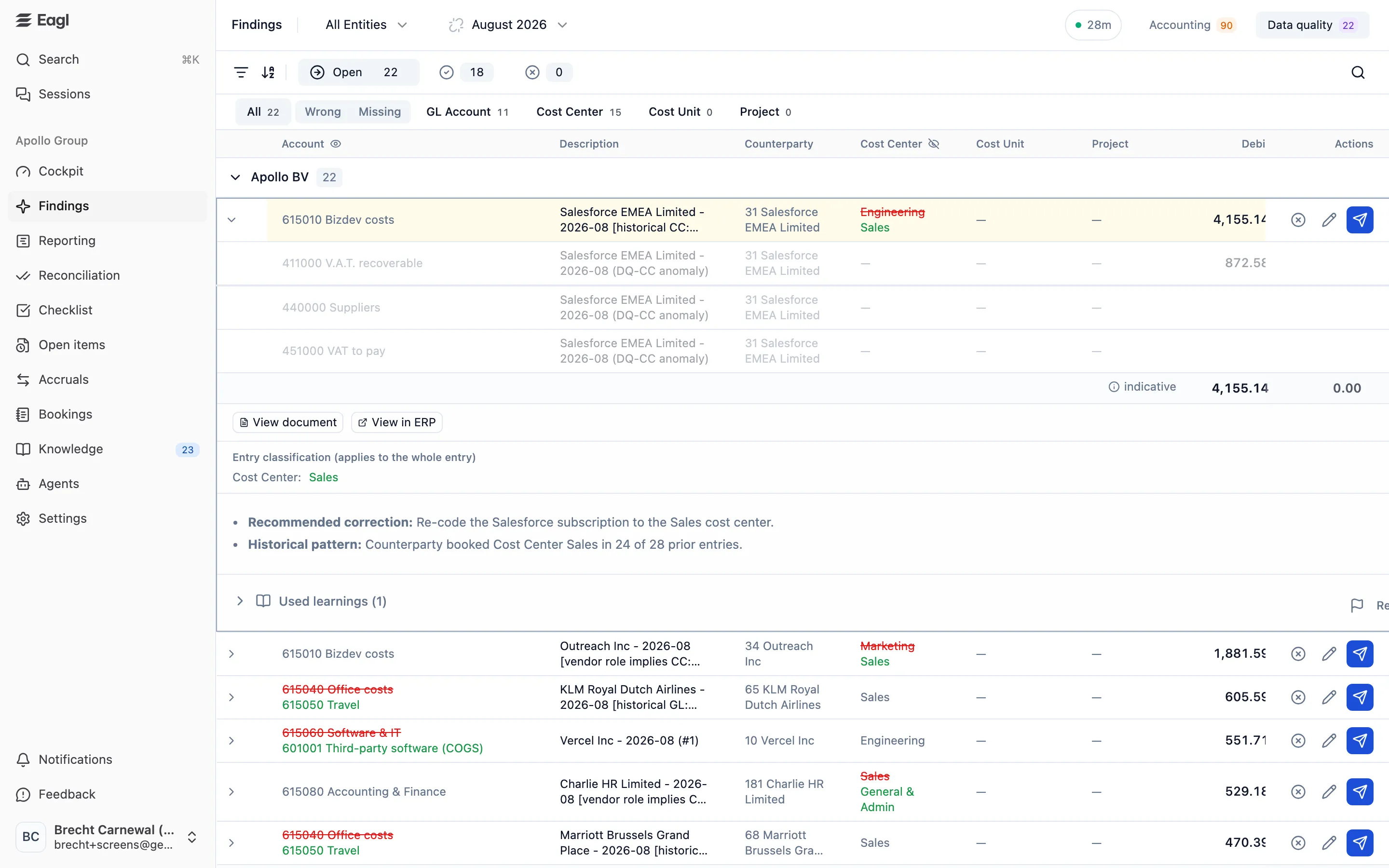
- Status tabs: Open, Resolved (check icon), and Dismissed (cross icon).
- Issue-type pills: All, or one dimension: GL Account, Cost Center, Cost Unit, or Project. Each pill shows its count. Dimension names follow your ERP’s terminology. Next to the active pill, Wrong (a value is set but incorrect) and Missing (no value) narrow the list further. GL accounts can only be wrong, not missing.
- Filters and sort: filter by Counterparty, GL Account, and Amount. Sort by Amount, Period, Created, or Counterparty. The search icon finds issues by text.
- With more than one entity selected, rows are grouped by entity.
Each row shows the entry’s current value struck through next to the proposed value. Expand a row to see the whole journal entry, View document, View in ERP, the recommended correction and the historical pattern behind it, and any Used learnings.
Actions on an open issue:
- Accept and push to ERP (send icon) opens Apply correction and updates the journal entry in your ERP after you confirm. This can’t be undone from Eagl.
- Edit corrective action (pencil) opens the same editor as on accounting findings.
- Dismiss issue asks for a No action or Bad finding reason. You can undo it for a few seconds. Dismissed issues stay listed so the agent doesn’t propose them again.
- When Eagl can’t push the fix itself, use Fix in ERP to open the entry, then Mark as resolved.
A lock icon replaces the push button when the entry’s period is locked in your ERP. A warning icon replaces it when the entry changed since the proposal, or when another correction was already posted to it. You can Reopen resolved or dismissed issues, except for corrections already posted to your ERP.
How your feedback improves Eagl
Section titled “How your feedback improves Eagl”Eagl learns from your triage. The feedback agent reviews your dismissal reasons, comments, edits to proposed corrections, and problem reports. When it spots a pattern, it can propose a rule in Knowledge under Suggestions. Nothing changes until someone approves the suggestion. Once approved, the agents apply the rule, and it can show up under Used learnings on later findings.
That’s why a dismissal needs a reason: Bad finding tells Eagl the agent got it wrong, while No action tells it the finding was right but didn’t matter. Correcting a reason later with Edit also updates what Eagl learns.
Eagl also keeps findings current. When new data syncs, it re-reviews affected findings. It can update or resolve them, or replace a proposed correction that no longer fits. A cut-off finding resolves automatically once an accrual or deferral covers the entry.
Who can do what
Section titled “Who can do what”- Owners, Admins, and Members can view, triage, comment on, and book corrections for findings on the entities they can access.
- Only Owners and Admins can undo a task creation, because undoing it deletes the task.
- The Audit role has no access to findings.