

Notifications
Eagl notifies you when something needs you: a close task is assigned to you, a task you prepare is ready for review, or a colleague mentions you in a comment. Every notification shows up in Eagl itself. You decide which ones also reach you by email, Slack, or Microsoft Teams.
The notifications panel
Section titled “The notifications panel”Click Notifications (the bell) at the bottom of the sidebar. A badge next to it shows how many unread notifications you have.
- Unread notifications have a colored dot and a shaded background. Each one shows what it’s about (for example the task title), what happened, and how long ago.
- Click a notification to open the item it’s about, such as the checklist task or the comment. Opening it marks it as read.
- Hover over a notification and click the check mark to Mark as read, or the envelope to Mark as unread.
- Mark all read at the top clears every unread notification at once.
- When you have unread notifications, switch between All and Unread to filter the list.
- The list shows your 20 most recent notifications. Click Load more at the bottom to see older ones.
What you’re notified about
Section titled “What you’re notified about”| When | Who gets it | Opens |
|---|---|---|
| You’re made preparer or reviewer on a newly created checklist task (including tasks created from findings, reconciliation tasks, and duplicated tasks) | The person assigned | The task |
| A task’s status changes to Ready for Review, Completed, or Blocked | The task’s preparers and reviewer | The task |
| Someone comments on a task you prepare or review, or @mentions you in a task comment | You | The task, at the comment |
| Someone replies in a comment thread you took part in | You | The task, at the comment |
| Someone @mentions you in a comment on a finding | You | The finding |
| Someone @mentions you in a comment on an accrual | You | The accrual |
| An accrual you sent for Re-analyze finishes its investigation | You | The accrual |
| An integration needs to be reconnected (Reconnect …, with the reason) | Organization owners | Settings → Integrations |
Status changes and comments made by Eagl Agent on a checklist task notify you the same way as those made by a colleague. You’re never notified about your own actions.
Email, Slack, and Microsoft Teams
Section titled “Email, Slack, and Microsoft Teams”Besides the panel in Eagl, notifications about checklist tasks can reach you on other channels:
| Channel | What it delivers |
|---|---|
| Assignments, status changes, comments and mentions, and comment replies on checklist tasks. Eagl waits until no new notifications have come in for a few minutes, then sends one email with everything new. Owners also get an email when an integration needs to be reconnected. | |
| Slack | The same checklist notifications, plus reconnect alerts for owners, as a direct message to your linked Slack account. They arrive within about a minute. |
| Microsoft Teams | The same as Slack, as a direct message to your linked Teams account. |
Mentions on findings and accruals, and finished accrual investigations, appear only in the Eagl notifications panel.
If you read a notification in Eagl before its email or message goes out, Eagl doesn’t send it.
Choose what you receive
Section titled “Choose what you receive”Everything is switched on by default. To change it, go to Settings → Notifications (under Preferences in the settings menu).
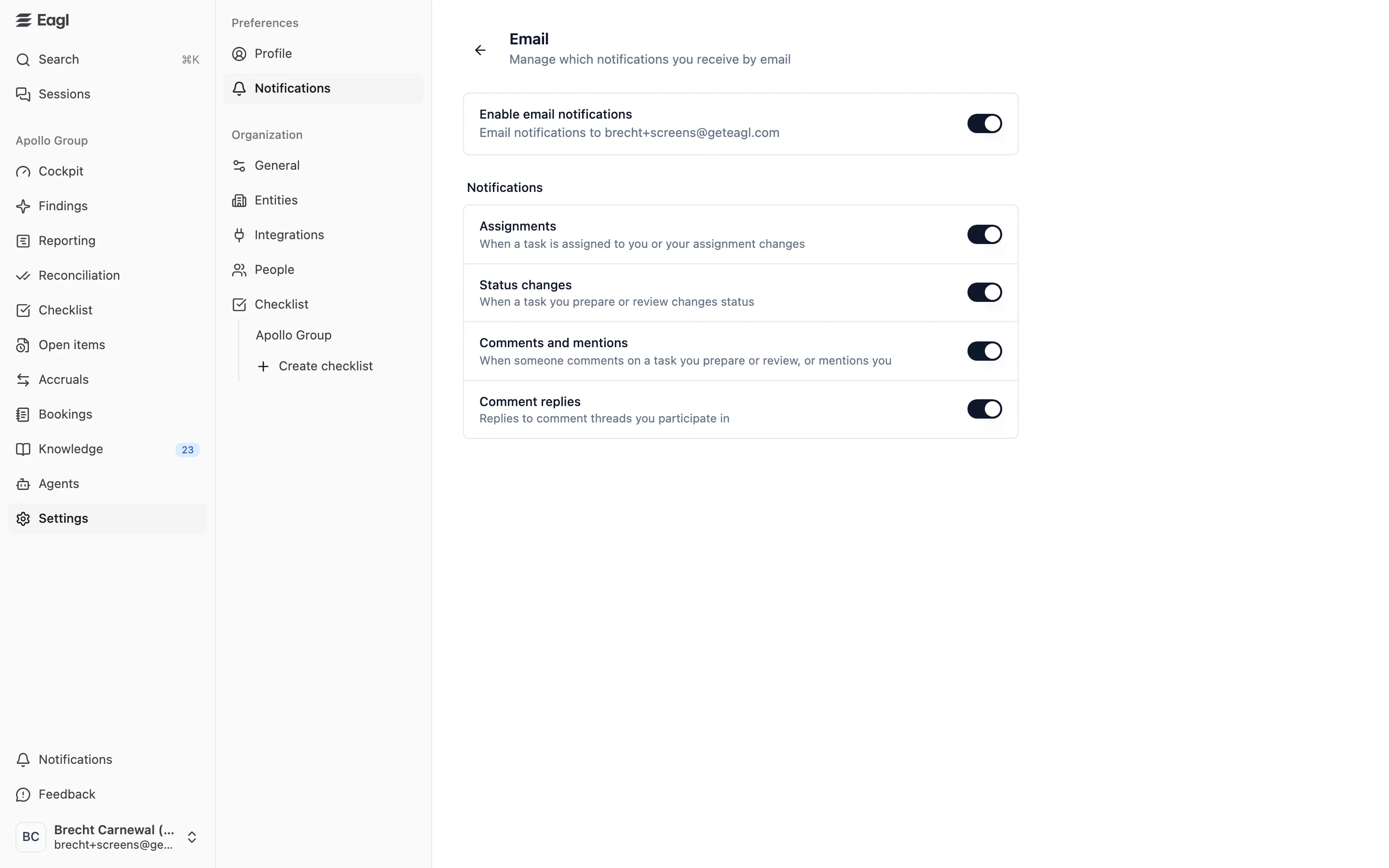
The page lists one card per channel: Email, and Slack or Microsoft Teams if your organization has connected them. Each card shows its current state:
| Card says | Meaning |
|---|---|
| Enabled for all notifications | You receive every notification type on this channel. |
| Enabled for … | You receive only the types listed, for example Enabled for Assignments, Status changes + 1 more. |
| Disabled | You switched this channel off, or turned off every type. |
| Disabled by your organization | An owner or admin turned this channel off for the whole organization. |
| Personal Slack account not connected | Your Slack (or Teams) account isn’t linked yet. If you can manage integrations, click the card to link it. |
| Reach out to your admin to link your Slack account | Your account isn’t linked yet, and an admin needs to do it for you. |
- Click a channel card, for example Email.
- Use the top switch (Enable email notifications, Enable Slack notifications, …) to turn the whole channel on or off. It shows where messages go, such as your email address or your Slack handle.
- Under Notifications, switch individual types on or off:
- Assignments: when a task is assigned to you or your assignment changes.
- Status changes: when a task you prepare or review changes status.
- Comments and mentions: when someone comments on a task you prepare or review, or mentions you.
- Comment replies: replies to comment threads you participate in.
Changes save as soon as you flip a switch. These settings only affect email, Slack, and Teams. The notifications panel in Eagl always shows everything.
Organization settings
Section titled “Organization settings”Owners and admins set the defaults for the whole organization under Settings → General, in the Communication card:
- Daily digest channel: Email (the default) or Off. The daily digest is an email that arrives every weekday morning with an overview of your own checklist tasks in the current period: how many are open, overall progress, and which tasks are overdue, due today, or due tomorrow, per entity.
- Notifications: a switch per channel (Email, and Slack or Microsoft Teams when connected) that decides whether the organization sends real-time notifications on it at all.
Click Save Changes to apply. When a channel is switched off here, members see Disabled by your organization on their own notification settings and can’t turn it back on.