

Global Search
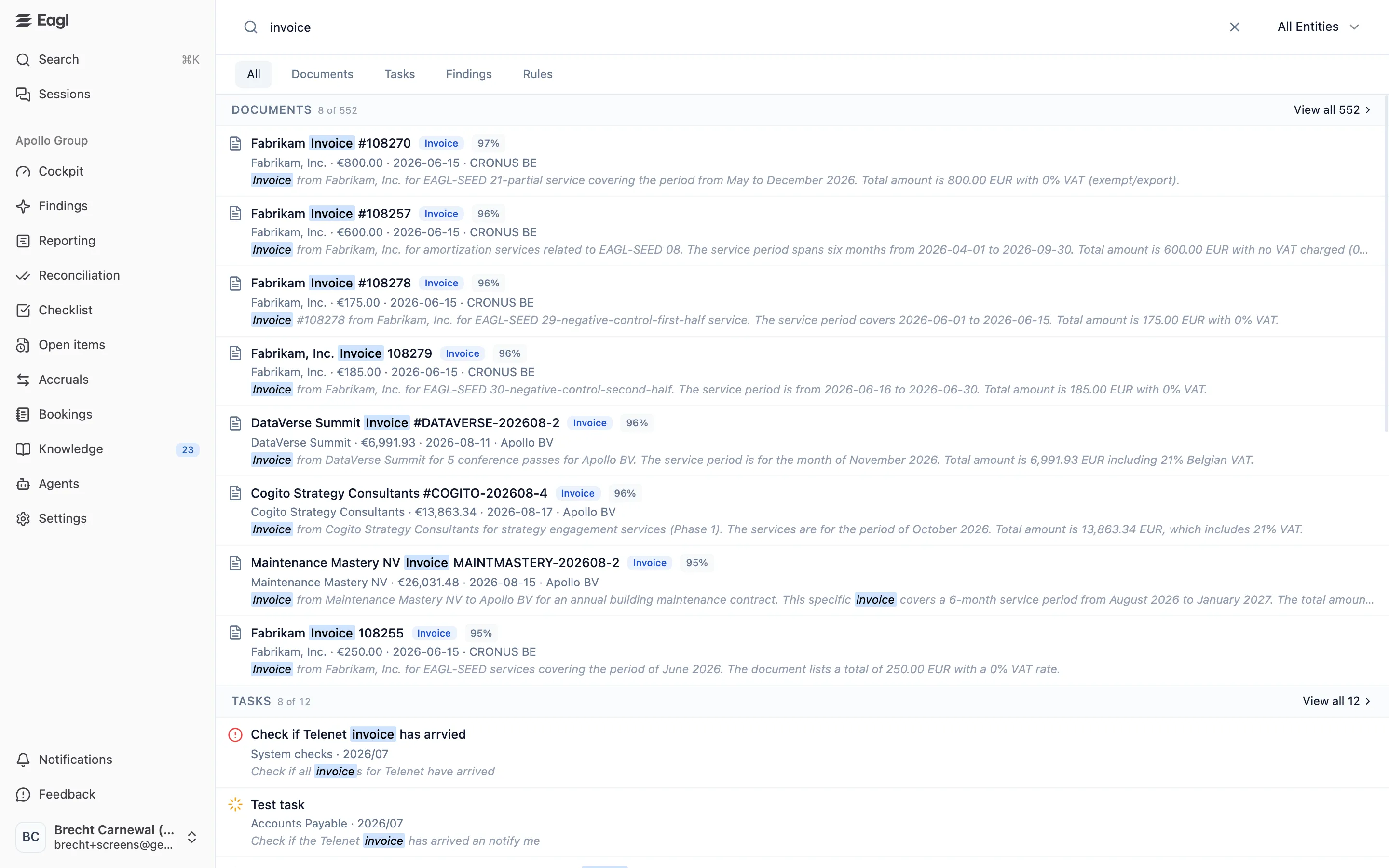
Global Search finds documents, close tasks, findings, and rules across your organization without you having to know where they live. It has two parts: a quick search palette you can open from any page, and a full search page with filters and a preview panel.
What you can search
Section titled “What you can search”Search covers four kinds of results, each on its own tab:
| Tab | What it finds | What each result shows |
|---|---|---|
| Documents | Invoices, credit notes, receipts, contracts, and other documents Eagl has synced and read. | Title, a document type badge (Invoice, Credit Note, …), a relevance score, the counterparty, amount, document date, entity, and a one-line summary. |
| Tasks | Close checklist tasks, across every checklist and period you can see. | Status icon, title, category, period, and description. |
| Findings | Findings raised on your ledger, in every status. | Title, topic, amount, entity, and description. |
| Rules | Knowledge rules, including inactive ones. | Title, an Inactive badge if it is switched off, domain, scope, and rule text. |
The All tab shows the best matches of every type at once. Matching words are highlighted in each result.
How matching works
Section titled “How matching works”- Documents are matched on meaning as well as on words, so a search can find a document that doesn’t contain the exact words you typed. Eagl also matches the file name, title, document number, counterparty, line items, and the reference of the booking the document is linked to. The percentage next to each document is its Search relevance.
- Tasks and findings match the words in their title and description.
- Rules match the words in their title and rule text.
Quick search with ⌘K
Section titled “Quick search with ⌘K”Press ⌘K (Mac) or Ctrl+K (Windows) on any page, or click Search at the top of the sidebar. The search palette opens over the page you’re on.
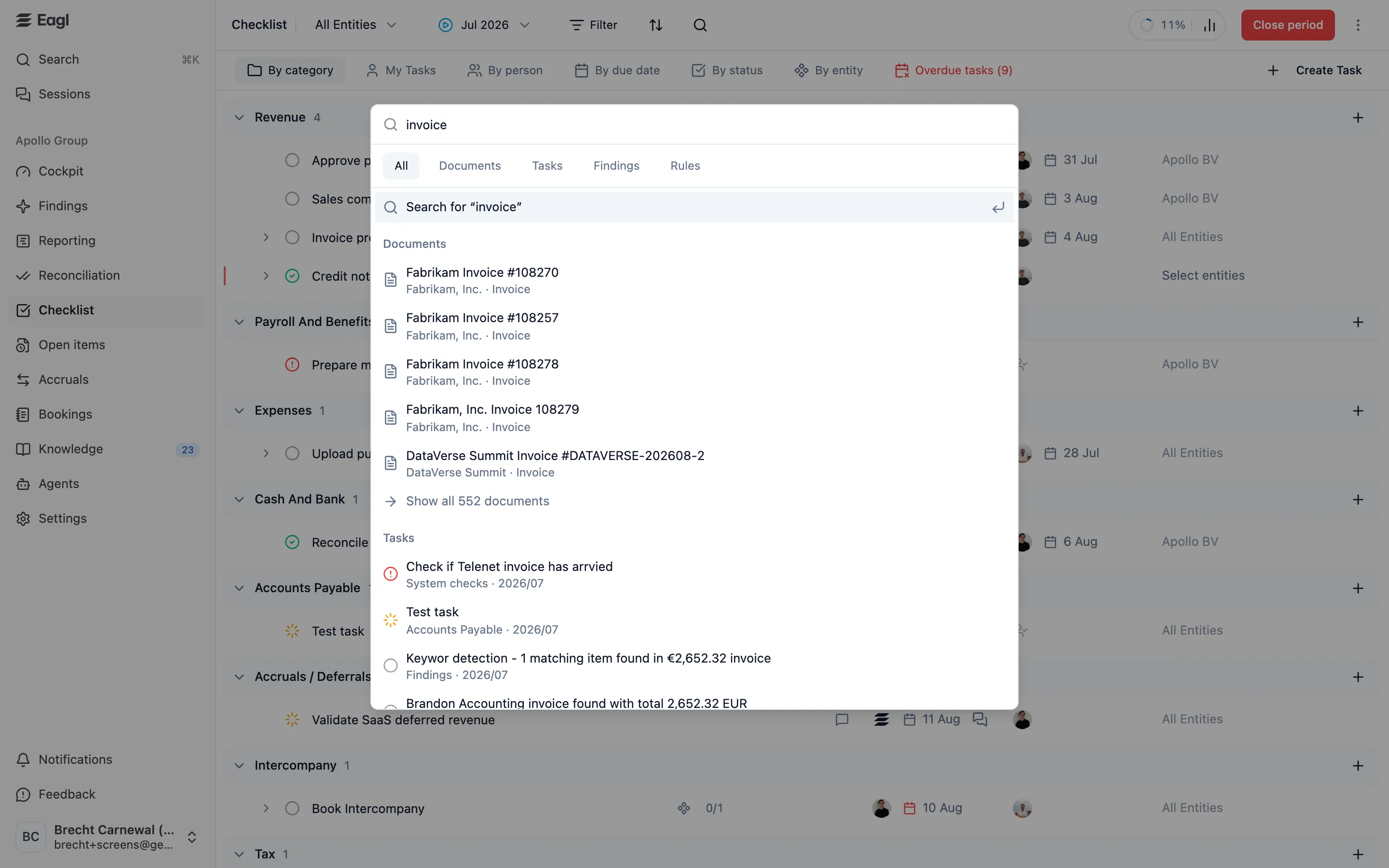
- Start typing. Results appear as you type, grouped under Documents, Tasks, Findings, and Rules. The All tab shows up to five of each.
- Switch tabs (All, Documents, Tasks, Findings, Rules) to see only one kind of result.
- Use the arrow keys and Enter, or click, to open a result:
- To see everything, press Enter on the first row, Search for ”…”, or pick Show all … documents (or tasks, findings, rules) under a group. Either one takes you to the full search page.
The palette always searches the whole organization, whichever page you opened it from. Press ⌘K again or Esc to close it.
The search page
Section titled “The search page”The palette takes you to the full search page when you want more than a quick look. The page adds an entity filter, per-tab filters, and a preview panel.
Layout
Section titled “Layout”- Search box at the top. Results update as you type. Click × to clear it.
- Entity picker (All Entities) on the right limits every tab to one or more entities.
- Tabs: All, Documents, Tasks, Findings, Rules. On the All tab, each section shows how many matches there are (for example 8 of 552). Click View all to jump to that tab, which loads more results as you scroll.
- Filter (on the Documents, Tasks, and Findings tabs) adds filters for that tab. Active filters appear as pills under the tabs.
Before you type anything, the page lists your Recent searches (the last eight) so you can run one again with a click. Clear History empties the list. Recent searches are stored in your browser, so they don’t follow you to another device.
Filters
Section titled “Filters”Each filter works as is or is not, so you can include or exclude values.
| Tab | Filters |
|---|---|
| Documents | Document Type, Counterparty, Expense Category, GL Account, Document Date (with presets such as This month, Last 3 months, Year to date), Amount (min/max) |
| Tasks | Status (Not Started, In Progress, Ready for Review, Completed, Blocked), Category, Period |
| Findings | Status (Open, Progressing, Resolved, Dismissed), Type (Accounting Issue, Business Insight) |
On the Documents, Tasks, and Findings tabs, filters work without a search term. For example, pick Document Type is Credit Note and a Counterparty to list all credit notes from one supplier.
Preview a result
Section titled “Preview a result”Click a result to open it in a preview panel on the right, next to the results list. Drag the divider to resize the two sides. Press Esc or click × to close the preview.
| Result | What the preview shows |
|---|---|
| Document | The extracted data (amounts, receiver, counterparty, dates and references, payment details, VAT breakdown, line items), the booking it is linked to (with view in ERP when available), and the document file itself. |
| Task | The task’s full details, with Go to task to open it in the Checklist. |
| Finding | The finding’s details, with Go to finding to open it in Findings. |
| Rule | Whether it is Active or Inactive, its scope, domain, rule text, and facets, with Go to rule to open it in Knowledge. |
The page URL keeps your search, tab, filters, and open preview. Copy it to share exactly what you’re looking at with a colleague.
- Describe the document you’re after in plain language, such as “annual maintenance contract”. This works as well as typing an invoice number.
- Paste an invoice number or ERP booking reference to find the matching document directly.
- Use the Tasks tab with a Period filter to find a task from an earlier close.