

Close Checklist
The Close Checklist is where your team runs the monthly close. Each month gets its own closing period with the same recurring tasks. Every task has a preparer, a reviewer, and a deadline tied to your close calendar. When the work is done, you close the period and Eagl opens the next one.
Key concepts
Section titled “Key concepts”| Concept | What it means |
|---|---|
| Checklist | A set of recurring close tasks with its own members, entities, categories, and close calendar. You can have more than one, for example for different groups of entities. |
| Closing period | One month of a checklist, such as Jul 2026. It holds that month’s copy of every task. After December comes a year-end adjustments period (Adj 2026), then January. |
| Recurring task | A task that comes back every period (Monthly) or only in the months you pick (Custom months). |
| One-off task | A task that exists only in the period where you created it. |
| Category | The group a task belongs to, such as Revenue, Cash and bank, or Tax. Categories are shared across your organization, and each checklist picks the ones it uses. |
Find your checklist
Section titled “Find your checklist”Click Checklist in the sidebar. If you have access to more than one checklist, each one is listed underneath it so you can switch. You see the checklists you are a member of, directly or through a team. Owners see every checklist.
If there is no checklist yet, owners and admins go straight to creating one. Other members see a message asking them to contact an admin or owner.
The checklist page
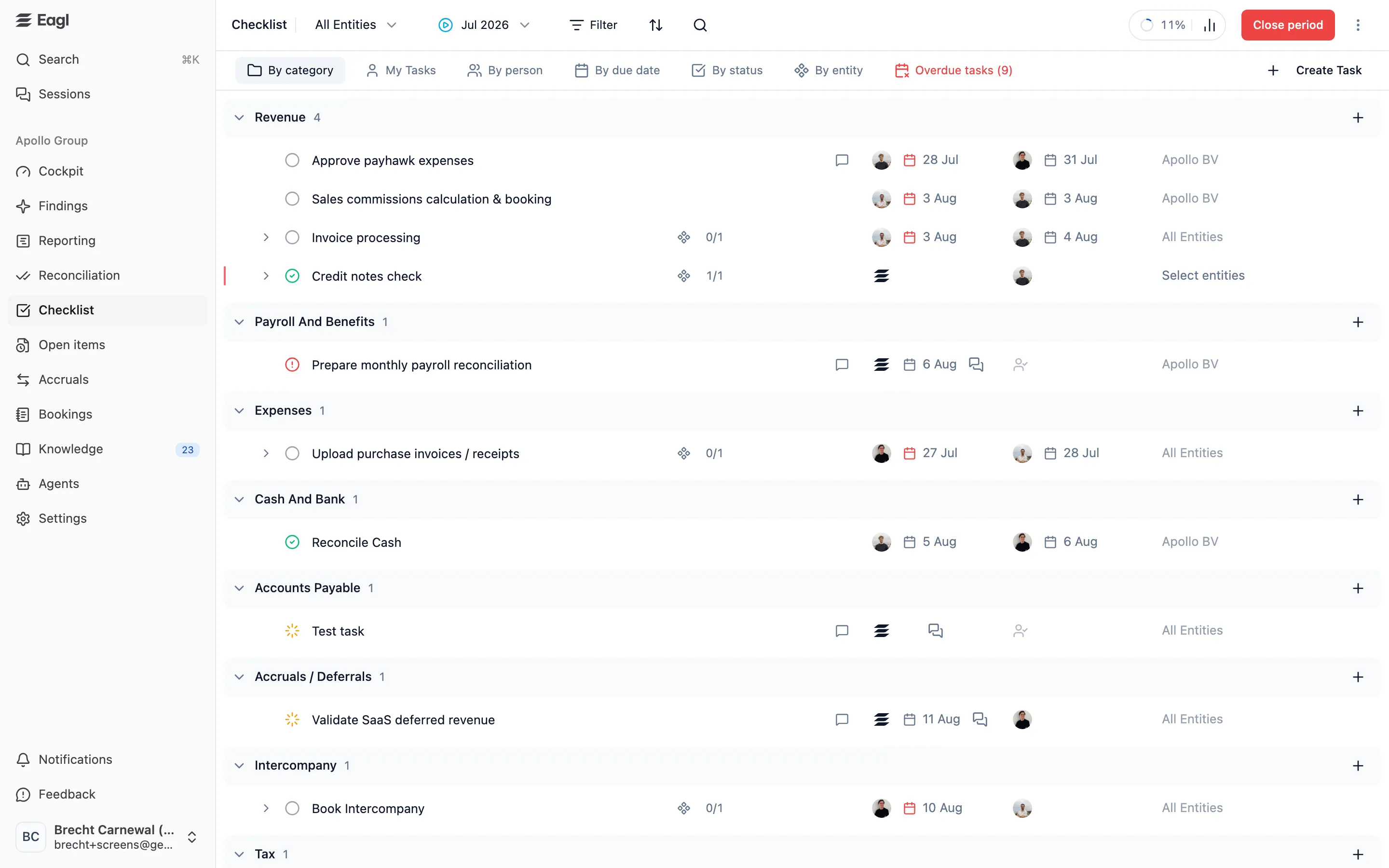
Section titled “The checklist page”The toolbar at the top controls what you see:
- Entity picker (All Entities): show only the tasks for specific entities.
- Period picker (for example Jul 2026): switch between closing periods, grouped by year. A lock icon marks closed periods. A play icon marks the current period, which is the earliest period that is still open. A clock icon marks later open periods. The page opens on the current period.
- Filter: filter by Status, Timeline (Overdue, Due today, On track), Category, Preparer, or Reviewer.
- Sort: Due date (default), Status, Preparer, or Alphabetically.
- Search (⌘F): find tasks by title, description, or assignee name.
- Progress (for example 11%): the share of tasks that are Completed. Tasks created from findings aren’t counted. Click it to open the progress dashboard.
- Close period and the ⋮ menu (owners and admins): see Close a period.
The tabs under the toolbar change how tasks are grouped:
| View | Shows |
|---|---|
| By category | All tasks grouped by category. This is the default view. |
| My Tasks | Only the tasks where you are a preparer or the reviewer. |
| By person | Tasks grouped by who has to act now: the reviewer while a task is Ready for Review, otherwise the first preparer. |
| By due date | Tasks grouped by close day, for example Day 3, with the date. |
| By status | Tasks grouped by status. |
| By entity | A grid with tasks as rows and entities as columns, showing each task’s status per entity. The Display button lets you group rows by category, status, person, or due date, and hide entities from your own view. |
| Overdue tasks | Tasks past their due date, with the count in the tab. The tab only appears when something is overdue. |
Each task row shows the status, the title, subtask progress (for example 0/1), a comment indicator, the preparer and reviewer with their due dates, and the entities the task covers. Overdue dates are shown in red. Click a row to open the task. You can also change the status, assignees, due dates, and entities directly in the row.
Progress dashboard
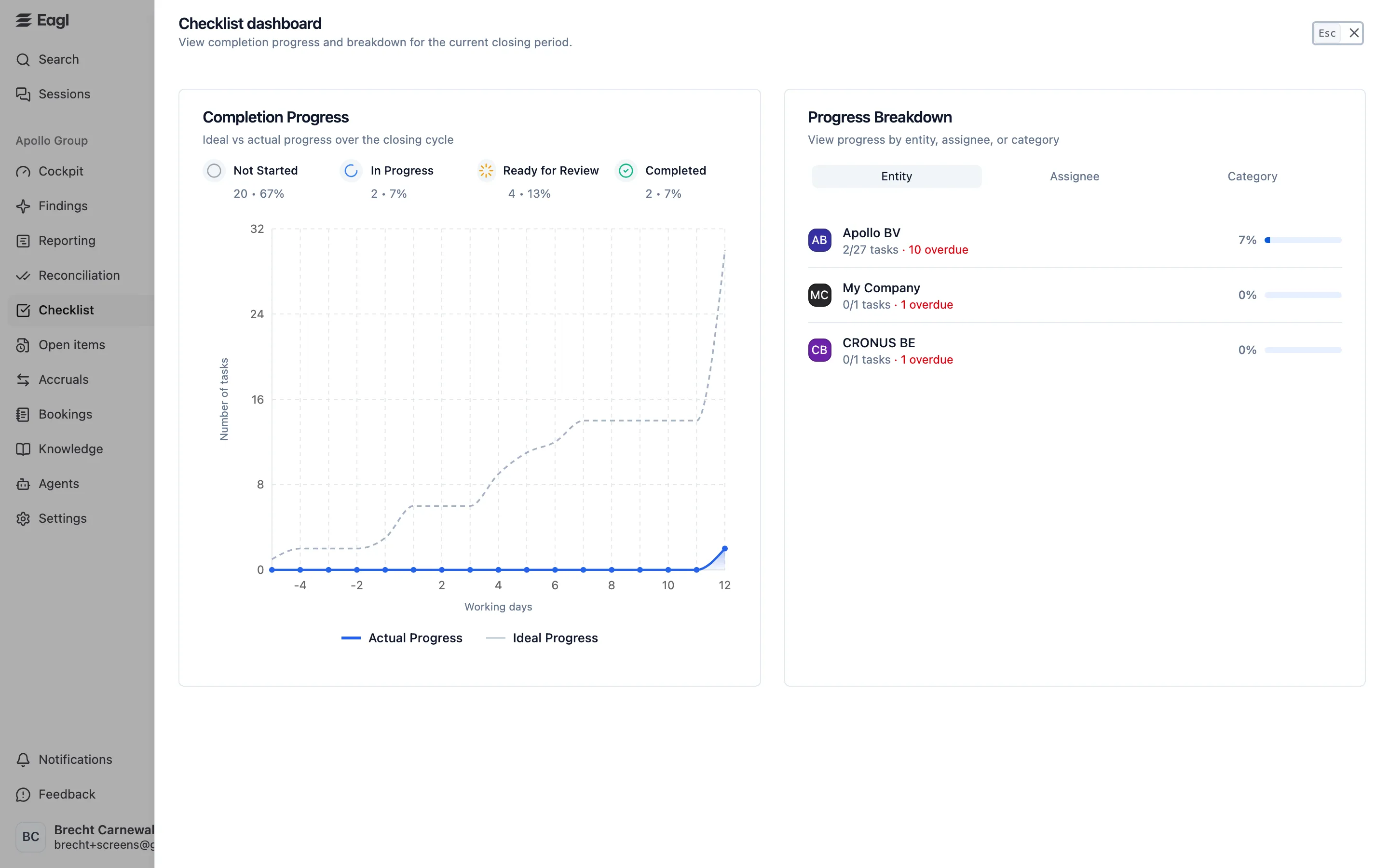
Section titled “Progress dashboard”Click the progress percentage to open the dashboard for the selected period:
- Completion Progress compares actual progress with an ideal pace across the close, with the number of tasks per status.
- Progress Breakdown shows completion and overdue tasks per Entity, Assignee, or Category.
The Cockpit also shows how many close tasks are left and how many are blocked.
Click a task to open it in a side panel, where you can see and change everything about it.
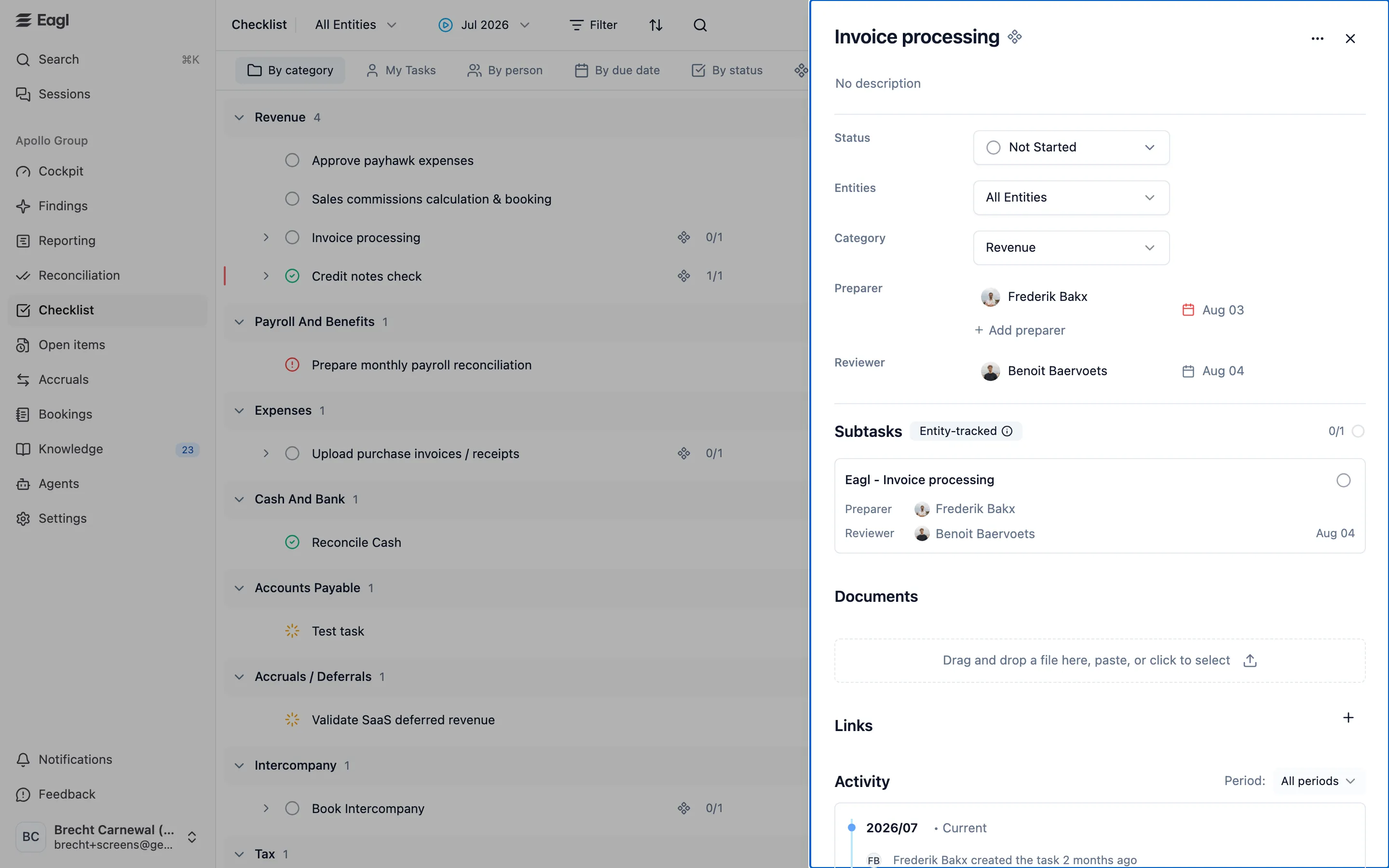
| Field | Description |
|---|---|
| Title and description | What needs to be done. Click either one to edit it. |
| Status | See Statuses and review. |
| Entities | All Entities, or the specific entities the task applies to. |
| Category | The group the task appears under. |
| Preparer | Up to two people who do the work, with a preparer due date. You can also assign Eagl Agent. |
| Reviewer | One person who checks and signs off the work, with a reviewer due date. That date can’t be before the preparer due date. |
| Subtasks | Smaller steps under the task, each with its own status, assignees, and due dates. |
| Documents | Supporting files up to 25 MB each. Drag and drop, paste, or click to upload. You can preview, rename, pin, and delete them. |
| Links | Links to related resources, such as a shared folder or an ERP report. |
| Activity | Every change to the task, plus comments. See Comments and activity. |
On a recurring task, pin a document or link to carry it over to the task in every future period, for example a working-paper template.
The ⋯ menu at the top of the panel offers Edit Recurring Settings, Stop recurrence, Make recurring, Track per entity, Duplicate task, and Delete task, depending on the type of task.
Due dates and the close calendar
Section titled “Due dates and the close calendar”Due dates are set as a day of the close, not as a fixed date. Day 1 is the first working day of your close window, which starts in the month after the period you are closing. Days before it, such as Day -2, are preparation days. Eagl counts only working days, skipping the weekends and holidays in your off-day calendar, and shows the date next to each day, for example Day 3 (Aug 5). You can also choose No due date.
Because due dates are relative, a recurring task lands on the same close day every month.
The date that counts depends on the status. Until the task is ready for review, the preparer due date applies. From Ready for Review onward, the reviewer due date applies. A task is overdue when that date has passed and the task isn’t completed. Blocked tasks are never counted as overdue.
Entities and per-entity tracking
Section titled “Entities and per-entity tracking”A task with two or more entities works in one of two ways:
- Shared task: one status and one set of assignees for all entities.
- Track per entity: each entity gets its own subtask with its own status. When you add or remove an entity, Eagl adds or removes the matching subtask. You can’t add other subtasks to an entity-tracked task by hand.
You choose this when you create the task. To switch an existing task to per-entity tracking, use Track per entity in its ⋯ menu.
Recurrence
Section titled “Recurrence”When you create a task, choose how it repeats:
- Monthly: the task appears in every period.
- Custom months: the task appears only in the months you switch on. For each month you can also set a different preparer, reviewer, and due dates.
- One-off: the task exists only in the current period.
Each new period copies a recurring task’s assignees and due dates from the previous period, unless a month setting overrides them. On a recurring task, Edit Recurring Settings opens Month settings, where you switch months on or off and override assignees and due dates per month. Use default schedule removes the overrides.
To end a recurring task, use Stop recurrence and pick the last period it should appear in. Past periods are kept. To turn a one-off task into a recurring one, use Make recurring. It recurs from the next period on, and the current period stays as it is.
When you delete a recurring task, you choose:
- Delete recurring task: remove it from all months to come.
- Skip this month: remove it from this period only. It comes back next month.
- Stop recurring after a period: keep past months and stop after a period you pick.
Subtasks
Section titled “Subtasks”Add a subtask with + in the Subtasks section of a task. Subtasks can’t have subtasks of their own. A subtask of a recurring task recurs with its parent, and a subtask of a one-off task is also one-off.
While a parent task is Not Started or In Progress, it follows its subtasks. As soon as a subtask moves, the parent goes to In Progress. Once every subtask is Ready for Review or Completed, the parent moves to Ready for Review.
A parent can only be completed when all its subtasks are completed. If some are still open, Eagl asks whether to complete them all at once. Marking a parent Ready for Review works the same way.
Create tasks
Section titled “Create tasks”- Click Create Task in the top-right corner. To prefill the category or preparer, click + on a group header instead.
- Enter a title and, optionally, a description.
- Choose the Entities and a Category. With two or more entities, choose Shared task or Track per entity.
- Set the Preparer and Reviewer, each with a due date.
- Choose Monthly, Custom months, or One-off. With Custom months, you set the active months, assignees, and due dates in the table that appears.
- Click Create task, or press ⌘↵ (Ctrl↵ on Windows). Switch on Create more to keep the form open for the next task.
To create a reconciliation task instead, open the ⋯ menu in the form and choose Make reconciliation. See Reconciliation tasks.
Statuses and review
Section titled “Statuses and review”| Status | Meaning |
|---|---|
| Not Started | No work has been done yet. |
| In Progress | The preparer is working on it. |
| Ready for Review | The preparer is done. The reviewer now needs to check it. |
| Completed | The work is signed off. |
| Blocked | The task can’t move forward, for example because information is missing. |
The usual flow is Not Started → In Progress → Ready for Review → Completed. Change the status in the task panel or directly in the task row. To send work back, the reviewer simply sets an earlier status.
Who can change a status depends on the checklist’s Task permissions setting:
- Open (any member): every member can change the status of any task they can see. This is the default.
- Restrictive (preparer or reviewer): only the task’s preparers and reviewer can change its status. Preparers can move a task up to Ready for Review. Only the reviewer can mark it Completed, unless the task has no reviewer.
Owners and admins can always change any status.
Automation
Section titled “Automation”Eagl Agent as preparer or reviewer
Section titled “Eagl Agent as preparer or reviewer”You can assign Eagl Agent as a preparer or reviewer, just like a team member. It works from the task description, on the task’s entities, so write clear completion criteria in the description and give the task at least one entity.
- When it runs: every morning, Eagl Agent picks up the tasks it holds whose due date for its role has arrived. It doesn’t run tasks without a due date on its own. To run it right away, click the play button next to its due date.
- As preparer, it moves the task to Ready for Review when the work checks out.
- As reviewer, it marks the task Completed.
- If it can’t finish, it sets the task to Blocked and leaves a comment that mentions the people involved, explaining what is missing.
It only moves a task forward after checking your ledger or bank data itself. Reading a document alone isn’t enough. It never reopens a completed task. Click the chat icon next to its due date to follow its work in Sessions.
Reconciliation tasks
Section titled “Reconciliation tasks”A reconciliation task tracks one GL account for one entity, and Eagl Agent is its preparer. The task panel shows a Checks section with the account’s reconciliation status:
- The check passes: the balance is within tolerance and all relevant items are matched.
- Fails: the balance is outside tolerance, or relevant items remain unmatched.
- Needs data: no reconciliation balance is available yet.
Expand a check to see the GL balance, reconciliation balance, variance, open items, and last reconciled date, and Open reconciliation to go to the account.
When the account’s variance is within 0.01, Eagl moves the task forward based on the Reconciliation auto-flip setting: Move to Ready for Review (default), Auto-complete, or Off (stays manual). This only applies to tasks that are still Not Started or In Progress. If the variance moves back outside the tolerance, Eagl undoes its own status change and adds a comment. Whenever a reconciliation task is completed, Eagl adds a comment with the variance at that moment.
Reconciliation tasks live in the Reconciliation category. Create one with + on that category, or with Add reconciliation task on an account in Reconciliation.
Tasks from findings
Section titled “Tasks from findings”To handle a finding as part of the close, create a task from it on the Findings page (Task, or press T). In Create Task from Finding, choose the task name, the period, the preparer and reviewer, and add an optional comment with @mentions. The task is a one-off in the Findings category and links back with View finding.
The task and the finding stay in sync:
- Completing the task resolves the finding.
- Resolving or dismissing the finding moves the task to Ready for Review, or to Completed if it has no reviewer. Reopening the finding resets the task to Not Started.
- When you close the period, open finding tasks move to the next period instead of being completed.
- When you delete the task, you choose to Reopen finding or Dismiss finding.
Comments and activity
Section titled “Comments and activity”The Activity section records every change to a task: who created it and changed its status, assignees, due dates, entities, description, documents, or recurrence, and when. Use it to discuss the task:
- Type @ to mention a teammate.
- Reply to a comment to keep a thread together.
- Edit or delete your own comments. Owners and admins can edit and delete any comment.
On a recurring task, use Period to see one month, or All periods to see the task’s history across months.
Notifications
Section titled “Notifications”Eagl keeps the people on a task informed:
- Preparers and the reviewer are notified when the task moves to Ready for Review, Completed, or Blocked.
- Mentioned people, the preparers, and the reviewer are notified of new comments. Replies also notify everyone in the thread.
- People are notified when they’re assigned to a newly created task.
- On weekdays, a daily digest email lists your overdue tasks and those due today and tomorrow. Owners and admins can turn it off with Daily digest channel under Settings → General.
- On the last working day of the close window, owners get a reminder email with the number of tasks still open.
Notifications arrive in Eagl and, depending on your preferences, by email, Slack, or Microsoft Teams. See Notifications.
Bulk actions
Section titled “Bulk actions”Select tasks with the checkbox that appears when you hover over a row. Shift-click to select a range, and press Esc to clear the selection. The bar that appears lets you:
- Change the Status, Preparer, or Reviewer of all selected tasks.
- Under More: set the Preparer due date or Reviewer due date, change Entities or Category, Convert to parent task, Convert to sub task, Move to another parent task, or Track per entity.
- Duplicate the tasks, including their subtasks.
- Delete the tasks (owners and admins).
Close a period
Section titled “Close a period”Closing a period locks it and moves the team to the next month. Only owners and admins can close periods.
- Open the period and click Close period. The button turns red when the period is older than last month.
- Review the number of tasks per status and which period becomes the open working period.
- If not all tasks are completed, check I understand and want to proceed with closing this period.
- Click Close period.
When you close a period, Eagl:
- Completes all remaining tasks, whatever their status, so the period has no open work. Their preparers and reviewers are notified.
- Moves open tasks linked to findings to the next period, with their status unchanged.
- Opens the next period, creating it from your recurring tasks if it doesn’t exist yet.
- Locks the closed period. Tasks, comments, and documents can no longer be changed.
If the following periods are already locked in your ERP, Eagl closes them in the same step so the checklist catches up. The close dialog tells you when this will happen.
Other period actions
Section titled “Other period actions”The ⋮ menu next to Close period offers:
- All tasks: open this checklist’s settings.
- Checklist settings: open the settings shared by all checklists.
- Delete this closing: permanently delete an open period and its tasks. This only works if no work has been done yet: no tasks started or completed, no other changes or comments on tasks, no linked findings, and no uploaded documents.
- Reopen this closing (on a closed period): unlock the period so tasks can be changed again. You must give a reason, which is saved in an audit record. Reopening doesn’t change any task statuses.
The toolbar also shows:
- Closed in your ERP (for example Closed in NetSuite) when the period is locked in the ERP for every entity the checklist covers.
- A reminder such as Jun 2026 unclosed or 3 unclosed months, for owners and admins, when earlier periods are still open. Click it to jump to the oldest open period.
Owners and admins can also create the next period ahead of time, with the option at the bottom of the period picker (for example Create August 2026).
Automatic closing
Section titled “Automatic closing”With Auto-close set to Close 2 weeks after all ERPs lock (the default), Eagl closes the oldest open period for you once it is locked in your ERP for every entity:
- When Eagl first sees the lock, it emails the checklist’s owners and admins.
- After 7 days, it sends a reminder.
- After another 7 days, it closes the period, exactly like a manual close, and sends a confirmation email.
If the period is unlocked in the ERP in the meantime, or someone closes it by hand, the automatic close is cancelled. Choose No auto-close to turn this off.
Set up checklists
Section titled “Set up checklists”Checklist setup lives under Settings → Checklist, which only owners and admins can open. Under Checklist in the settings menu you see each checklist you can manage, plus Create checklist.
Create a checklist
Section titled “Create a checklist”- Go to Settings → Checklist and click Create checklist.
- Choose a starting point:
- Blank: default settings and no tasks.
- Eagl template: Eagl’s curated monthly close checklist of 50 tasks across the default categories.
- Copy existing: the setup and current tasks of a checklist you have access to.
- Enter a Name and choose who gets Access: teams, individual members, or both.
- Choose the Entities and Categories the checklist covers. Deselecting a category leaves out its template or copied tasks.
- Review the Closing schedule, Off-day calendar, Task behavior, Reconciliation, and Auto-close settings, explained below.
- Click Create. Eagl creates the checklist with a closing period for the current month.
Checklist settings
Section titled “Checklist settings”Open a checklist under Settings → Checklist to change its setup:
| Section | Settings |
|---|---|
| General | Name, Access (teams and individual members), Entities (All current and future entities also includes entities added later), and Categories. |
| Task behavior | Task permissions: Open (any member) or Restrictive (preparer or reviewer). |
| Reconciliation | Reconciliation auto-flip, and Reviewer required to make a reviewer mandatory on new reconciliation tasks. |
| Schedule | Closing window & off-days, and Auto-close. |
| Tasks | Recurring tasks: every recurring task with its preparer, reviewer, mode, and active months. |
| Advanced | Starter template and Import & transfer, when available. |
| Archive | Archive checklist: hide the checklist, its periods, and its tasks for everyone, and stop its reminders. Nothing is deleted. |
Closing window & off-days defines your close calendar:
- Start day: the day of the month when the close begins (1–20), in the month after the period you’re closing.
- Duration: the number of working days in the close (1–28). The window must end by day 28.
- Preparation days: working days before the close starts that you can use for due dates (0–10).
- Off days: exclude weekends and the public holidays of the countries you select, and add your own days off on the calendar.
The Cockpit uses the same closing window for its target close day.
In Recurring tasks, click a task to edit it for all future periods. When you save a change, Eagl asks whether to apply it to open periods too (Apply to all) or only to future ones (Definition only). You can also stop a task from recurring, or resume it.
Starter template only appears for a checklist with no recurring tasks yet. It adds Eagl’s curated monthly close tasks in one click.
Import & transfer has three tabs:
- AI Checklist Import: upload your existing close checklist as an Excel or CSV file (.xlsx, .xls, .csv), add instructions, and pick a target period. Eagl extracts the tasks, and you review categories, assignees, due dates, and entities before saving them as recurring tasks.
- Export Checklist and Import Exported Checklist: copy categories, recurring tasks, closing settings, and off-day rules from one checklist to another.
Shared checklist settings
Section titled “Shared checklist settings”Settings → Checklist itself holds the settings shared by all checklists:
- Categories: create, rename, reorder (drag and drop), and delete categories. Changes apply to every checklist that uses them. Load defaults adds the default categories. Findings and Reconciliation are system categories that you can’t change. To delete a category that has tasks, you first choose where its tasks go.
- Archived checklists: only owners see this list, and can restore an archived checklist from it.
Who can do what
Section titled “Who can do what”| Action | Owner | Admin | Member |
|---|---|---|---|
| Work on tasks: create, edit, duplicate, comment, upload documents | ✓ | ✓ | ✓ |
| Change a task’s reviewer | ✓ | ✓ | Only the current reviewer |
| Delete tasks | ✓ | ✓ | |
| Close, reopen, create, and delete periods | ✓ | ✓ | |
| Create checklists and change their settings | ✓ | ✓ | |
| Open every checklist without being a member, and restore archived checklists | ✓ |
Owners can open every checklist. Everyone else, admins included, only sees the checklists they are a member of, and admins manage only those. People with the Audit role can’t open the checklist.