

Sessions
A session is a conversation with Eagl about your financial data. You ask a question in plain language, like “give me an overview of accounts payable and an ageing schedule”, and Eagl works through your ledger, bank data, documents, and reports to answer it. Answers come back with tables, charts, links to the underlying bookings, and downloadable files. When the work is something you need every month, you can turn the session into a recurring checklist task that Eagl Agent carries out each period.
Open Sessions at the top of the sidebar, just below Search.
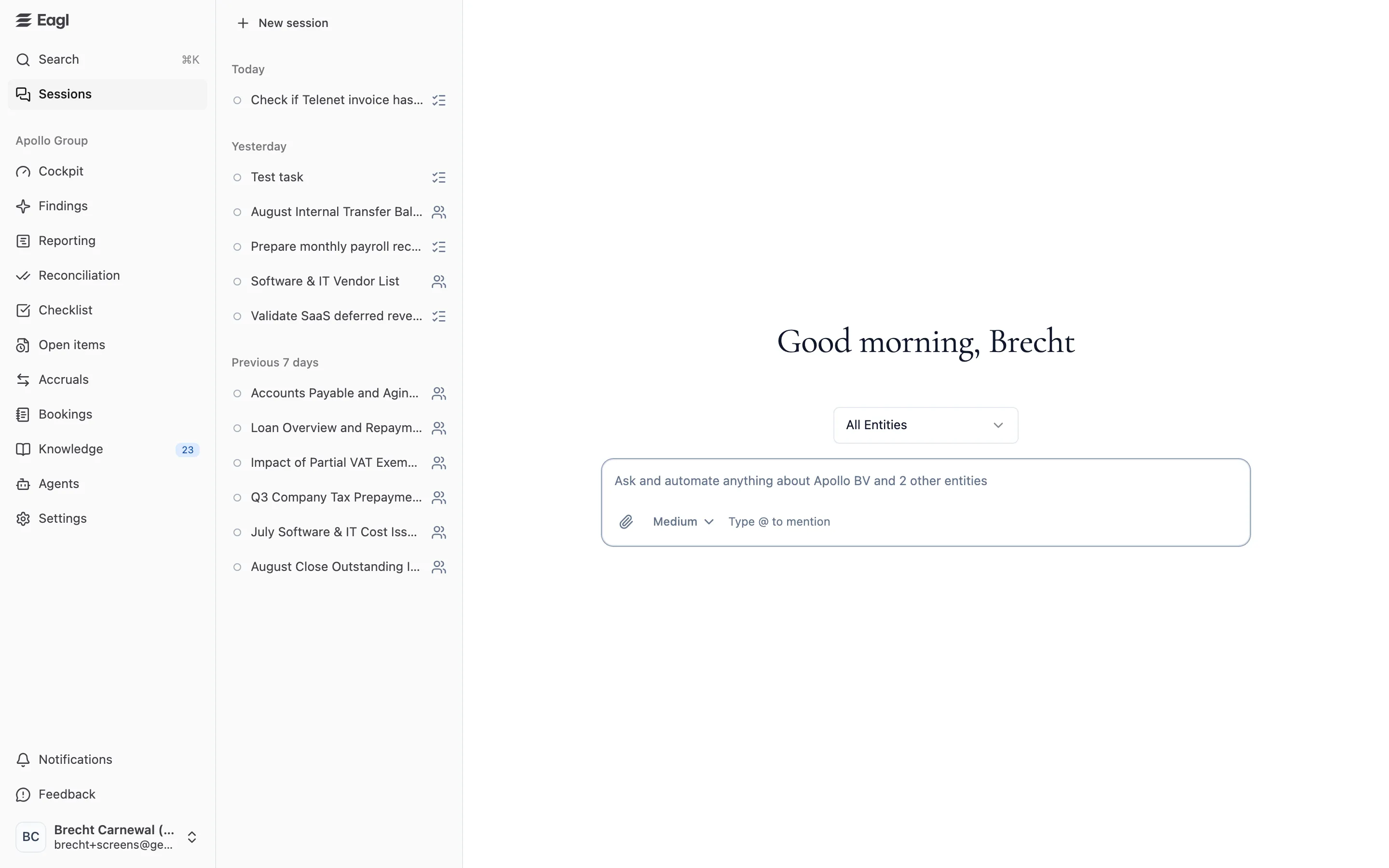
Start a session
Section titled “Start a session”- Click Sessions in the sidebar, or New session at the top of the session list.
- Pick the entities Eagl should work on with the entity picker above the message box. It starts with all the entities you have access to (All Entities). Choose fewer to keep the answer focused.
- Type your question. The placeholder tells you which entities you’re asking about, for example Ask and automate anything about Apollo BV and 2 other entities.
- Optionally mention specific items with @, attach files, or change the reasoning level (see Write a good message).
- Press ⌘/Ctrl + Enter or click the send arrow.
Eagl gives the session a title and starts working. You don’t need to stay on the page: the work carries on, and the session list shows when the answer is ready.
Write a good message
Section titled “Write a good message”The message box has three extras at the bottom:
| Control | What it does |
|---|---|
| Attach (paperclip) | Add PDF, image, CSV, Excel, text, or Markdown files, up to 25 MB each. You can also paste or drag files into the box. Eagl reads them as part of your question. |
| Reasoning (Low, Medium, High) | How long Eagl thinks before answering. Low is fastest, for lookups and short questions. Medium (the default) is for analyses over several steps. High is the most thorough and slowest, for reconciliations and investigations. Eagl remembers your last choice. |
| Type @ to mention | Point Eagl at an exact item. Type @ and a few characters to search Counterparties, Cost centers, GL accounts, Documents, Transactions, and, if your organization has connected a drive, Drive folders and Drive files. Ledger items and documents come from the session’s entities. |
Press ⌘/Ctrl + Enter to send. While Eagl is working, a stop button appears next to the message box. Click it to stop the current answer.
What Eagl can look at
Section titled “What Eagl can look at”Eagl answers from the data your organization has connected, for the session’s entities:
- General ledger: transaction lines, GL account balances at any point in time, individual bookings, and summaries of a GL account.
- Bank: bank transactions and daily balances of the bank accounts mapped to your GL.
- Documents: it searches and reads the documents Eagl has synced, and links to them.
- Reports: your reporting structures and their figures.
- Drives: files and folders in connected drives such as Google Drive, SharePoint, OneDrive, or the NetSuite file cabinet.
- Your attachments: the files you add to the conversation.
In a regular session Eagl only reads data. It doesn’t post bookings or change anything in Eagl or your ERP. The one exception is a checklist task session, where Eagl Agent can update the status of that task and attach documents to it.
Reading the answer
Section titled “Reading the answer”While Eagl works, you see what it’s doing:
- A Plan with the steps it intends to take, ticked off as it goes.
- One line per step, such as Queried transactions, Looked up GL balances, Searched documents, or Loaded a report. Click a step to see what Eagl asked for and what came back.
The answer itself can contain:
- Tables and charts. Click Show table under a chart to see its numbers.
- Links to bookings that open the transaction in your ERP.
- Exported files. When you need a full list (for example every AP line for a supplier analysis), Eagl saves it as a CSV file that you can download from the conversation.
Ask follow-up questions in the box at the bottom (Ask a follow-up…). In long conversations, Eagl summarizes earlier messages to keep working. A divider, Earlier messages summarized, marks the spot. Click Show summary to read what it kept.
The session list
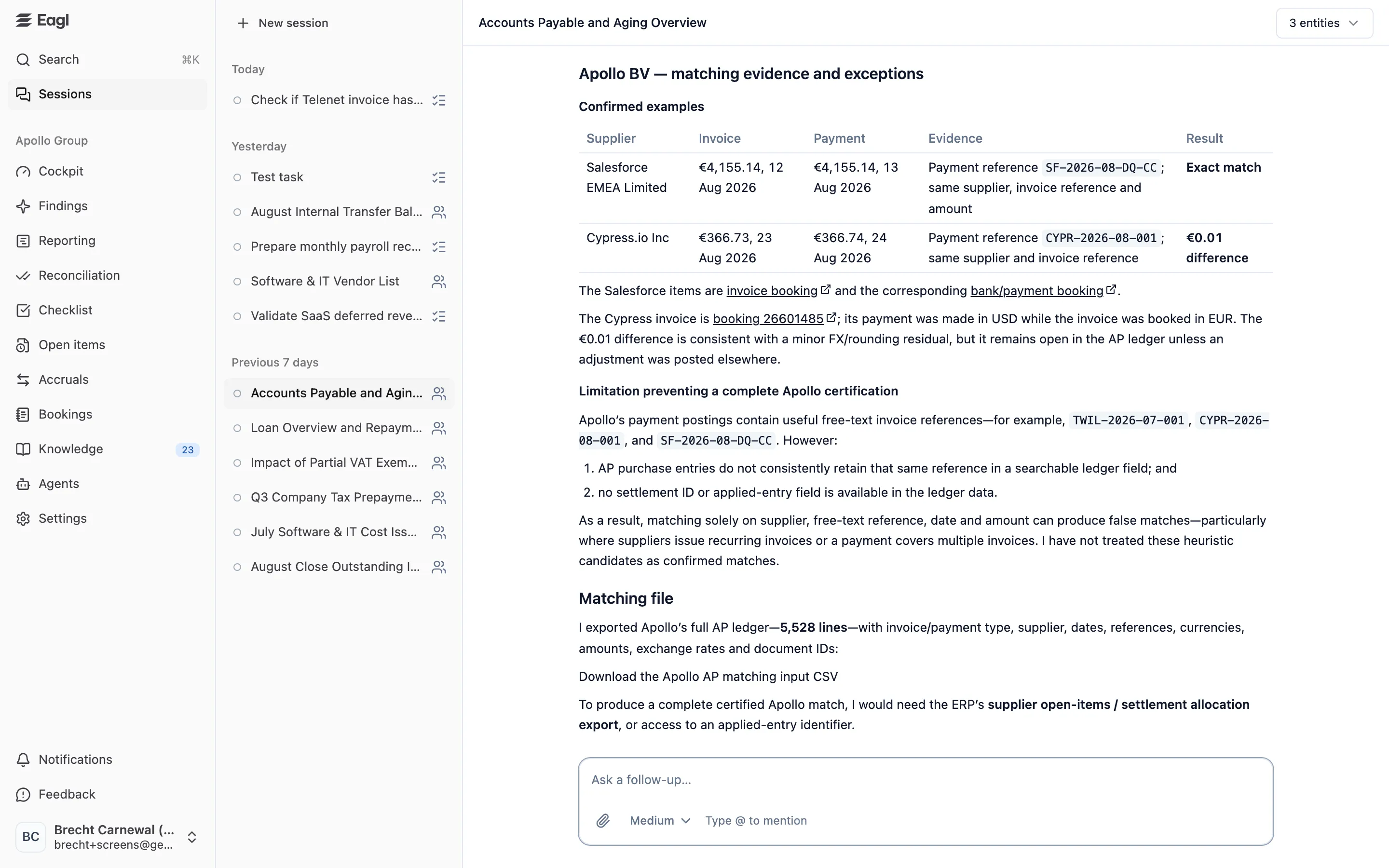
Section titled “The session list”The left column lists the sessions you can see, most recent first, grouped as Today, Yesterday, Previous 7 days, and Older. Click Show more at the bottom to load older ones.
The marker in front of each session tells you its state:
| Marker | Meaning |
|---|---|
| Spinner | Eagl is still working. |
| Filled dot | There’s a new answer you haven’t read. A red dot means the last answer failed. |
| Empty ring | You’ve read everything. |
An icon after the title shows where the session came from: a checklist icon for a checklist task session, and a people icon for a session a colleague started.
Sharing and permissions
Section titled “Sharing and permissions”Sessions are shared with your team. Anyone in your organization who has access to all of a session’s entities can open it, read it, and ask follow-up questions. When more than one person takes part, each message shows who wrote it. A checklist task session is only visible to people who can also see that task.
Only the person who started a session can rename or delete it, from the ⋯ menu at the top right:
- Rename: give the session a clearer title.
- Delete: removes the session and its files for everyone who can see it.
Owners, admins, and members can use Sessions. Users with the Audit role can’t.
Turn a session into a recurring task
Section titled “Turn a session into a recurring task”When a session does something you need every close, such as reconciling payroll or checking that a supplier’s invoice arrived, you can hand it to Eagl Agent as a recurring checklist task.
- Open the session and click Make recurring task at the top. The button is there for the person who started the session, if they can add checklist tasks. It becomes available once Eagl has answered and isn’t working anymore.
- Eagl summarizes what the session set out to do and how, and proposes a task in the Turn session into a recurring task dialog.
- Check the proposal:
- Checklist and Category (marked suggested by Eagl when Eagl picked it).
- Title.
- Instructions: the task description Eagl Agent follows each period, on the session’s entities that the checklist covers.
- Eagl Agent: whether it Prepares the task, Reviews the task, or is Not assigned.
- The day Eagl Agent works on it, or No due date. Without a due date, Eagl Agent only works on the task when someone runs it.
- Click Create task. The dialog shows the period the task starts in. It repeats every period after that.
The task takes over the session: Eagl Agent’s runs continue in the same conversation, so the history of every period stays in one place.
Checklist task sessions
Section titled “Checklist task sessions”When Eagl Agent works on a checklist task, either on its due date or because someone ran it from the task, it does the work in a session linked to that task:
- The header shows a Checklist task button that opens the task.
- Each run starts with a card like Eagl Agent · started by … or started because its due date arrived, with the task title, the period, and a Brief you can expand to see the instructions it worked from.
- At the end of a run, Eagl Agent records the outcome on the task, for example marking it ready for review or blocked with a comment explaining what’s missing.
You can ask follow-up questions in a task session like in any other session. On the task in the checklist, the Eagl Agent button (Open Eagl Agent’s session) brings you back here.