

Entities
An entity is one company, with its own books, in your ERP: a legal entity, subsidiary, or administration. Almost everything in Eagl is scoped to entities. Reports, reconciliations, findings, and checklist tasks all belong to one, and each person sees only the entities they have access to.
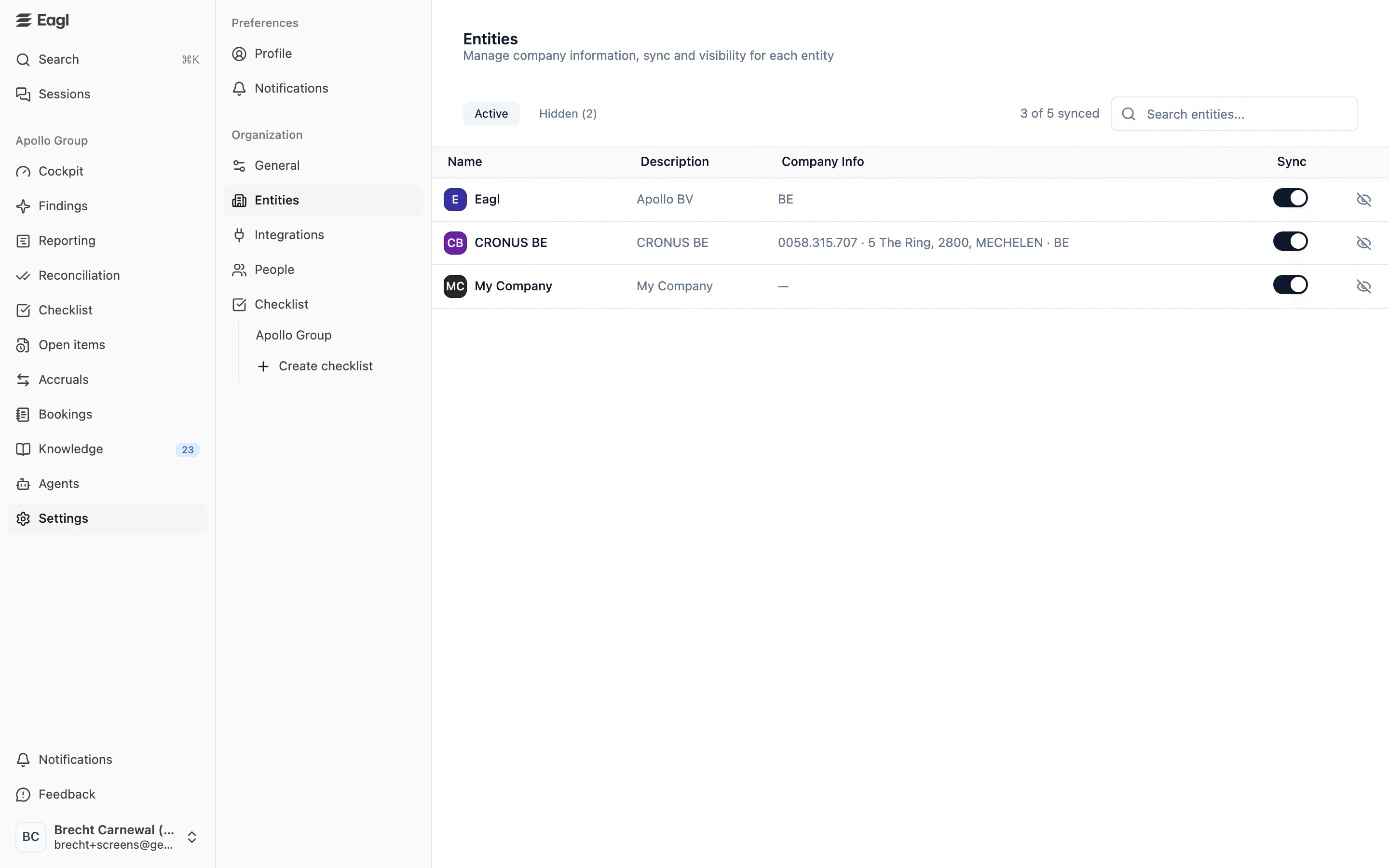
Settings → Entities lists your organization’s entities and lets owners and admins edit their company info, pause their sync, and hide the ones you don’t need.
Where entities come from
Section titled “Where entities come from”You don’t create entities by hand. Eagl discovers them from your ERP when it syncs:
| ERP | Each entity is a |
|---|---|
| NetSuite | Subsidiary |
| Exact Online | Company (administration) the connected account can access |
| Business Central | Company |
New companies in your ERP show up automatically after the next sync, with sync turned on. Eagl takes each entity’s name, description, and base currency from the ERP and keeps them up to date, so you rename an entity in your ERP, not in Eagl. If you connect more than one ERP, each connection brings its own entities.
To see which entities a particular connection brings in, click the building icon next to it under Settings → Integrations. See Managing integrations.
If the page says No entities found, no ERP has synced yet. Connect one under Settings → Integrations first.
The entities list
Section titled “The entities list”| Column | What it shows |
|---|---|
| Name | The entity’s name in your ERP. |
| Description | The entity’s description in your ERP. This is the label you see for the entity everywhere else in Eagl, for example in entity pickers. |
| Company Info | VAT number, address, and country code, separated by dots, or — if none is set. |
| Sync | Whether Eagl syncs this entity’s data. |
| (eye icon) | Hide entity or Unhide entity. |
Above the list:
- Active and Hidden (N) tabs appear once you’ve hidden at least one entity.
- N of M synced counts the entities with Sync on.
- Search entities… filters by name, description, VAT number, address, or country.
Edit company info
Section titled “Edit company info”Eagl fills in an entity’s VAT number, address, and country from your ERP when the ERP provides them. To correct or complete them:
- Hover over the entity’s Company Info and click the pencil.
- Fill in VAT, Address, and the two-letter country code (CC, for example
BE). - Click the check mark to save, or the cross to cancel.
Once you’ve edited an entity’s company info, later syncs no longer overwrite it with the ERP’s values.
Eagl’s VAT checks use the entity’s country (or, if it’s missing, the country prefix of its VAT number) to tell domestic transactions from cross-border ones, so it’s worth getting it right.
Turn sync off for an entity
Section titled “Turn sync off for an entity”Turn off the Sync switch to stop syncing an entity’s data from the ERP. Eagl still lists the entity and keeps the data it already synced, but skips it on every following sync. Turn the switch back on to resume.
This is useful for companies whose history you still want to see in Eagl but that no longer need fresh data, such as dormant companies. To stop a whole integration from syncing on its schedule instead, use its Sync enabled switch under Settings → Integrations.
Hide an entity
Section titled “Hide an entity”Hiding removes an entity from Eagl without deleting anything. Use it for entities you don’t work on in Eagl, such as dormant or rolled-up companies.
- Click the eye icon on the entity’s row (Hide entity).
- Confirm with Hide entity.
A hidden entity:
- no longer shows up in entity pickers, All Entities views, or anywhere else in the app;
- stops syncing (its Sync switch turns off and can’t be turned on while it’s hidden);
- has its checklist subtasks removed from open periods;
- gets no new checklist tasks, findings, or accruals.
To bring it back, open the Hidden tab and click the eye icon (Unhide entity). Everything is restored, including people’s access to it. Sync stays off, so turn Sync back on if you want Eagl to resume syncing it.
Entities across Eagl
Section titled “Entities across Eagl”- Access: each member either has access to all entities (including ones added later) or to a chosen list. Owners always see all entities. See Set entity access.
- Entity pickers: most pages have an entity picker with All Entities at the top, so you can look at one entity, several, or all of them together. For combining entities into one report, see Entities and consolidation.
- Checklists: each checklist covers a set of entities. See Close Checklist.